

Quote from your price list
- Who
- Owners, Your customers
- Where
- Quotes → New quote.
A quote is priced from the materials in your catalog, plus labor and anything else, and sent as a link your customer opens on any phone.
Why it’s there
Section titled “Why it’s there”Typing prices from memory is slow and easy to get wrong. Your catalog already knows what each material costs you, so the quote starts from real costs, and you see what you’ll make before the customer sees the price.
Who sees it
Section titled “Who sees it”- Owners make, change and send quotes, and see the cost and margin panel.
- People whose role lets them set prices (Estimator) make and send quotes too. They see what each material costs, but not the margin panel.
- People who see prices (Accountant) see quotes and their margin, but can’t change them.
- Field workers and the Office role don’t see quotes.
How to use it
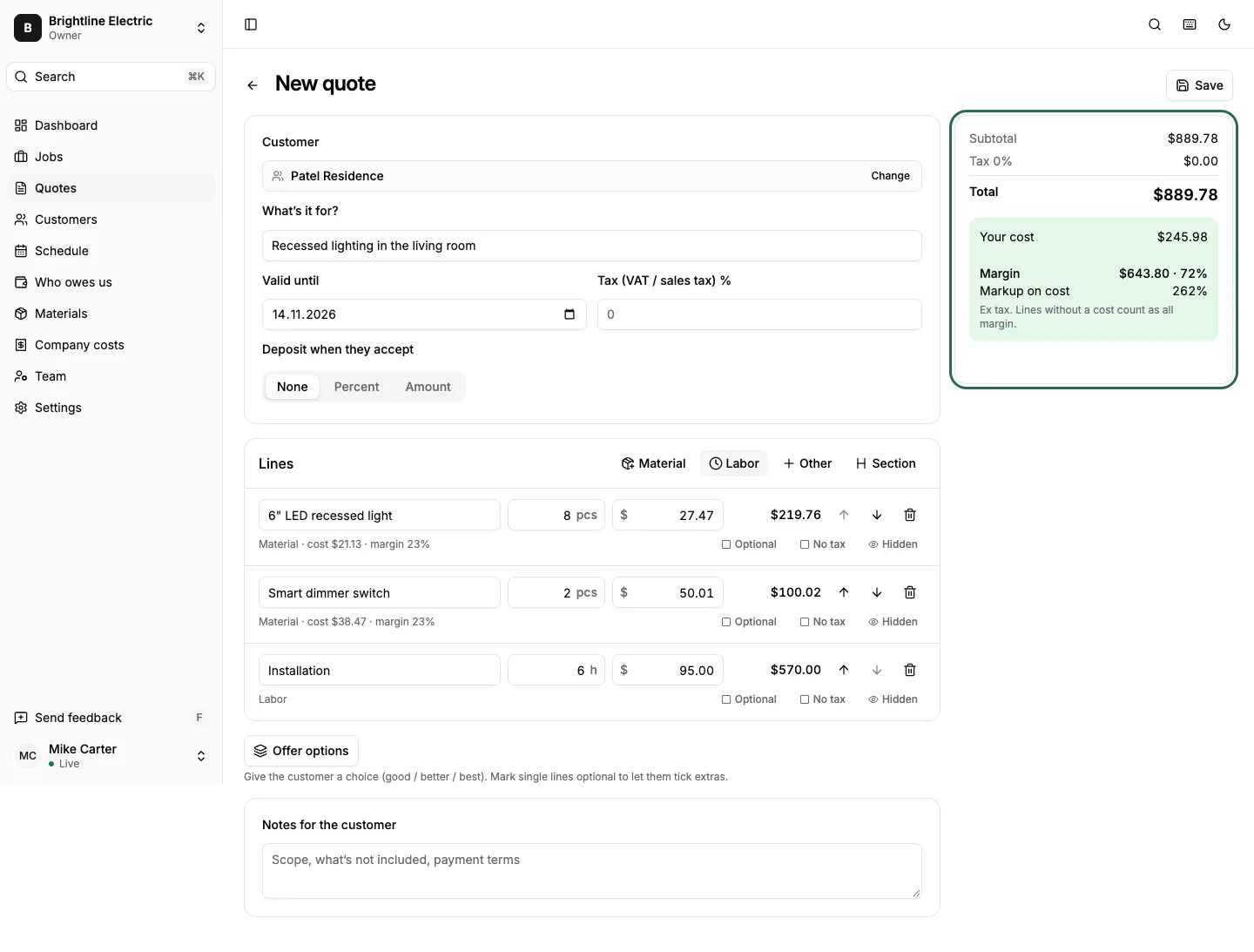
Section titled “How to use it”- Go to Quotes and click New quote. Pick the Customer (or add one with New customer), and say What’s it for?. Valid until starts 30 days from today.
- Add the lines. In Lines, click Material and search your catalog: each material comes in at your catalog cost, priced at cost + 30%. Change the quantity and the price as you like. Labor adds a line in hours; type the hours and your rate. Other is for anything else (a permit, a rental).
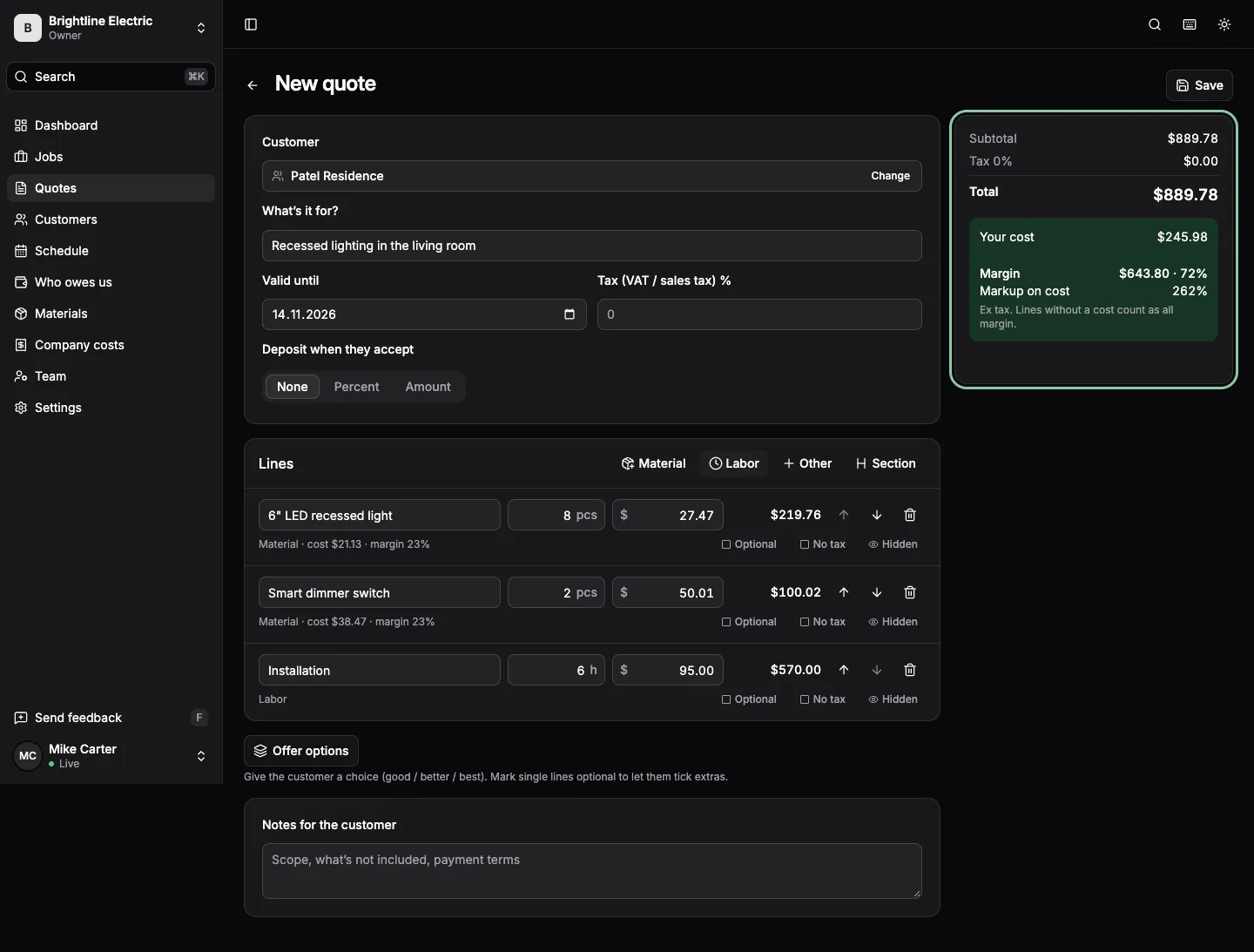
- Check your margin. The panel on the right shows the Subtotal, the tax and the Total, and under it
Your cost, the Margin and the Markup on cost, updated as you type. Each material line shows its own cost
and margin. Click Save.
- See what the customer sees. Click Preview. Click Edit to go back.
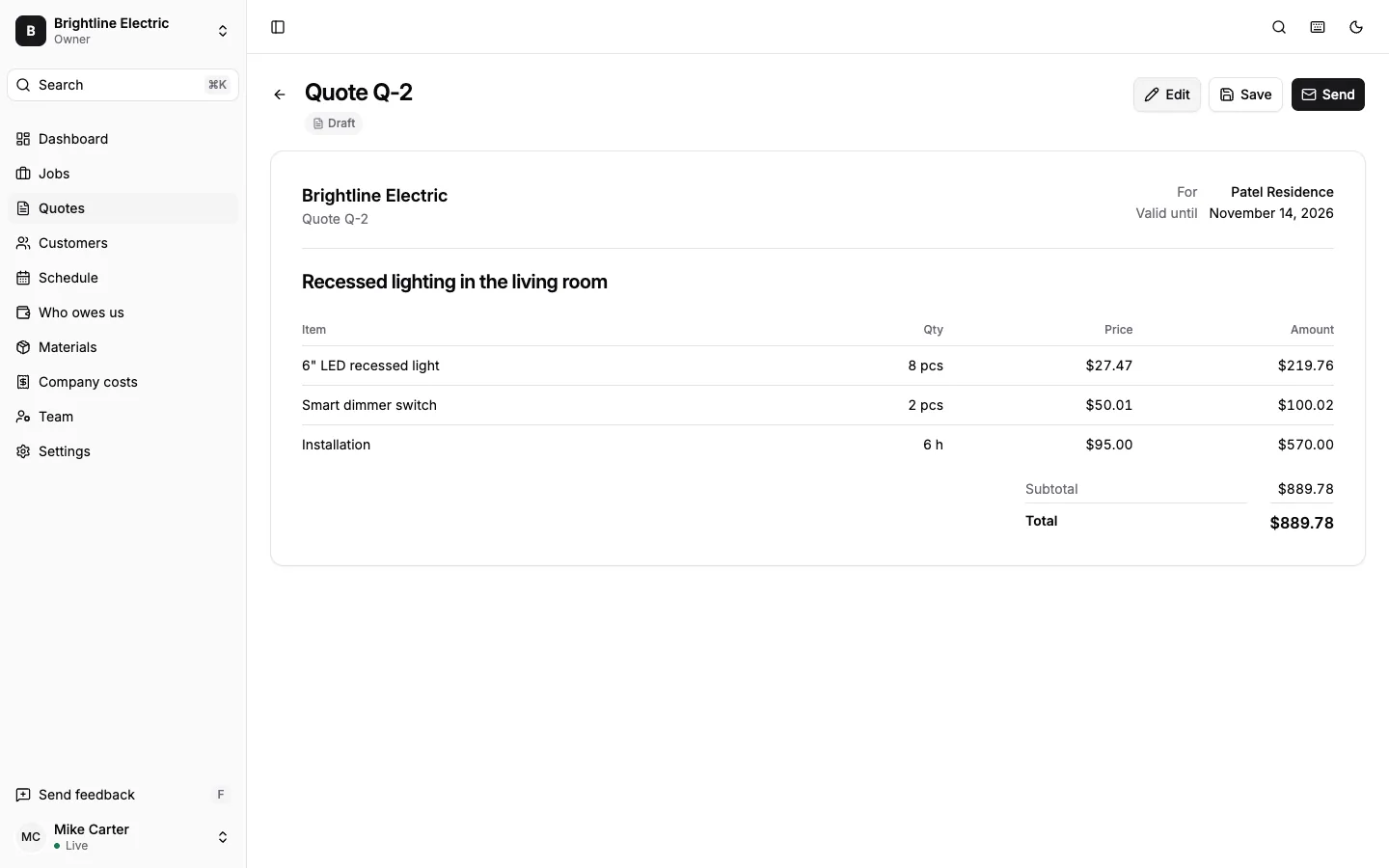
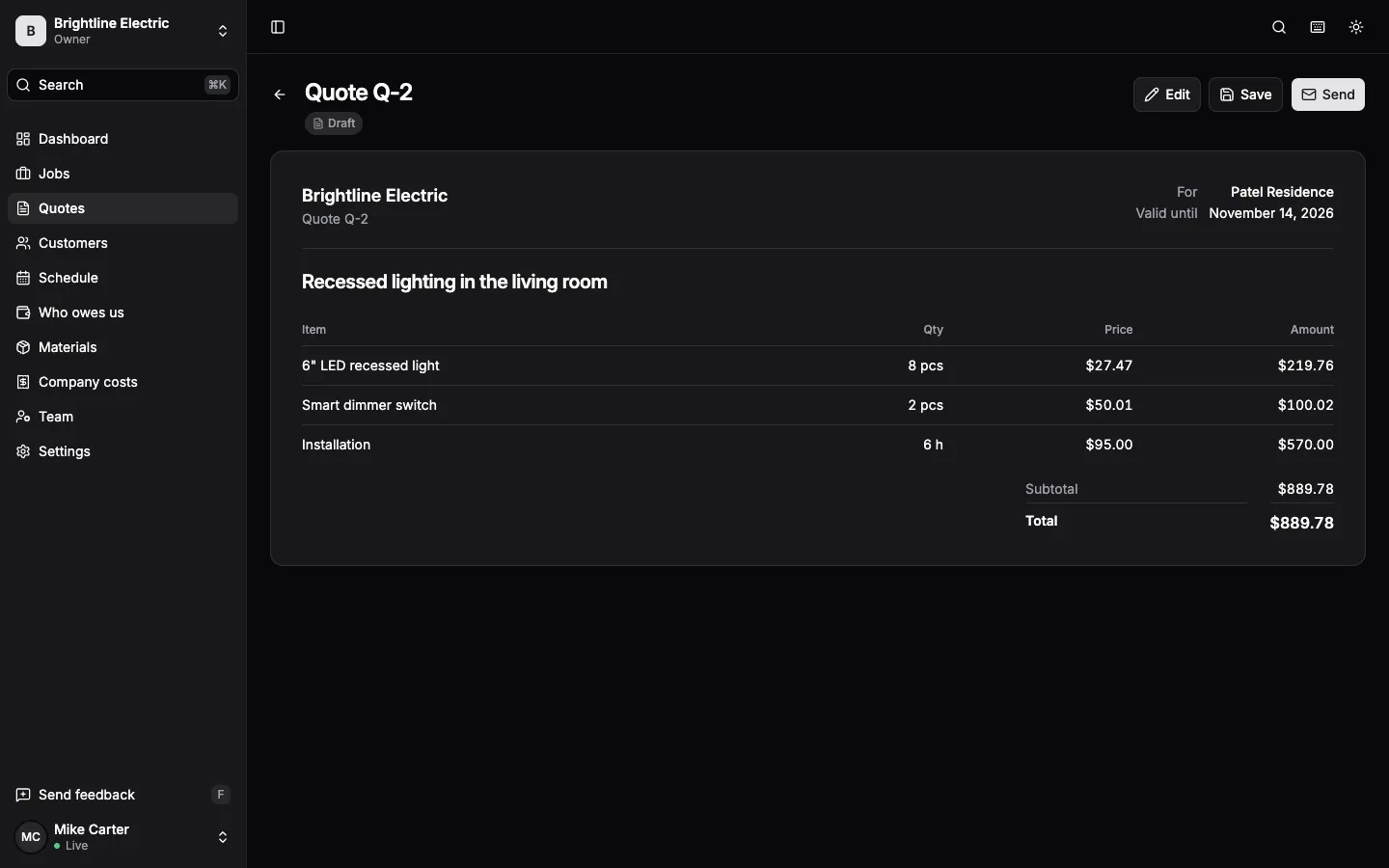
- Send it. Click Send. Choose Email it to the customer’s address, or Just make the link to send it
yourself.
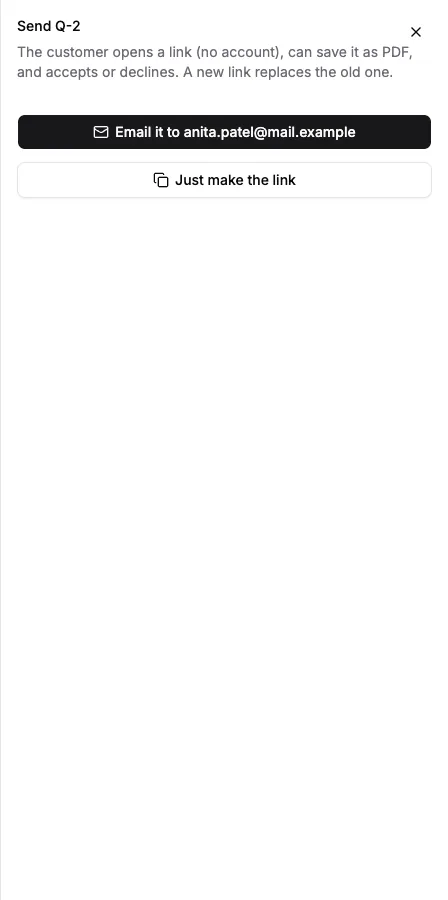
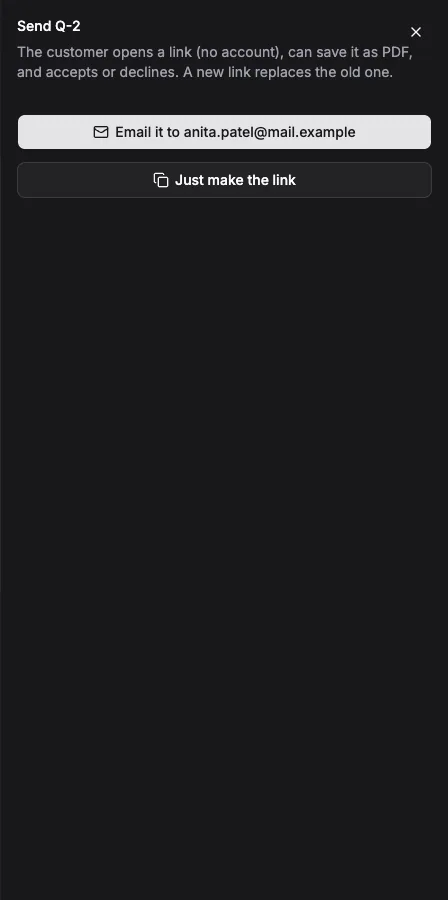
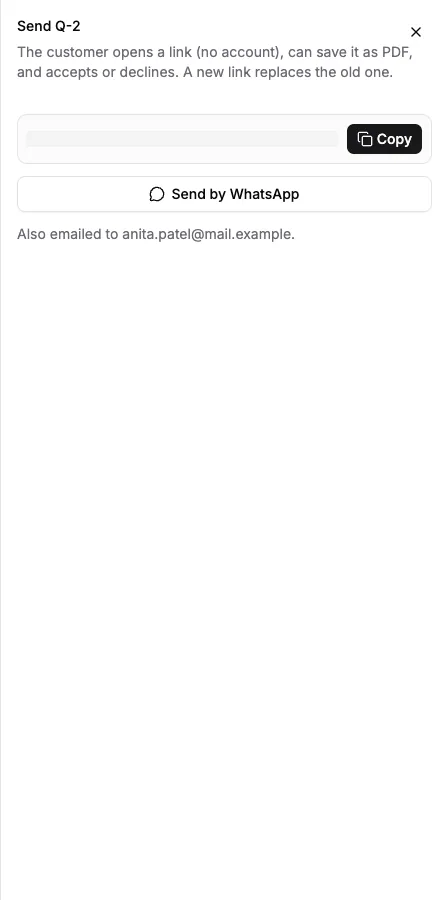
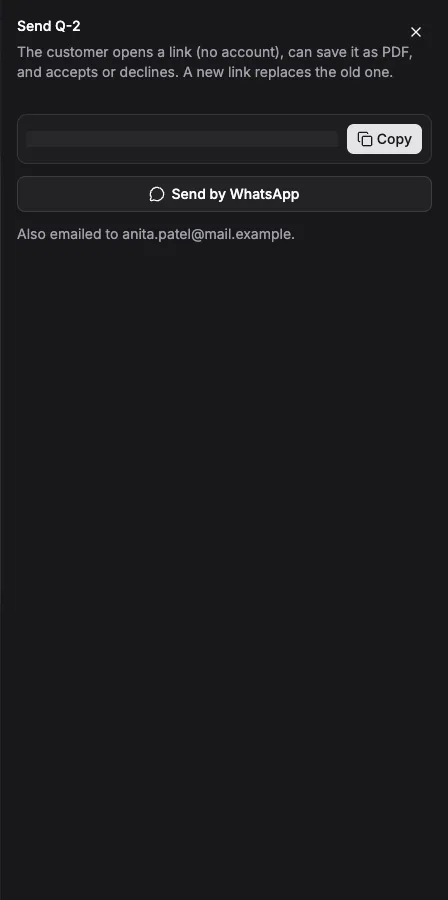
- Share the link with Copy or Send by WhatsApp. If you emailed it, the sheet says so.
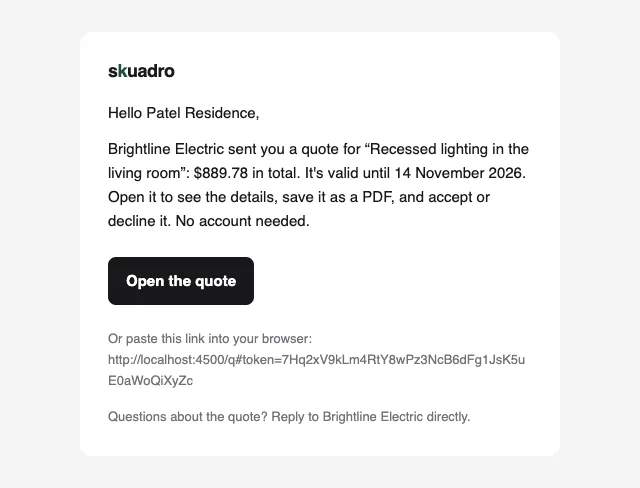
This is the email your customer gets:
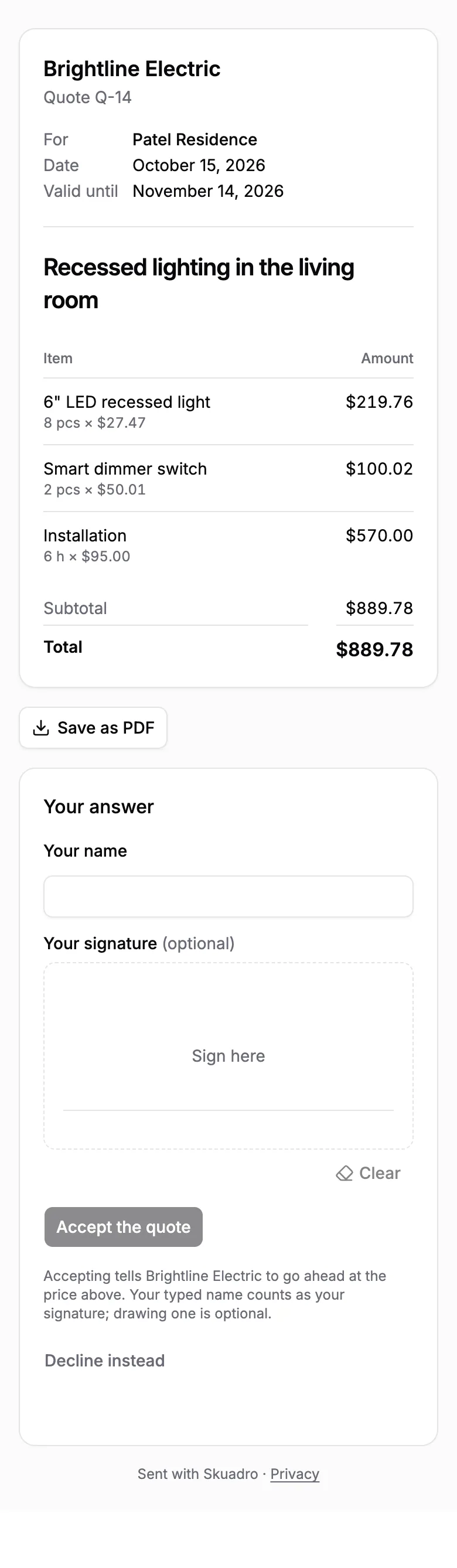
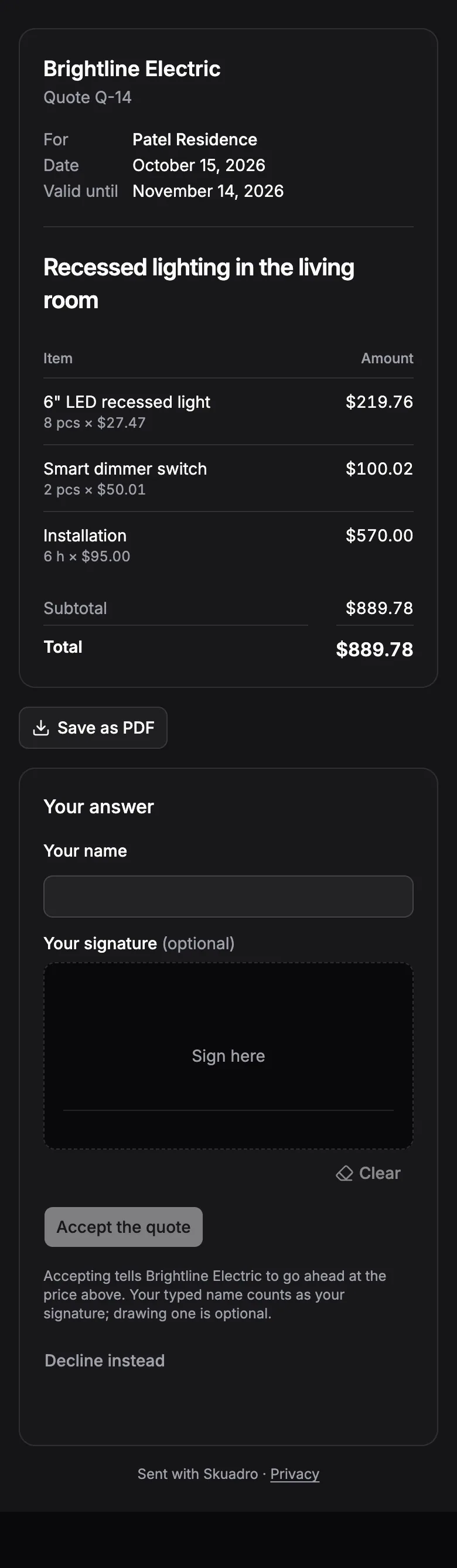
And this is what they see when they open the link, with no account and no app. They can save it as a PDF, and accept or decline it (see Accepted with a signature):
Good to know
Section titled “Good to know”- Numbers: quotes are numbered Q-1, Q-2… per company.
- Lines without a cost count as all margin. Labor and other lines you type have no cost in the quote, so the margin shown is before your labor costs.
- The margin panel is green, and turns to a warning colour when the margin is under 15%.
- Send saves first, so the customer sees what’s on your screen. Each send makes a new link and the previous one stops working.
- You can still change a sent quote. If the customer opened it before your change, they’re asked to look at the new version before they can accept. Once they accept or decline, the quote can’t be changed any more.
- The email needs the customer’s email address. Replies go to you.
- Save also works with ⌘S (Ctrl+S on Windows).