

QuickBooks and Xero files
- Who
- Owners, Office
- Where
- Settings → For your accountant; Export on Jobs, Customers, Materials, Company costs and the Dashboard.
Give your accountant files their software reads as they are: your customers, last month’s sales and your company costs, for Xero or QuickBooks Online. Every list can also go out as Excel or CSV.
Why it’s there
Section titled “Why it’s there”Typing the same customers and sales into the accounting software twice is slow, and that’s where mistakes creep in.
Who sees it
Section titled “Who sees it”Each file needs its own permission: Customers for people who can see customers, Sales for people who can see job prices, Company costs for people who can see company costs. Owners and the Accountant role get all three; Office gets Customers. People with none of them don’t see the section.
How to use it
Section titled “How to use it”- Go to Settings → For your accountant. Pick Xero or QuickBooks, and the period: This month, Last month, This year or Last year.
- Click the file you need: Customers, Sales (completed jobs) or Company costs. A CSV file downloads.
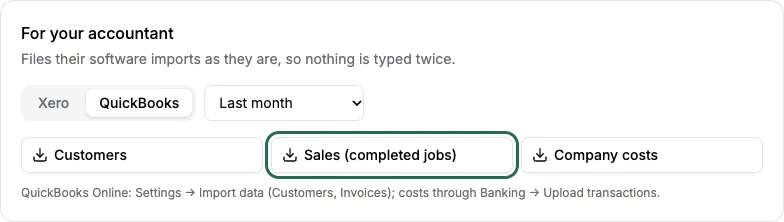
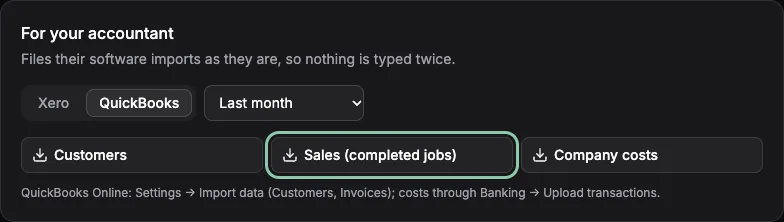
- Import it in the accounting software. The line under the buttons says where:
- Xero: Contacts → Import; Business → Invoices → Import; costs as a bank statement import. Check the account code (200) and tax.
- QuickBooks Online: Settings → Import data (Customers, Invoices); costs through Banking → Upload transactions.
What’s in each file
Section titled “What’s in each file”- Customers: every customer’s name, email, phone and address (not limited to the period).
- Sales: one line for each job completed in the period, at its agreed price, numbered JOB-(job number), dated the day it was completed and due 14 days later. Jobs without a price and sample jobs are left out.
- Company costs: each company cost in the period, as money going out.
Dates are written month first for US dollars (10/15/2026), day first for other currencies.
Excel and CSV of any list
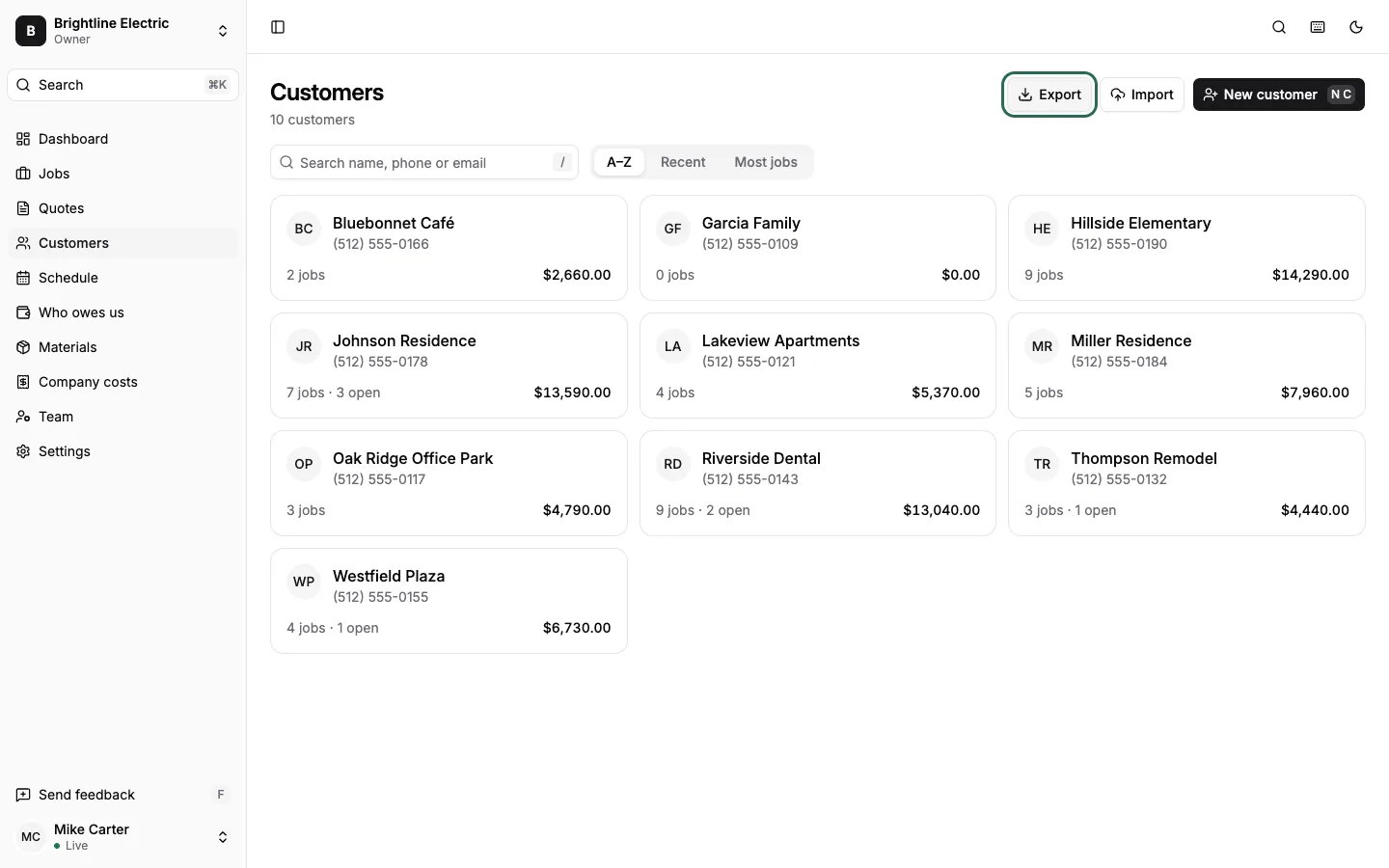
Section titled “Excel and CSV of any list”Jobs, Customers, Materials, Company costs and the Dashboard each have an Export button: pick Excel (.xlsx) or CSV. Jobs follow the view and search you have open, the Dashboard its dates and filters, Company costs the year shown. Columns follow what your role lets you see: no prices if you can’t see prices.
Good to know
Section titled “Good to know”- Sales come from jobs, not invoices. A job counts when it’s completed, at its agreed price. Invoices aren’t in these files.
- Months and years follow your company’s time zone (Settings → Company).
- These are files you download; nothing is connected to QuickBooks or Xero, and nothing syncs.