

Fast at the desk
- Who
- Owners, Office
- Where
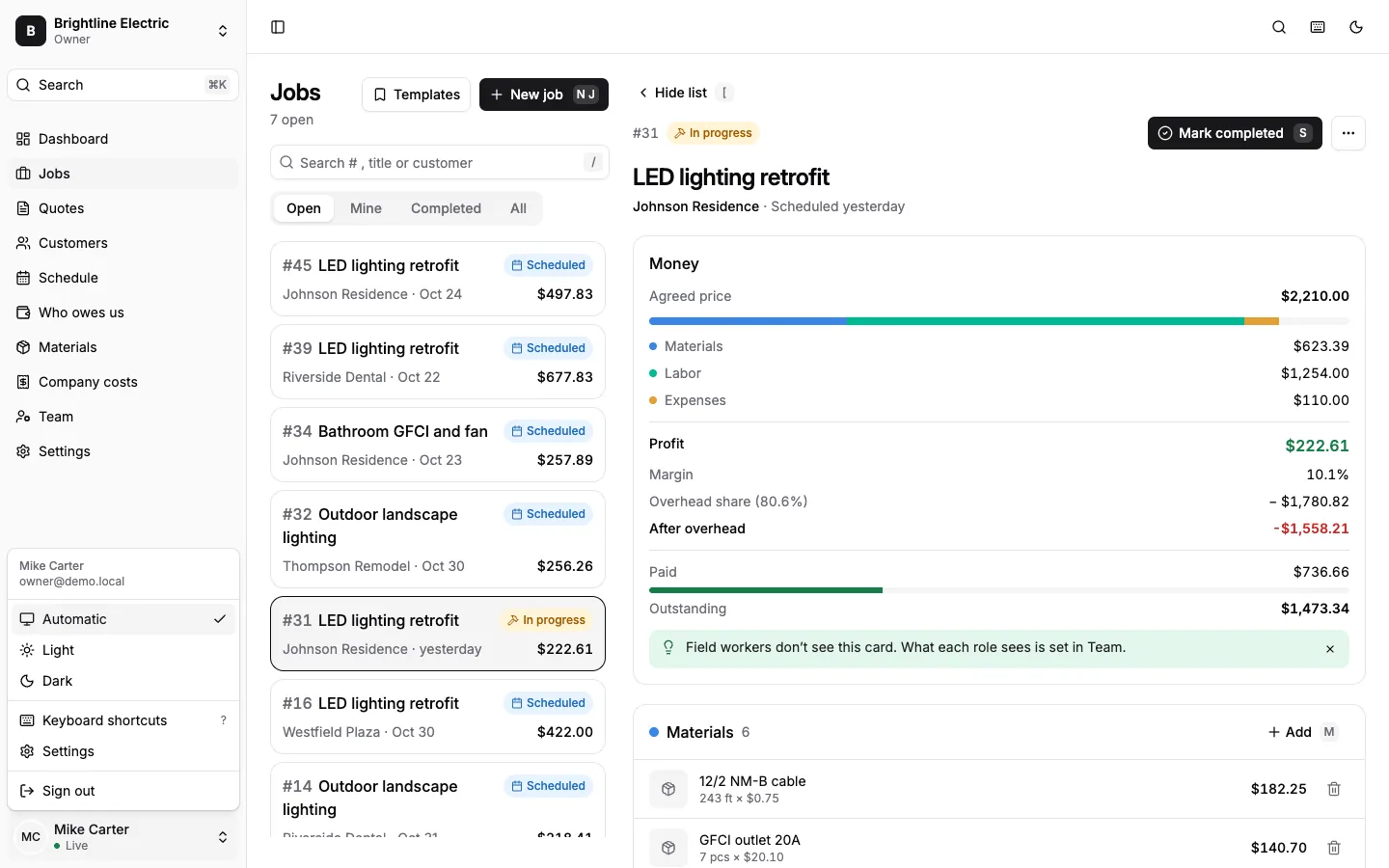
- Search at the top of the menu (⌘K or Ctrl K); ? for shortcuts; your name at the bottom of the menu for the theme.
On a computer you can find any job, customer or material, and run most actions, without leaving the keyboard.
Why it’s there
Section titled “Why it’s there”In the office the day is lists, calls and quick lookups. Typing “#31” or a customer’s name is faster than clicking through menus.
Who sees it
Section titled “Who sees it”Everyone on a computer. Search only finds what you’re allowed to see, and a shortcut only works for something you’re allowed to do.
How to use it
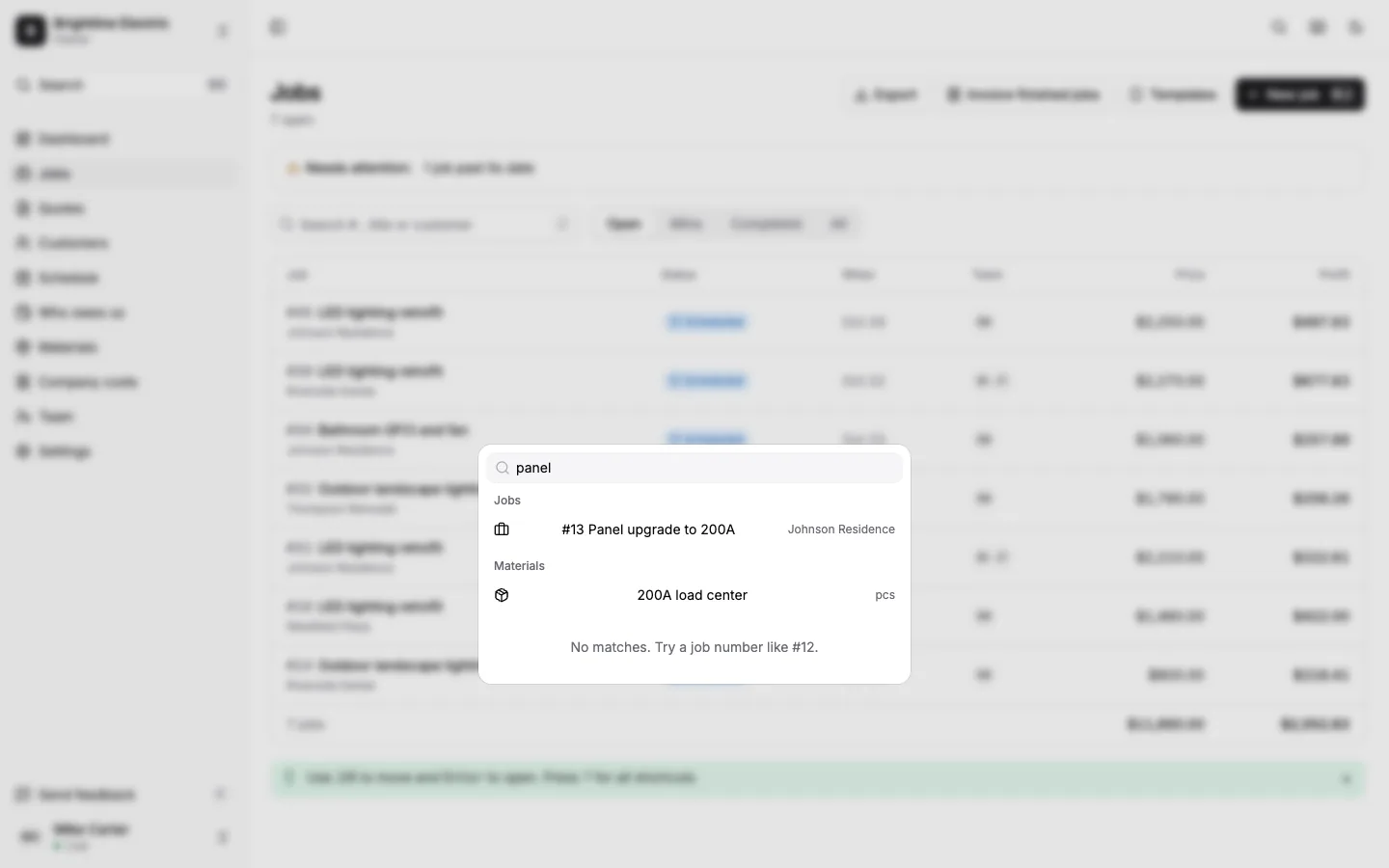
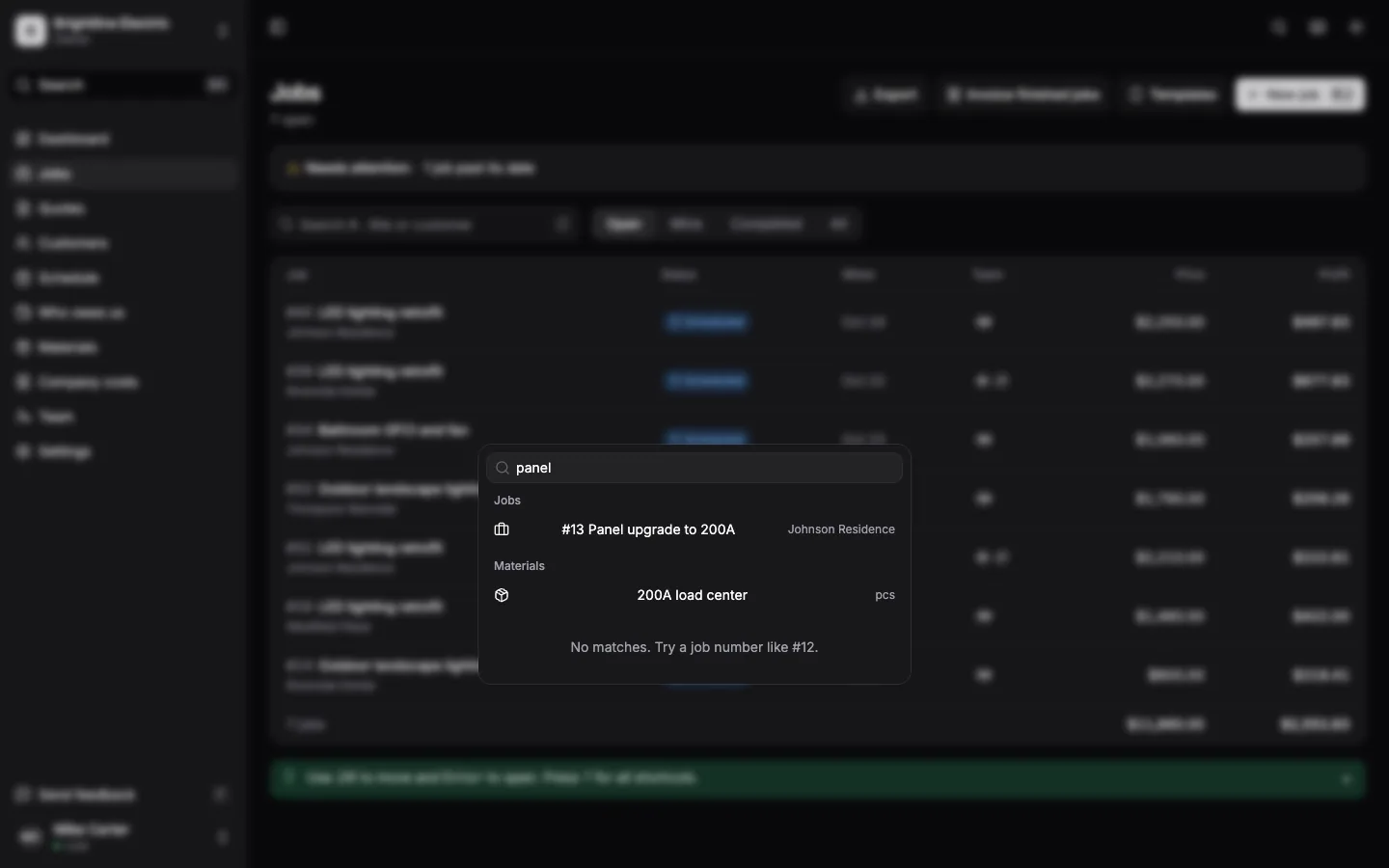
Section titled “How to use it”- Press ⌘K on a Mac or Ctrl K on Windows (or click Search at the top of the menu). Type part of a job’s
title, a job number such as #31, a customer’s name or phone number, or a material. Below the results, Actions
lists what you can do: a new job, going to any page, the light or dark theme, Send feedback.
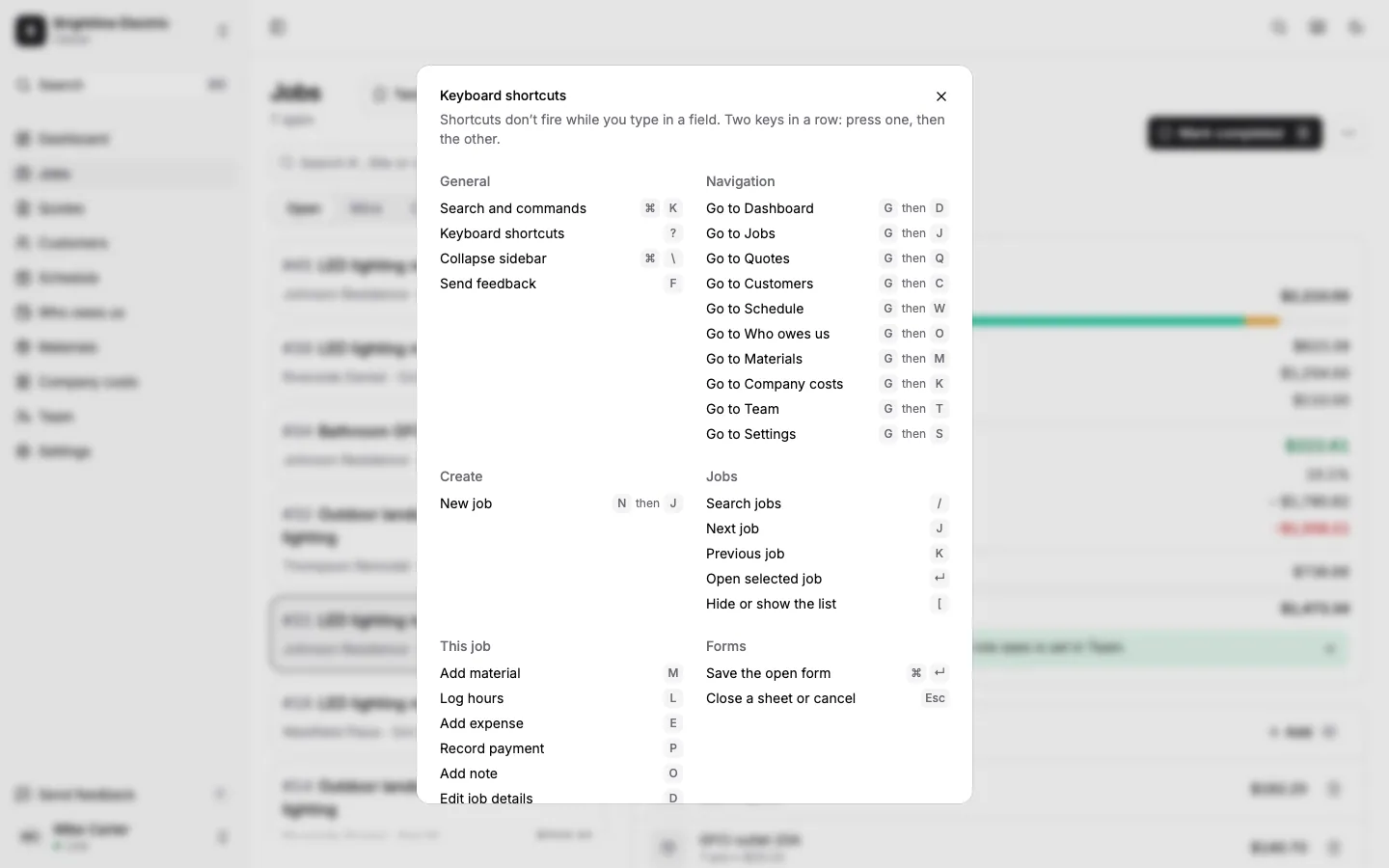
- Press ? to see every shortcut that works on the screen you’re on.
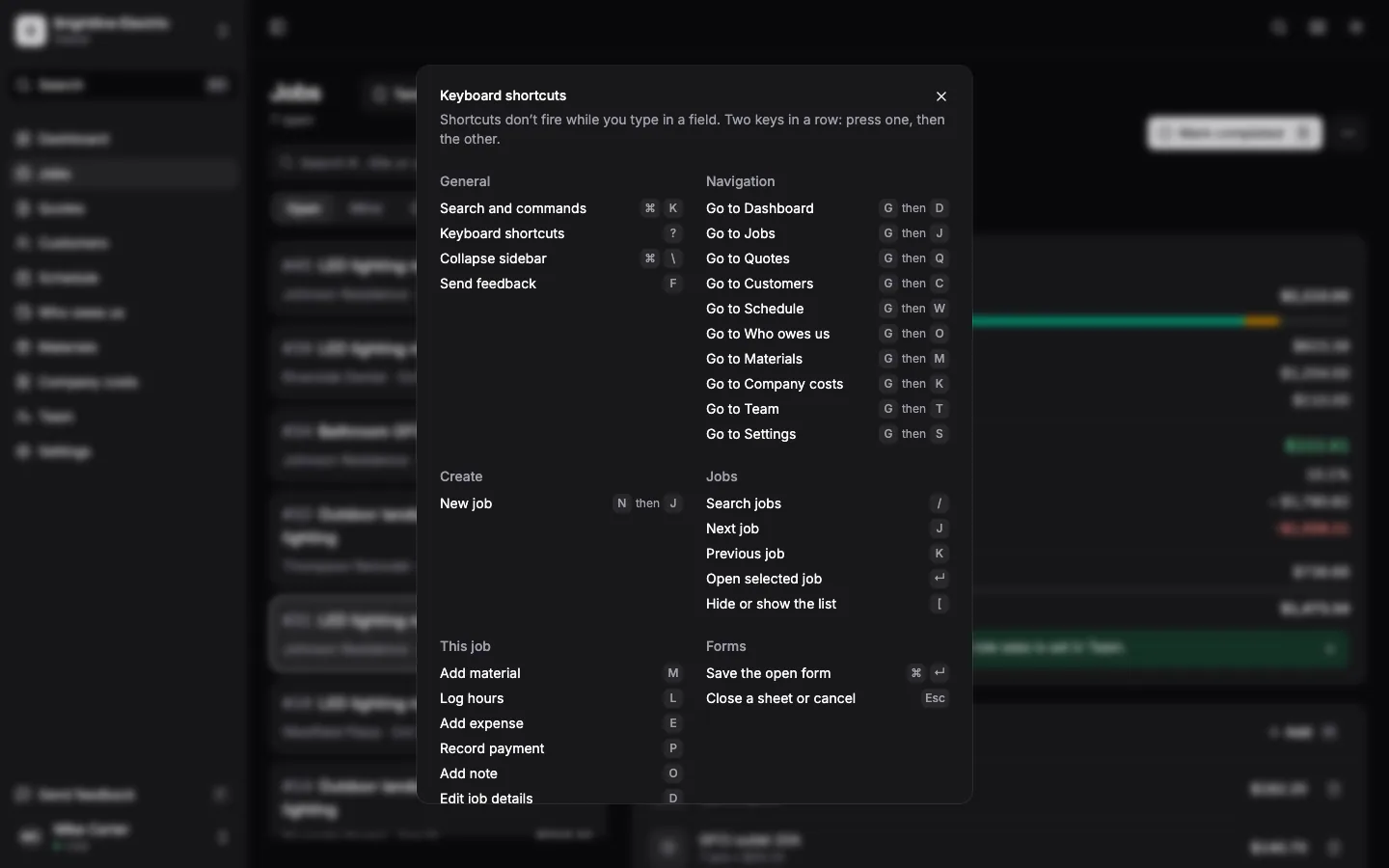
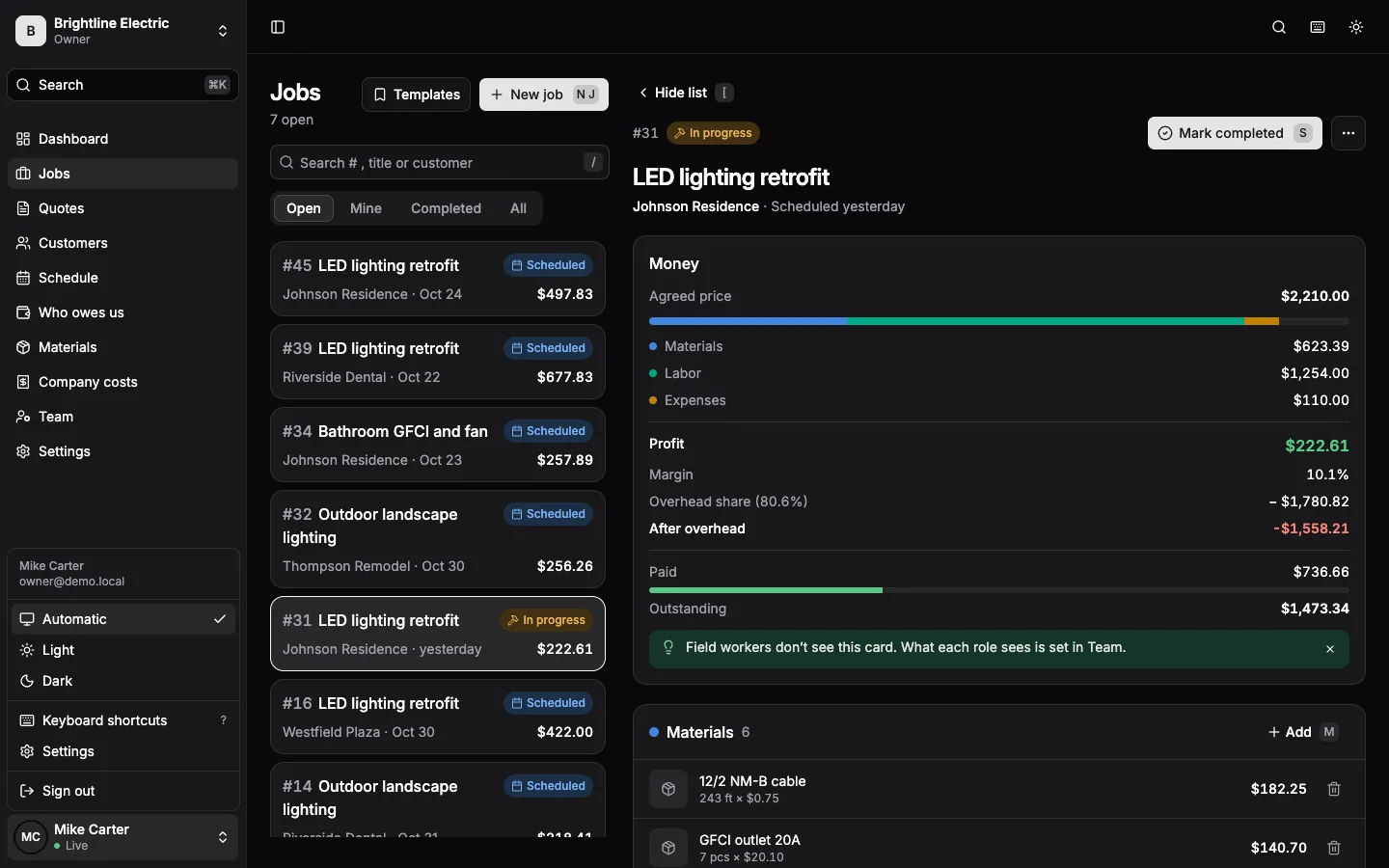
- For light or dark, click your name at the bottom of the menu and pick Automatic, Light or Dark
(Automatic follows your computer). The same choice is in Settings → Appearance.
The shortcuts
Section titled “The shortcuts”Two keys such as G J mean: press G, then J. Shortcuts don’t fire while you’re typing in a field.
| Keys | What it does | Where |
|---|---|---|
| ⌘K / Ctrl K | Search and commands | Everywhere |
| ? | Keyboard shortcuts | Everywhere |
| ⌘\ / Ctrl \ | Collapse the menu | Everywhere |
| F | Send feedback | Everywhere |
| G then D, J, Q, C, W, O, M, K, T, S | Go to Dashboard, Jobs, Quotes, Customers, Schedule, Who owes us, Materials, Company costs, Team, Settings | Everywhere |
| N then J | New job | Jobs |
| N then C | New customer | Customers |
| N then M | New material | Materials |
| N then K | New company cost | Company costs |
| N then Q | New quote | Quotes |
| / | Search the list | Jobs, Customers, Materials, Schedule |
| J, K, Enter | Next job, previous job, open it | Jobs |
| [ | Hide or show the list | Jobs |
| M, L, E, P, O | Add material, log hours, add expense, record payment, add note | A job |
| D, S | Edit job details, next status (start or complete) | A job |
| [ and ], T | Previous or next week or month, today | Schedule |
| W, M | Week view, month view | Schedule |
| ⌘S / Ctrl S | Save the quote | A quote |
| ⌘Enter / Ctrl Enter | Save the open form | Forms |
| Esc | Close a sheet or cancel | Forms |
Good to know
Section titled “Good to know”- The theme is saved on this device. The public website stays light unless the visitor picked dark.
- In search, results come from the server as you type: up to six jobs and five customers and materials.
- On a phone, search is the magnifying glass at the top of the screen.