

Good, better, best
- Who
- Owners, Your customers
- Where
- A quote → Offer options; Optional on a line.
One quote with a few versions of the job to choose from, and optional extras. The customer picks on the link, and the job takes exactly what they chose.
Why it’s there
Section titled “Why it’s there”Customers like to choose. A plain quote is a yes or a no; options turn it into “which one?”, and extras let them add the outdoor light themselves instead of you guessing.
Who sees it
Section titled “Who sees it”People who make quotes (owners, Estimator) set up the options. The customer picks on the quote link.
How to use it
Section titled “How to use it”- Open the quote and put the lines that are the same whatever they pick (labor, patching) in the first list.
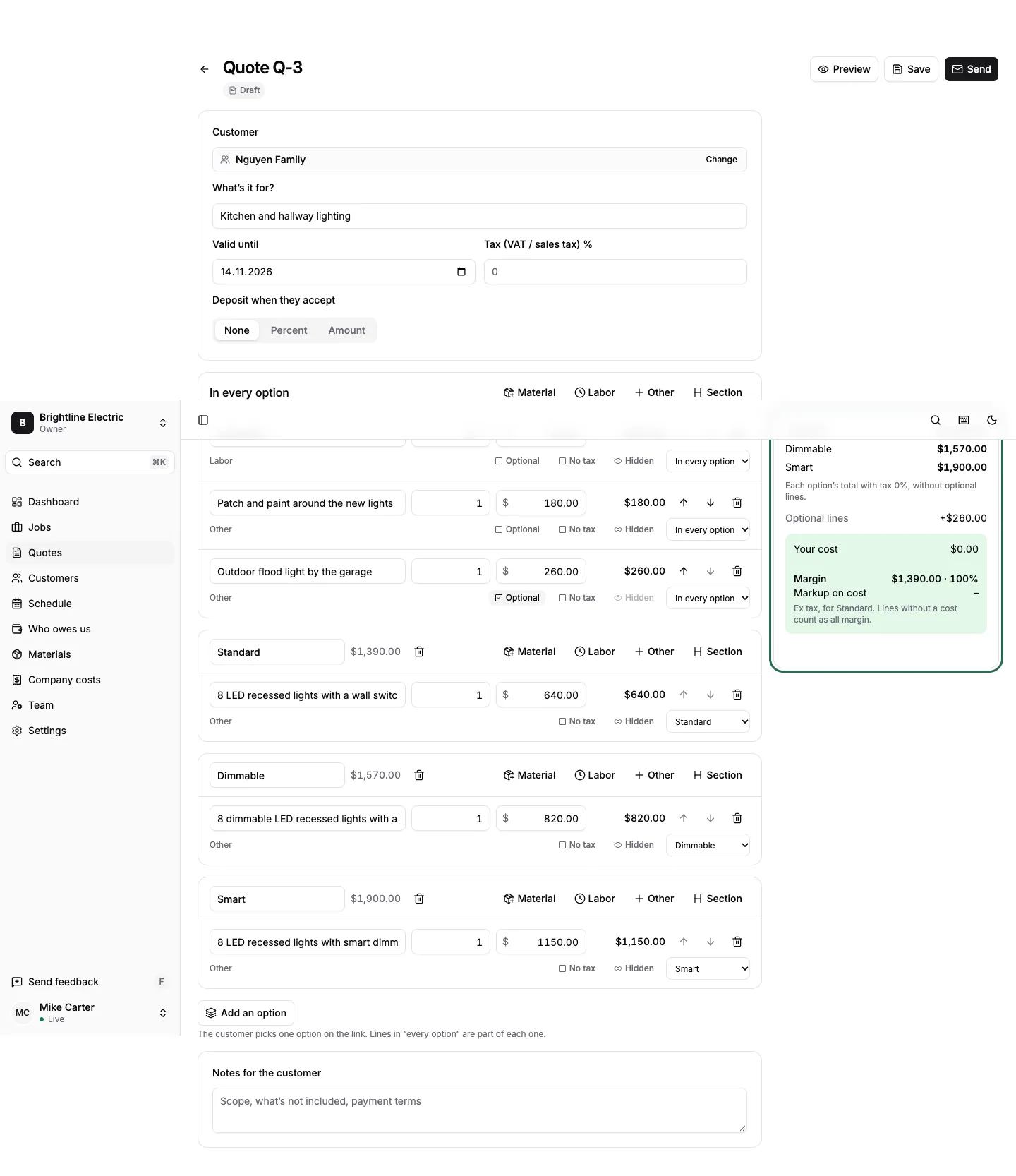
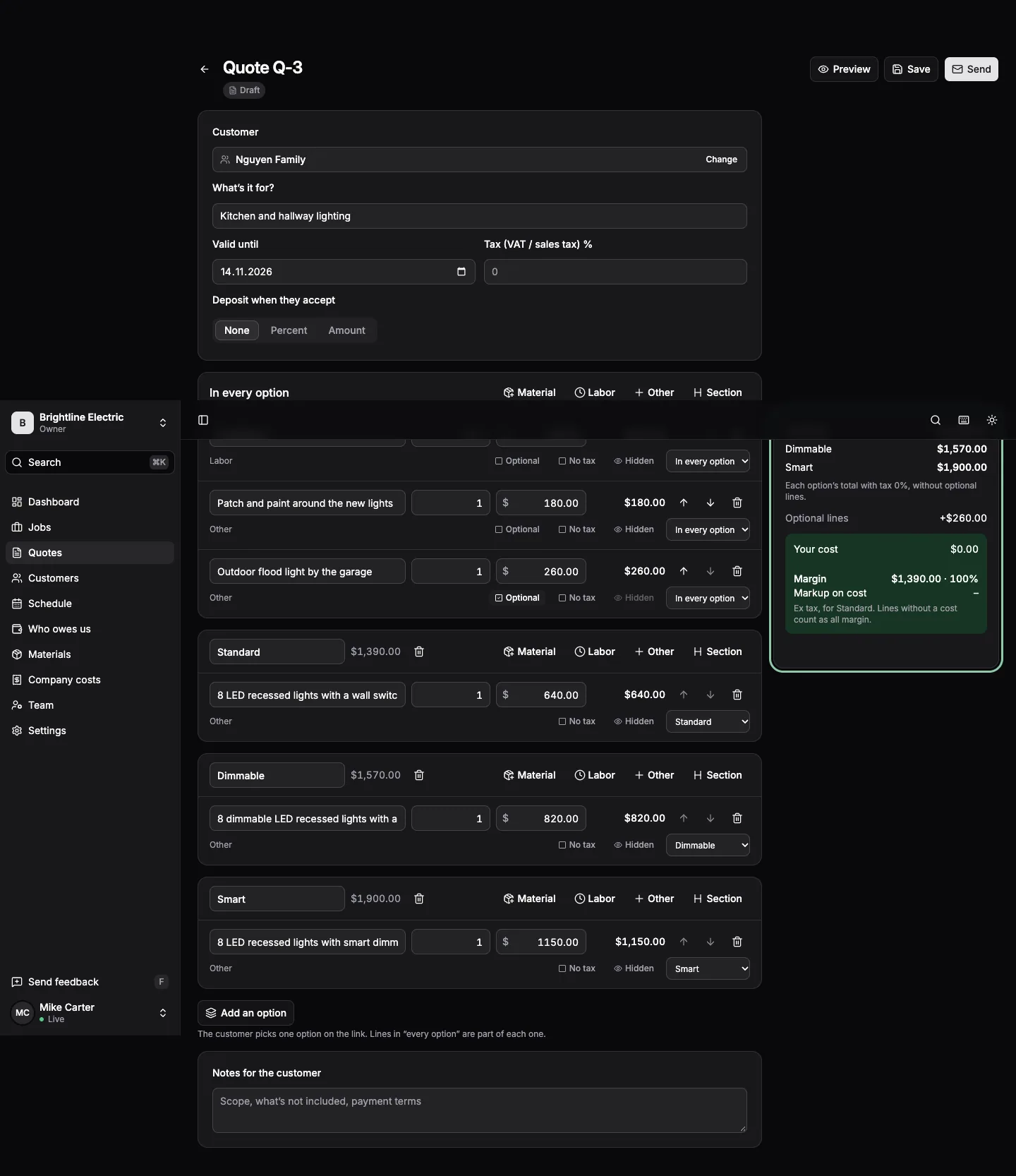
- Add the options. Click Offer options: two options appear, Option 1 and Option 2. Add an option adds another. Type a name over each one (Standard, Dimmable, Smart), then add its own lines with the Material, Labor, Other and Section buttons in its header. The first list is now called In every option: its lines are part of each option.
- Offer an extra. On a line in In every option, click Optional: the customer can tick it or leave it out.
- Check the totals: the panel on the right shows what each option comes to with tax, without the optional lines, and
what the Optional lines add. Click Save, then Send.
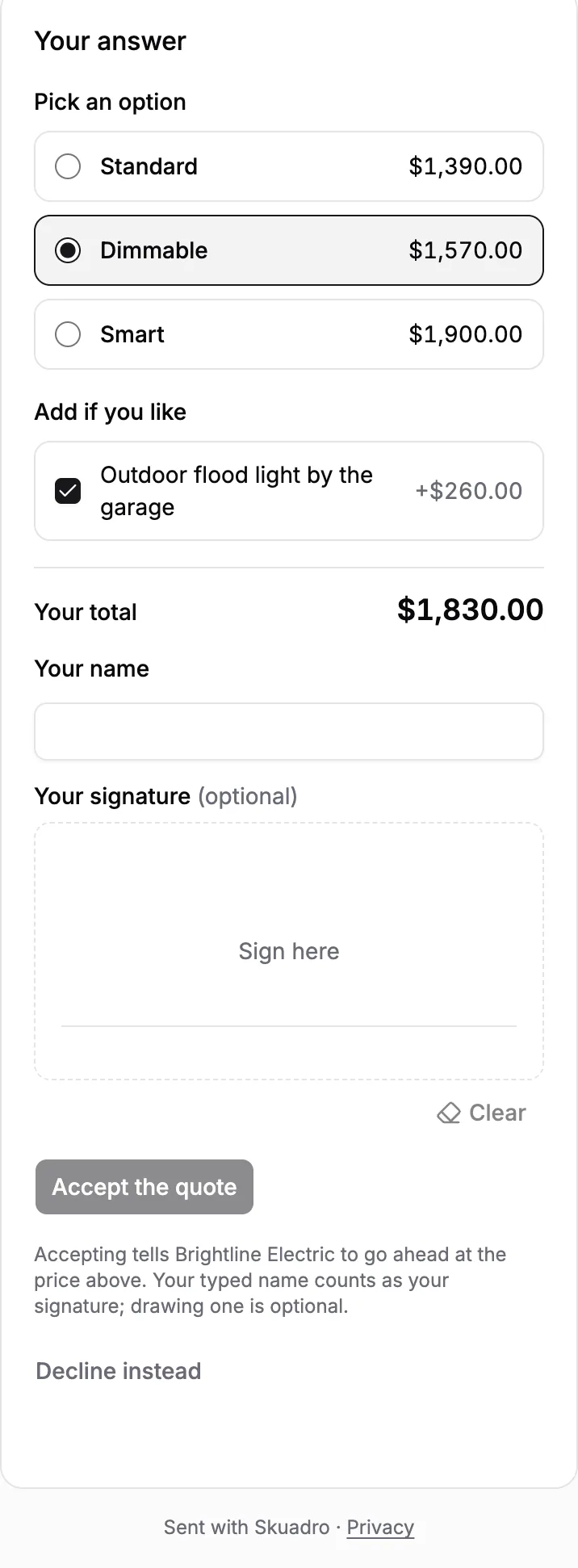
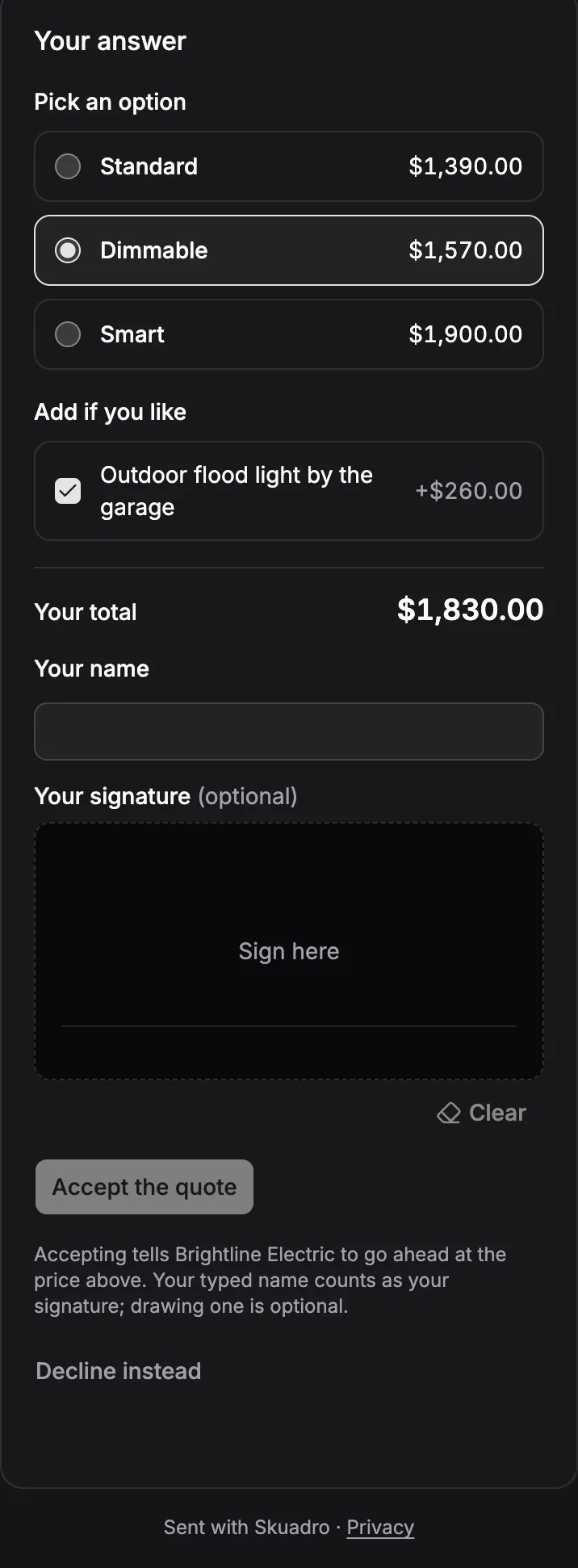
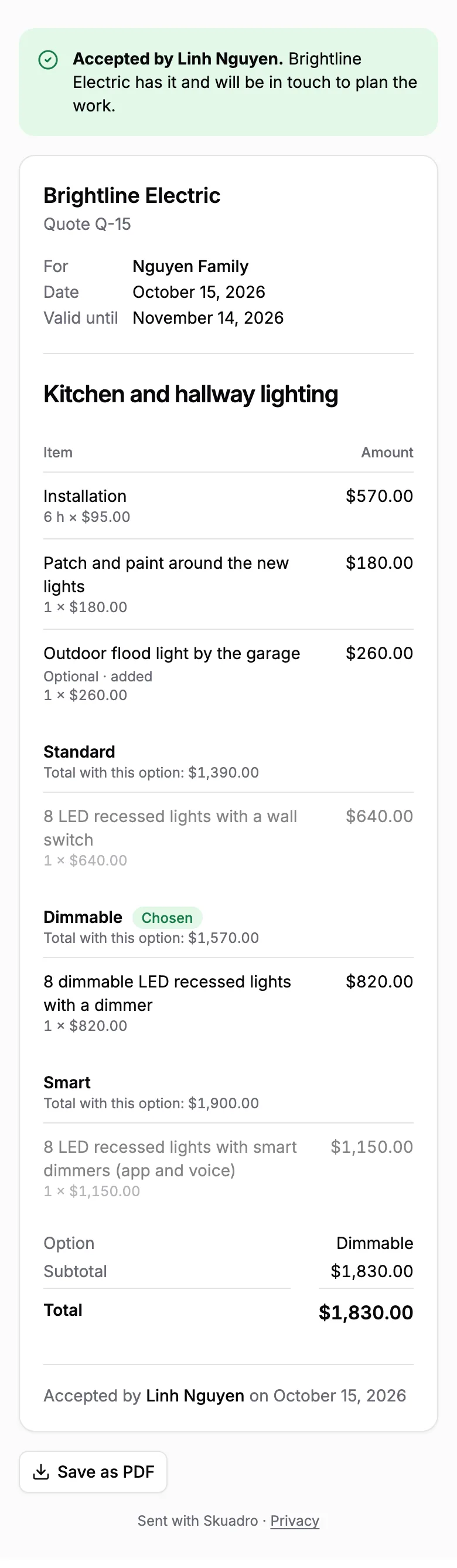
- The customer picks. Under Your answer, they choose one option under Pick an option and tick what they
want under Add if you like. Your total follows their choice, and so does the quote above it.
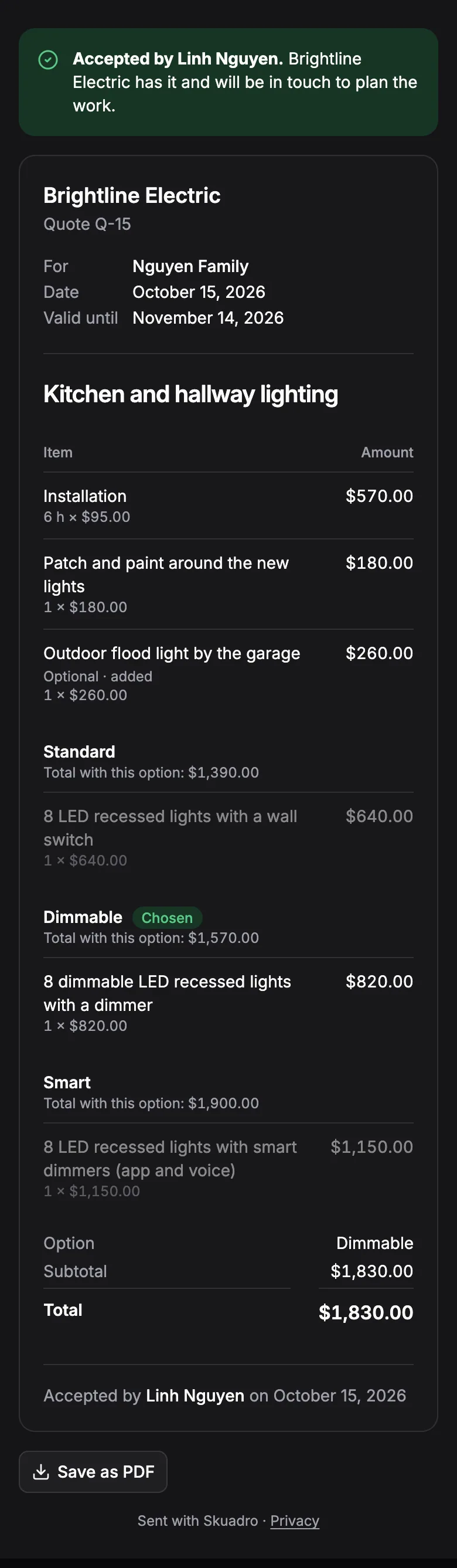
- When they accept, the quote marks their option Chosen and the extras they added. Your quotes list says what
they chose.
Good to know
Section titled “Good to know”- Up to 5 options. Each needs a name of its own and at least one line.
- Move a line between options with the list under its description (In every option or an option’s name).
- Remove an option with its bin button: its lines go with it. Undo in the message brings them back.
- Until the customer answers, the quote’s total (in your list and in the email) is the first option, without optional lines.
- Optional lines sit in In every option only, and can’t be hidden: the customer has to see what they tick.
- The job takes only what they chose: the lines in every option, the picked option’s lines and the extras they ticked, at that price. See The quote becomes the job.
- A yes on the phone: if they tell you in person, click They said yes: make the job and tick what they chose in What did they choose?.
- A deposit is worked out on the option and extras they picked. See A deposit on acceptance.