

Feedback from anywhere
- Who
- Owners, Office, Field workers
- Where
- Send feedback in the menu (on a phone, More → Send feedback), F, or ⌘K.
When something gets in your way, or you wish Skuadro did something, tell us from the screen you’re on. Add a screenshot so we see what you see.
Why it’s there
Section titled “Why it’s there”The best ideas come in the middle of the work and are gone by the evening. Two taps, a sentence and a picture, and you’re back to the job.
Who sees it
Section titled “Who sees it”Everyone signed in. Only you and the Skuadro team see your messages.
How to use it
Section titled “How to use it”- On any screen, click Send feedback at the bottom of the menu, or press F. On a phone it’s under More.
It’s also in search (⌘K or Ctrl K).
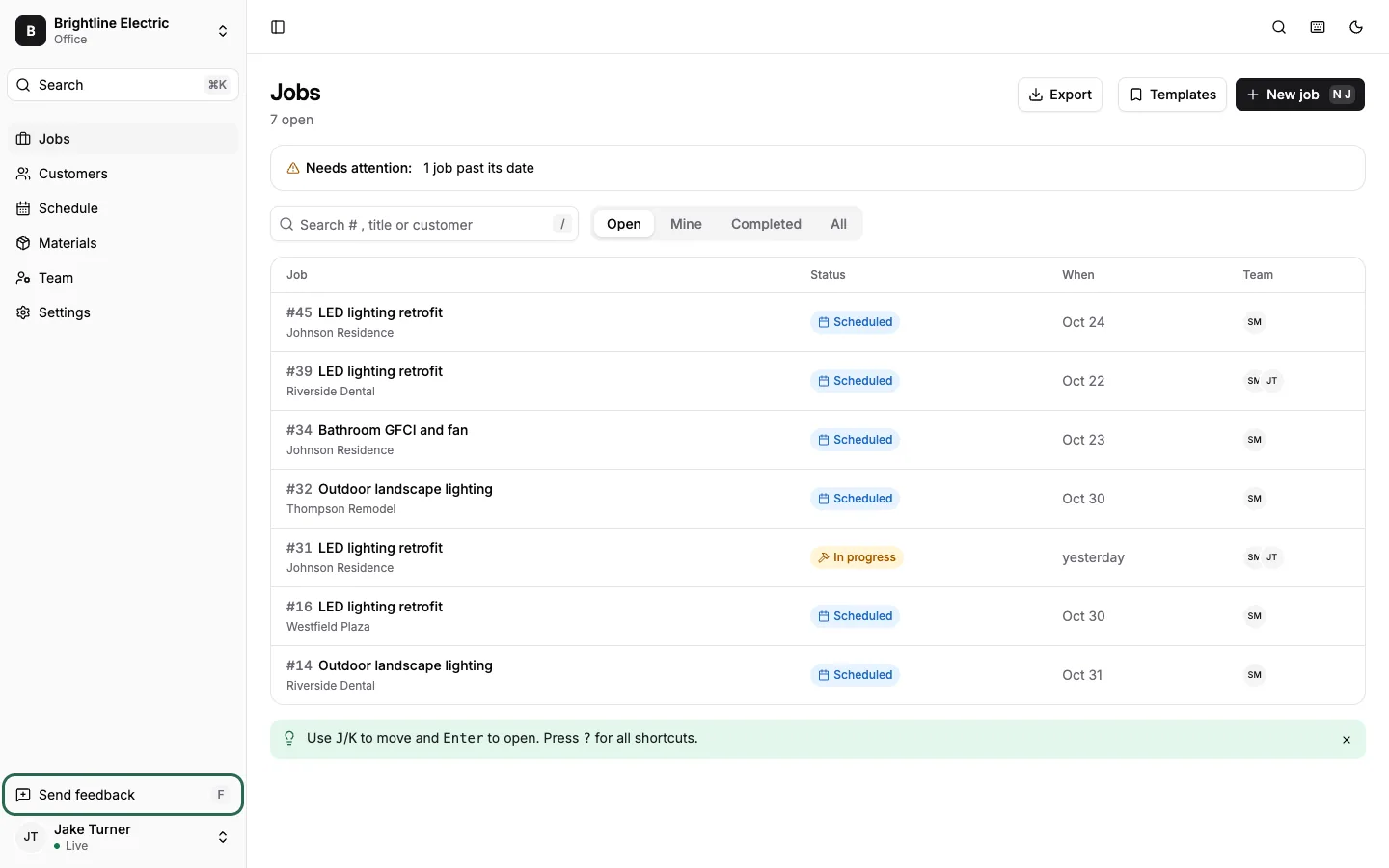
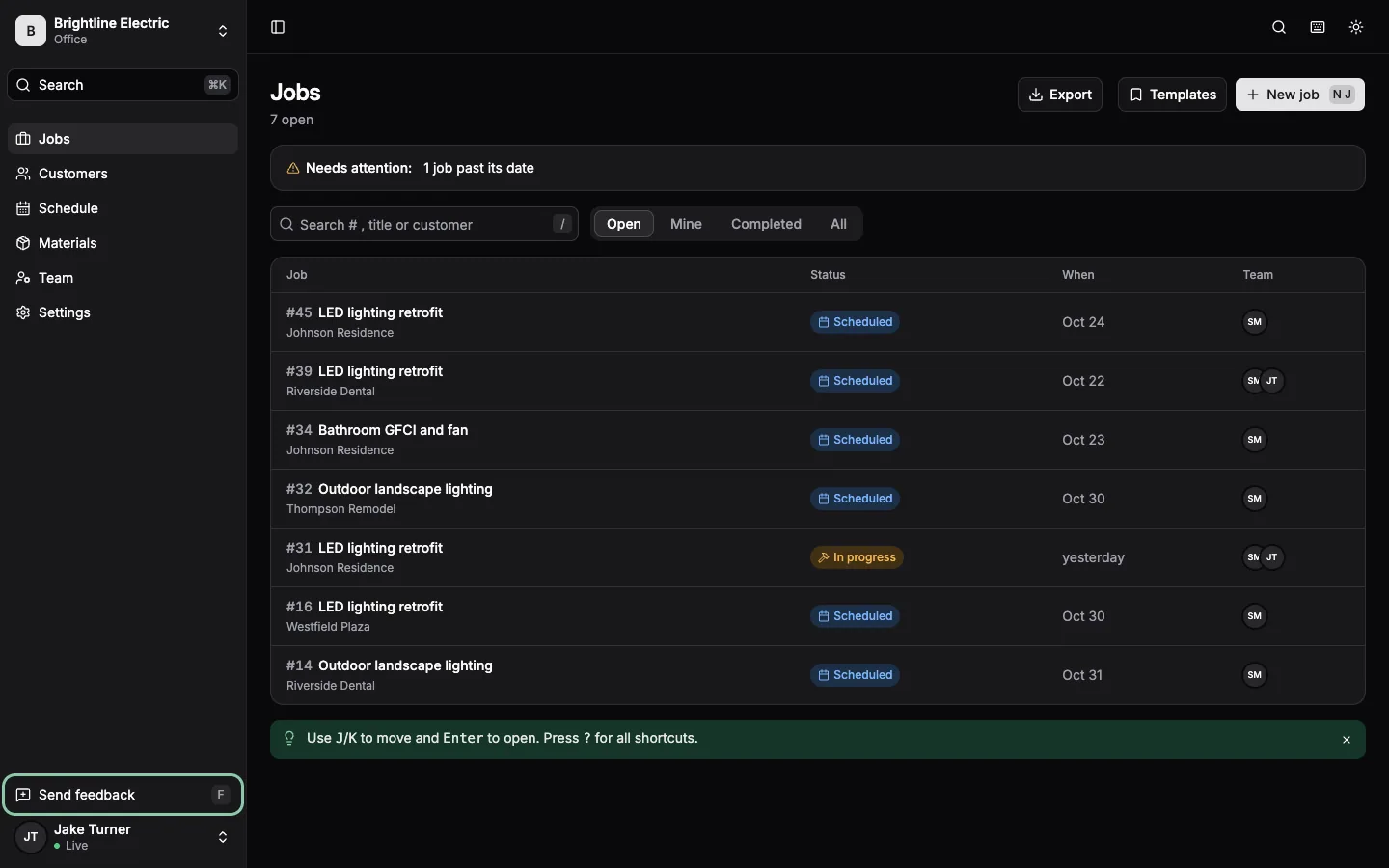
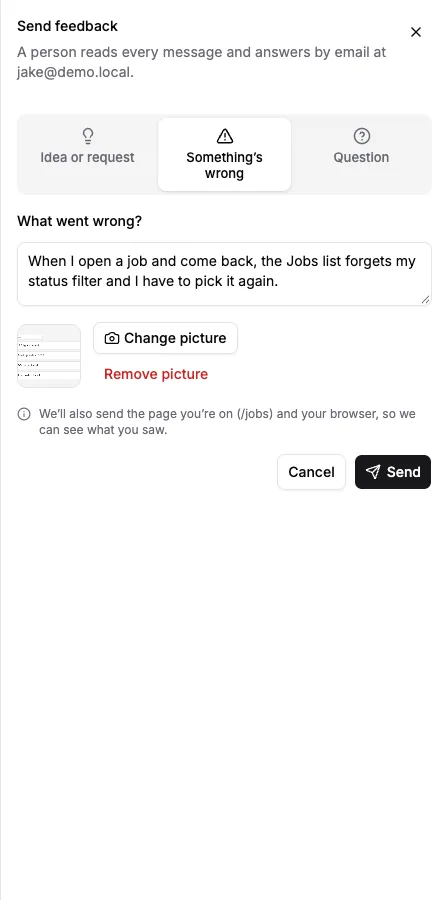
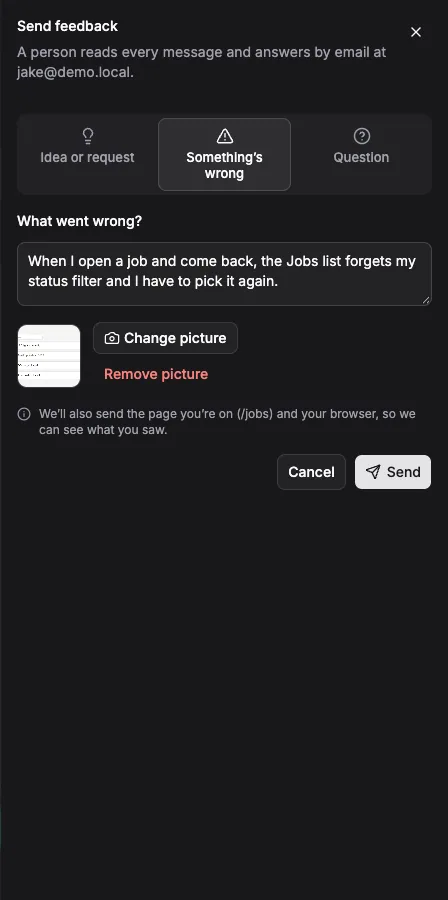
- Pick what it is: Idea or request, Something’s wrong or Question, and write it. To add a picture, click
Add a screenshot or photo. Then click Send.
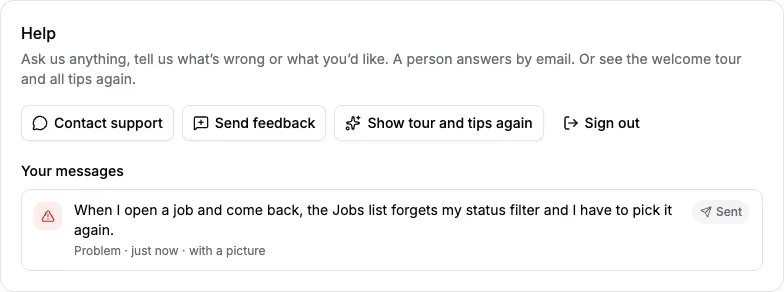
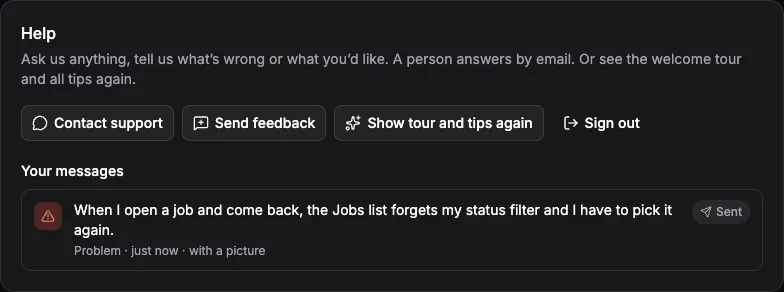
- A message says Sent. We’ll answer by email, usually within a working day. In Settings → Help → Your
messages you see it marked Sent, and Answered once we’ve replied by email.
Good to know
Section titled “Good to know”- We also get the page you were on and your browser, so we can see what you saw. The form shows the page before you send.
- One picture per message. It’s made smaller on your device before it’s sent, and redrawn on our side, so nothing hidden in the file (such as where a photo was taken) comes with it.
- If you close the form, what you wrote stays there until you send it or reload the page.
- Your messages shows your last five.