

Try it with sample data
- Who
- Owners
- Where
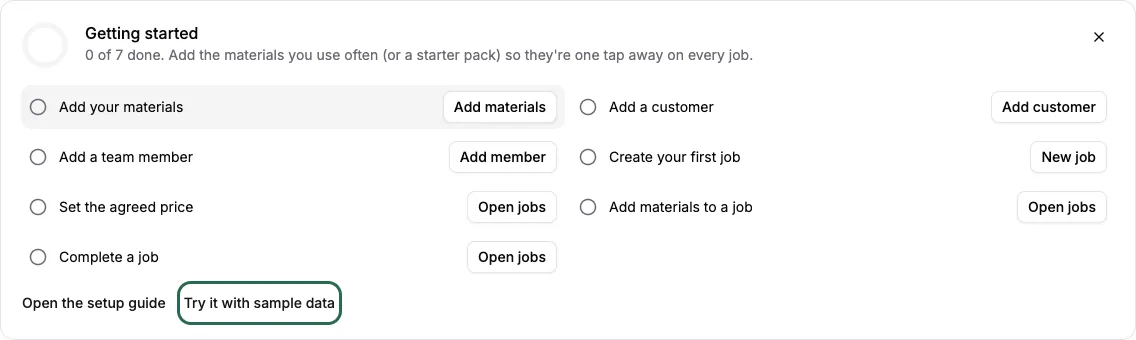
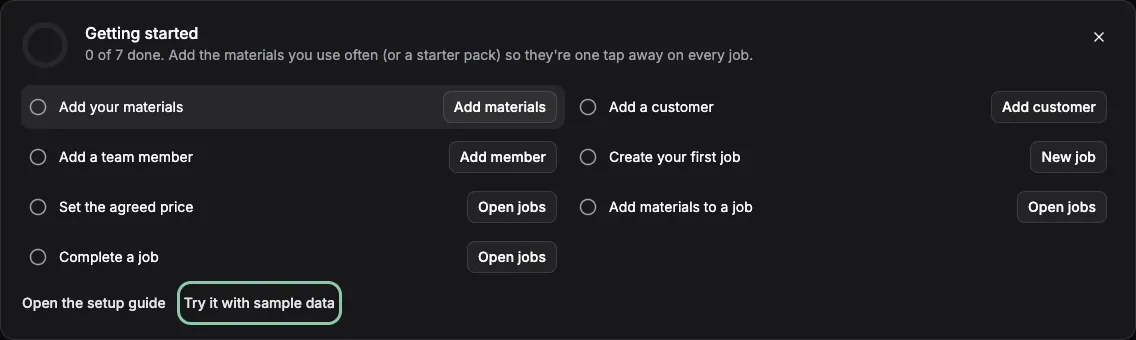
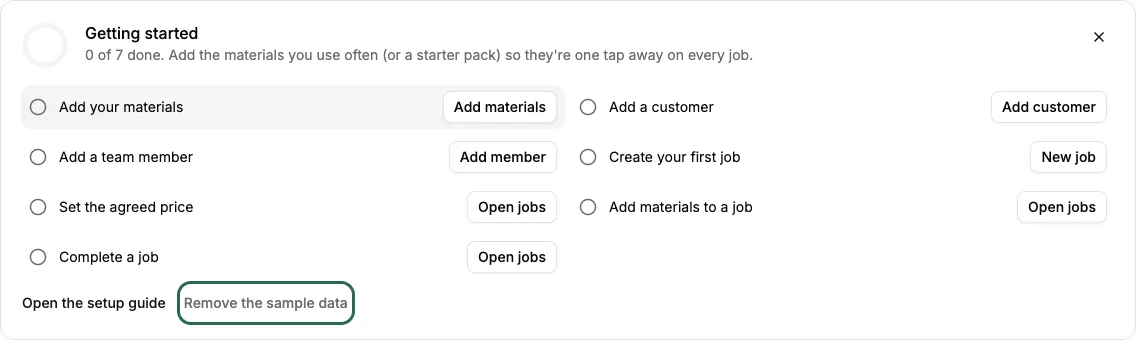
- Dashboard → Getting started → Try it with sample data. Remove it there or in Settings → Your data.
An empty app tells you little. Sample data fills your new company with example jobs in every state, so you see the schedule, profit and the dashboard working before you type anything.
Why it’s there
Section titled “Why it’s there”You want to know what Skuadro looks like with a few weeks of work in it before you spend an evening setting it up. When you’ve seen enough, the examples go and your company is empty again.
Who sees it
Section titled “Who sees it”Owners, in a new company. It’s offered only before you add anything of your own.
How to use it
Section titled “How to use it”- On the Dashboard, in Getting started, click Try it with sample data.
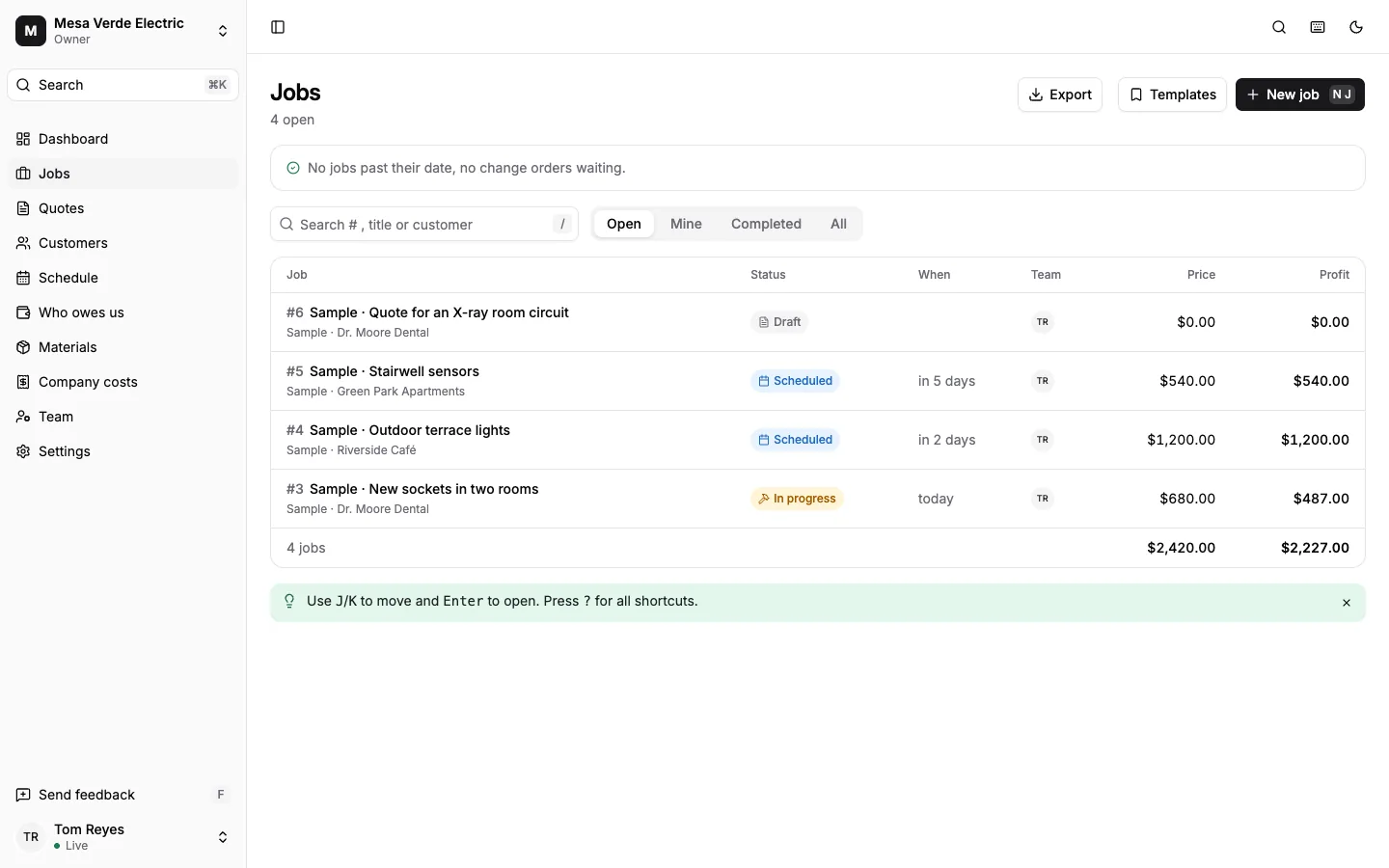
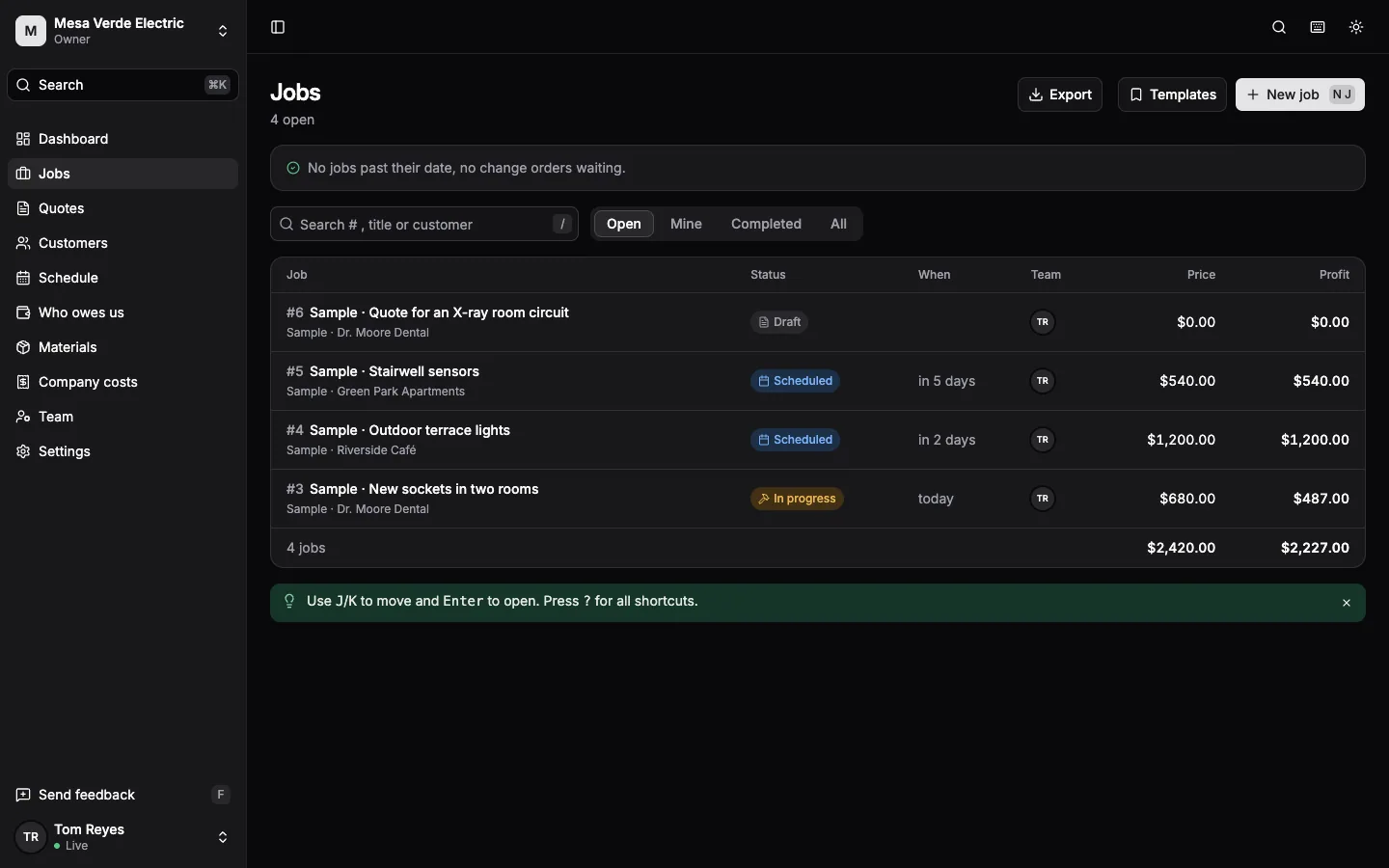
- Look around. You get 3 customers, 6 materials and 6 jobs: one finished and paid, one finished with only a deposit
paid, one in progress today, two scheduled in the next few days and one draft, with materials, hours, an expense and
payments. Every name starts with “Sample ·”.
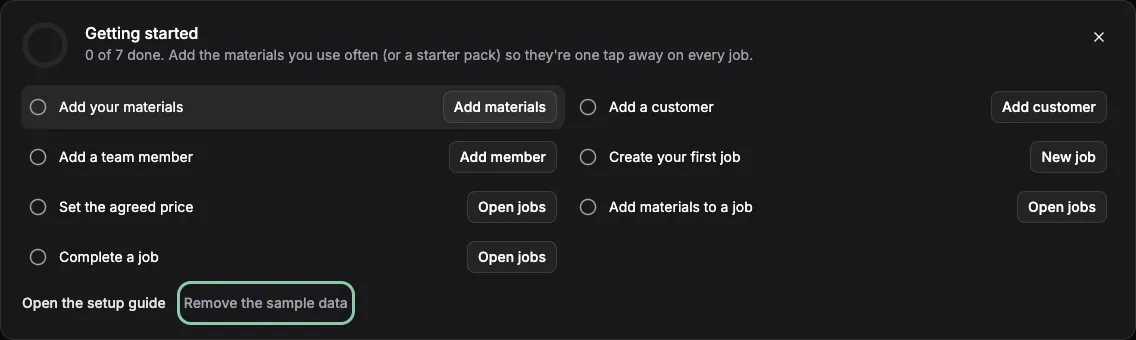
- When you’re done, go back to Getting started on the Dashboard (or to Settings → Your data) and click
Remove the sample data. A message says “Sample data removed. Your own data stayed.”
Good to know
Section titled “Good to know”- Closed Getting started, or finished every step? Remove the sample data is also in Settings → Your data, next to Export everything, for as long as the sample jobs are there.
- Removing takes the sample jobs with everything on them, also what you added to a sample job yourself.
- A sample customer or material that one of your own jobs or quotes uses stays.
- Sample data never ticks a step in Getting started: the list is about your own setup.
- If nothing of your own is left, your first real job is #1.
- Sample jobs are never in the QuickBooks or Xero sales file.