

Hours per person, exported
- Who
- Owners
- Where
- Dashboard → Labor by person; Dashboard → Export → Excel (.xlsx).
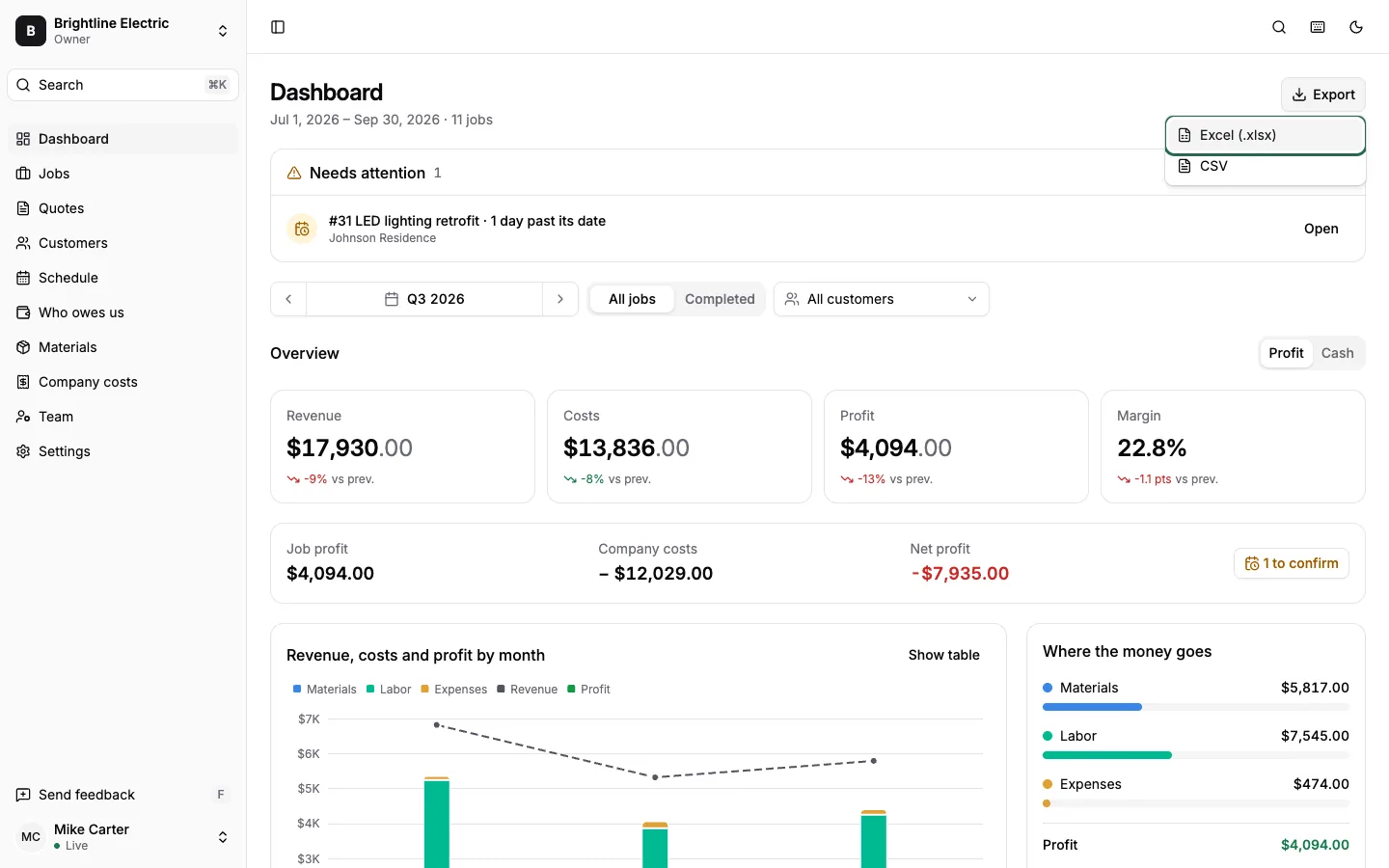
The dashboard adds up the hours each person logged, and its Excel file has a Labor sheet with every person’s hours, jobs and cost for the period you pick. Hand it to whoever runs your payroll.
Why it’s there
Section titled “Why it’s there”Adding up timesheets by hand at the end of the month takes an evening and still has mistakes. The hours are already on the jobs; this puts them in one table.
Who sees it
Section titled “Who sees it”Owners, and people whose role includes the dashboard (the Accountant role). Hourly rates and labor costs are part of it, so nobody else sees it.
How to use it
Section titled “How to use it”- Open Dashboard and click the period at the top to pick one: This month, Last month, Last quarter,
any range on the calendar, and more.
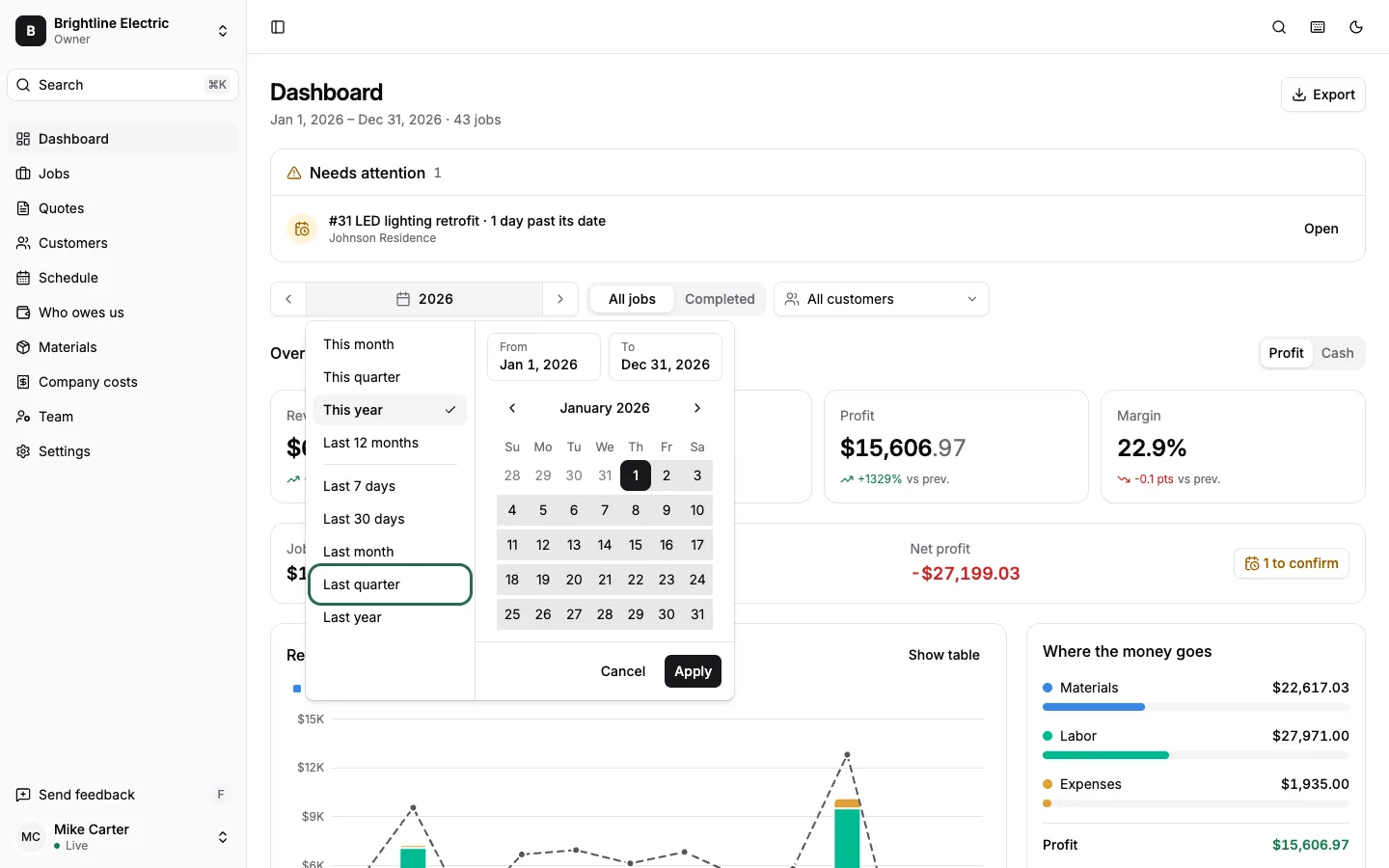
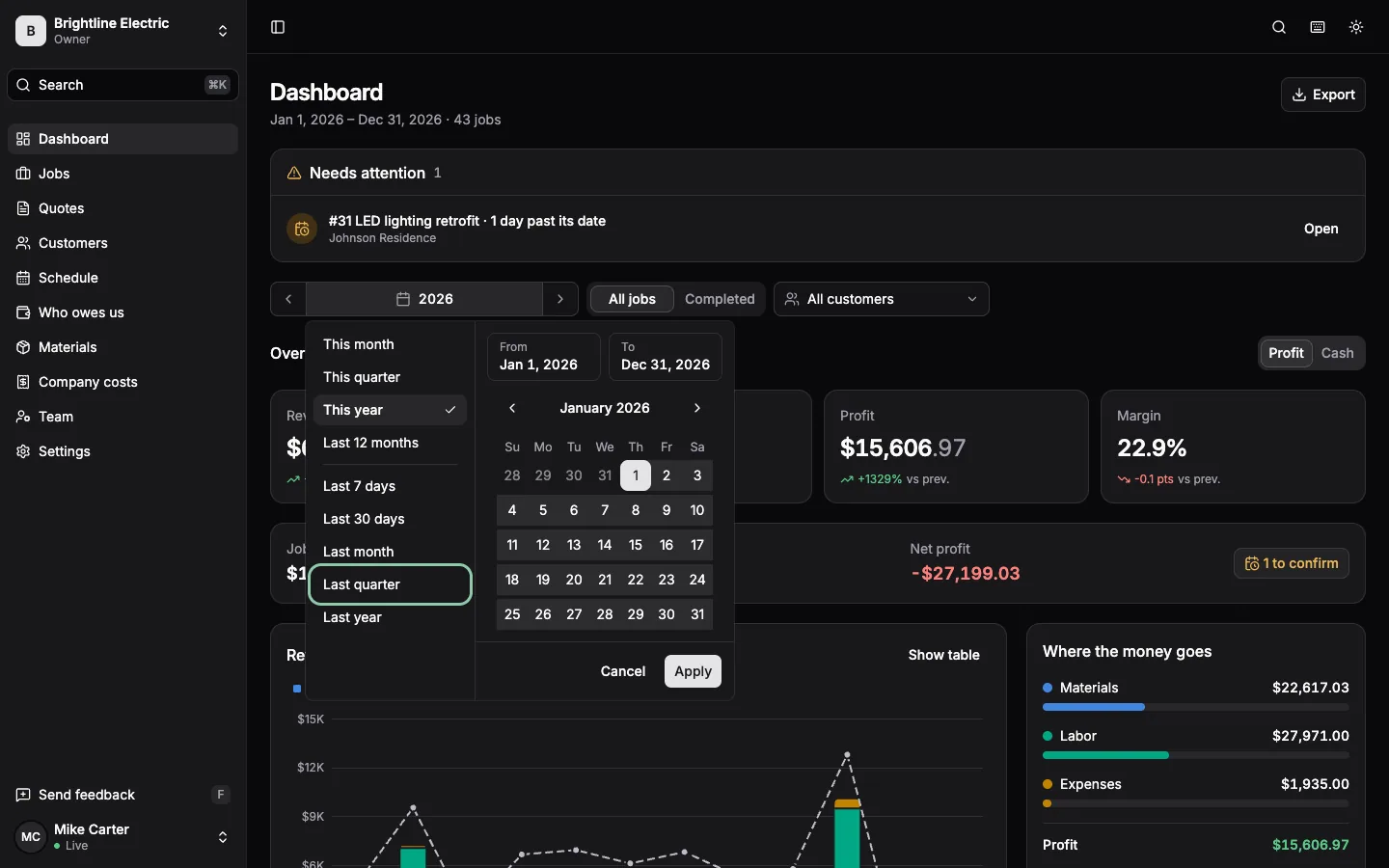
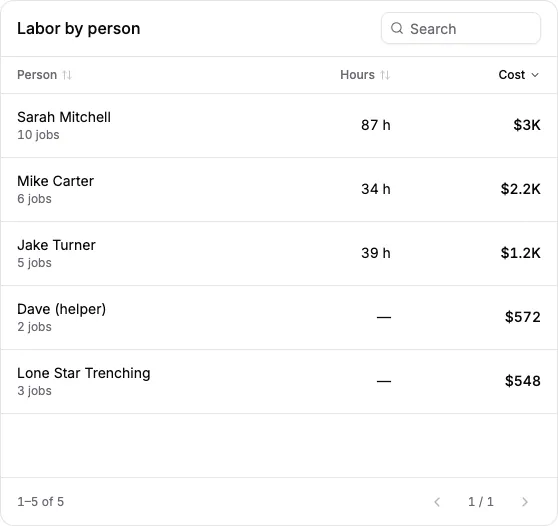
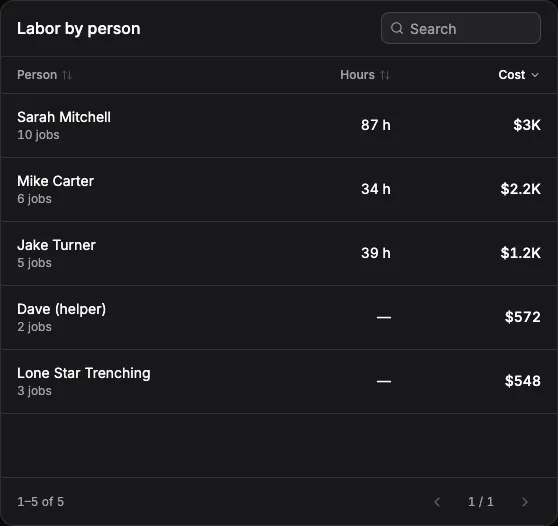
- Scroll to Labor by person: each person’s hours and cost in that period. Click Hours to sort by hours, or
search for a name.
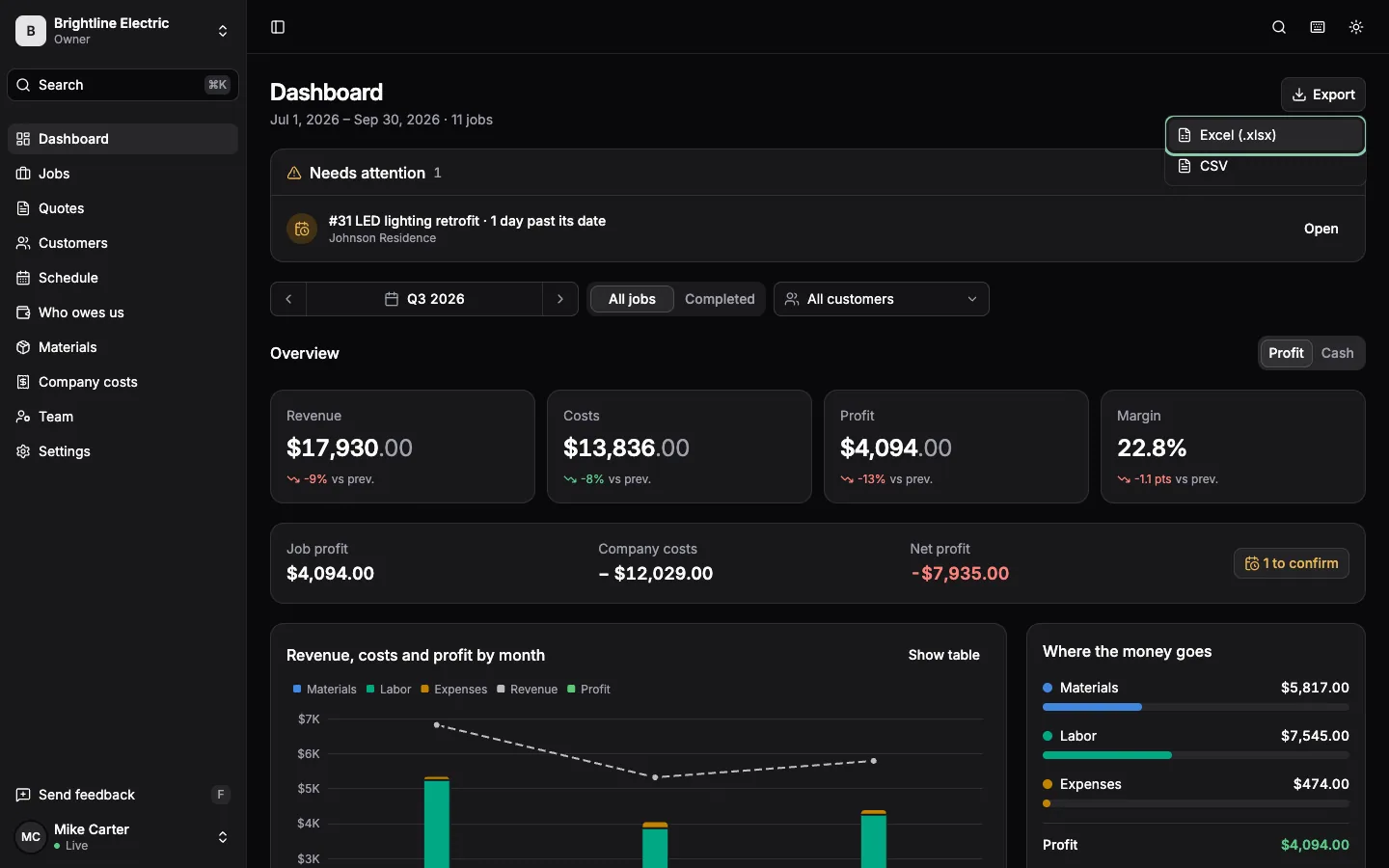
- Click Export, then Excel (.xlsx). The file has a sheet for each: Monthly totals, Customers,
Materials and Labor, where each person has their hours, the number of jobs and the cost.
Good to know
Section titled “Good to know”- Which hours count: the hours on the jobs that fall in the period. A job counts on the day it was completed, or while it’s still open on its scheduled day (or the day it was made), the same rule as the rest of the dashboard. Hours on a job finished next month count next month, even if they were worked this month.
- Days follow your company’s time zone (how).
- Cancelled jobs don’t count.
- People are listed by the name on their hours, so a helper or subcontractor you log hours for has their own row. A fixed amount for a subcontractor counts in the cost, with no hours.
- CSV has only the monthly totals; the Labor sheet is in the Excel file.