

Arrival times and windows
- Who
- Owners, Office, Field workers
- Where
- A job → ⋯ → Edit details → Arrival time and Window until.
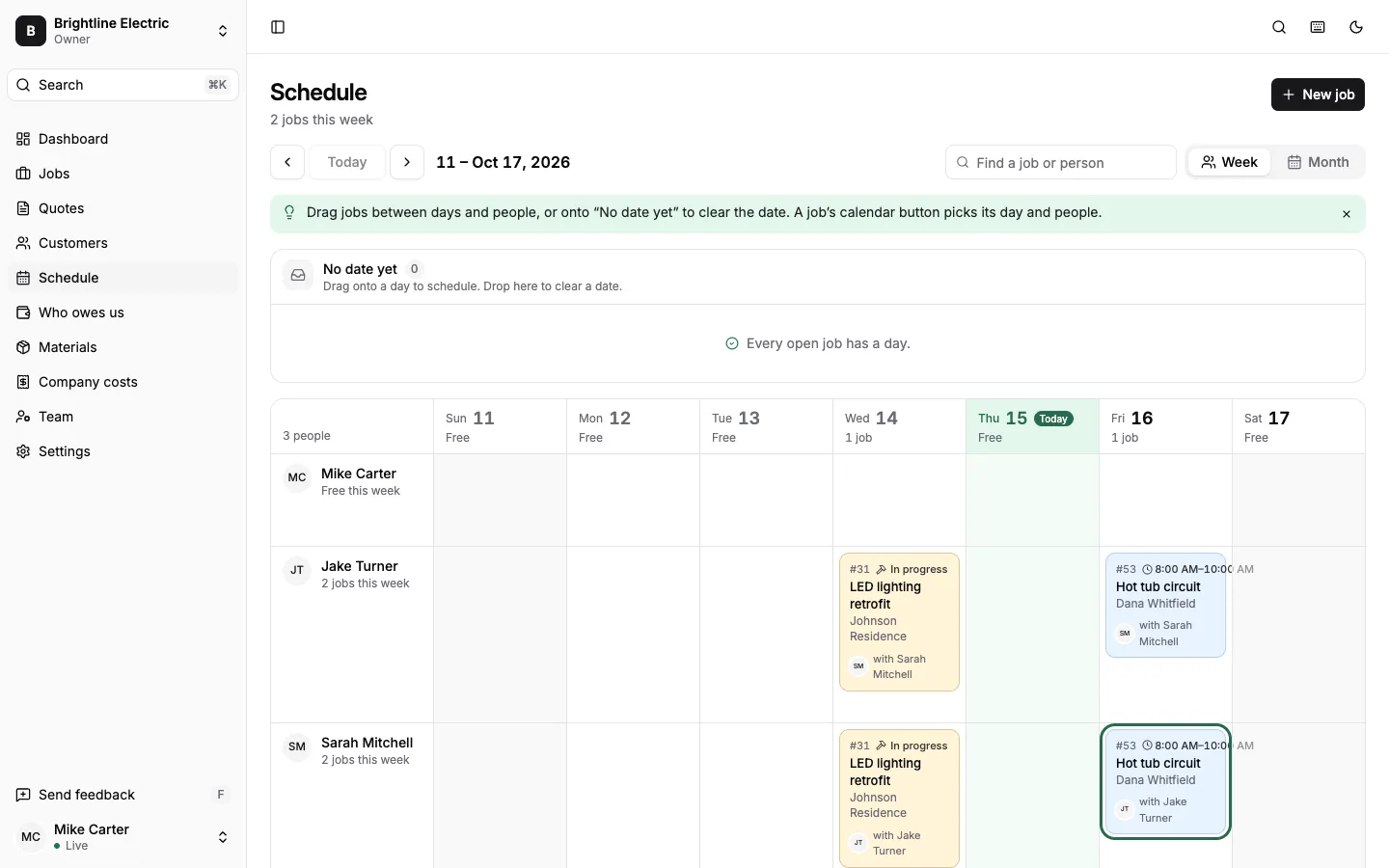
Give a scheduled job a time: Arrival time alone for “8:00”, or with Window until for “between 8:00 and 10:00”. Everyone on the job sees it, and the customer’s emails say it.
Why it’s there
Section titled “Why it’s there”“Thursday” isn’t enough for a customer who has to stay home, or for a crew with three stops. A time, or a window you can keep, saves the phone call asking when you’re coming.
Who sees it
Section titled “Who sees it”- Everyone who sees the job sees its time.
- Setting it needs permission to create or edit jobs: owners, and the Office, Foreman and Estimator roles.
How to use it
Section titled “How to use it”- Open the job, click ⋯ and Edit details (or set it when you make a New job). Under Scheduled, type
the Arrival time and, for a window, Window until.
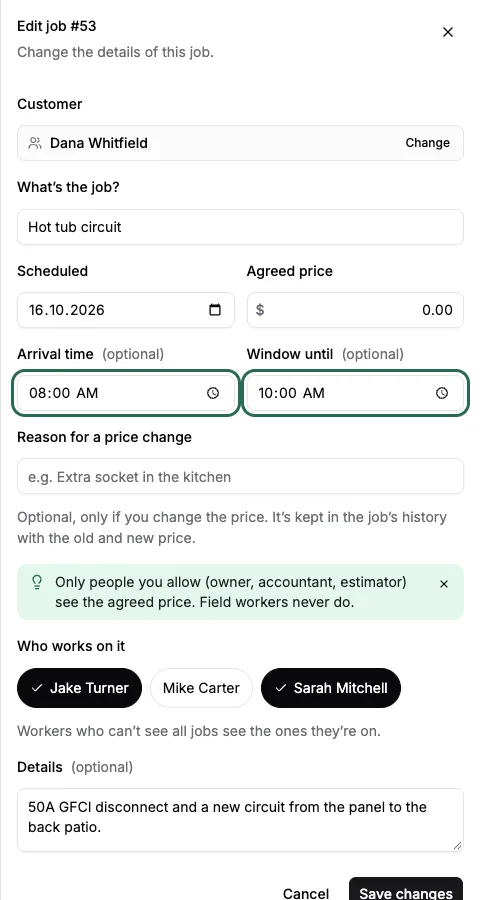
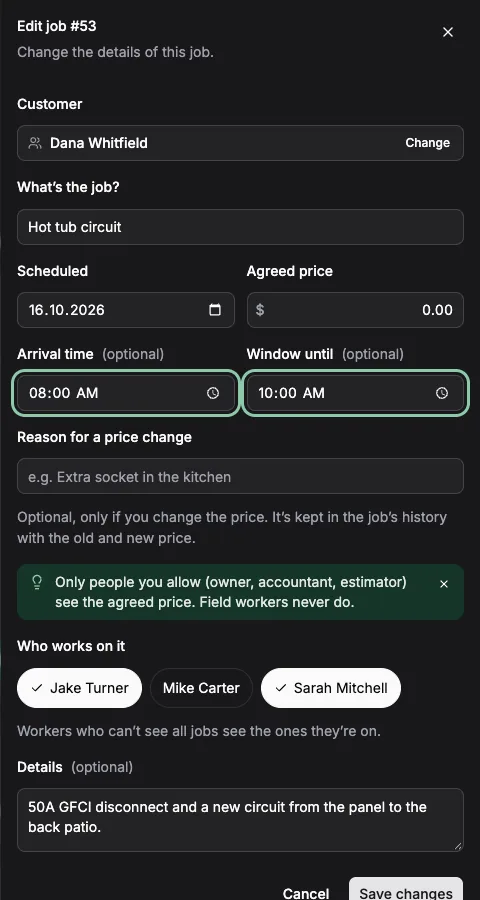
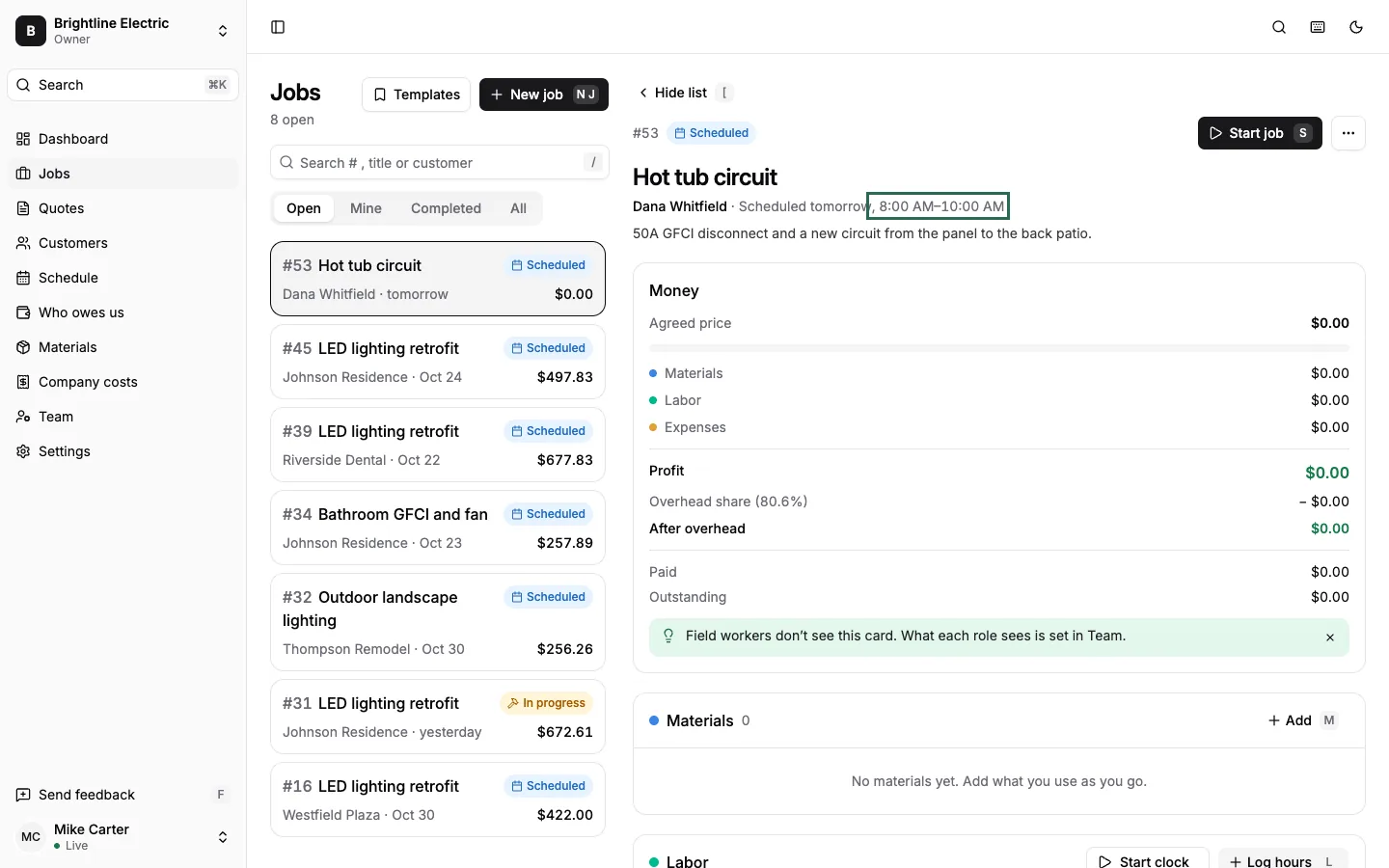
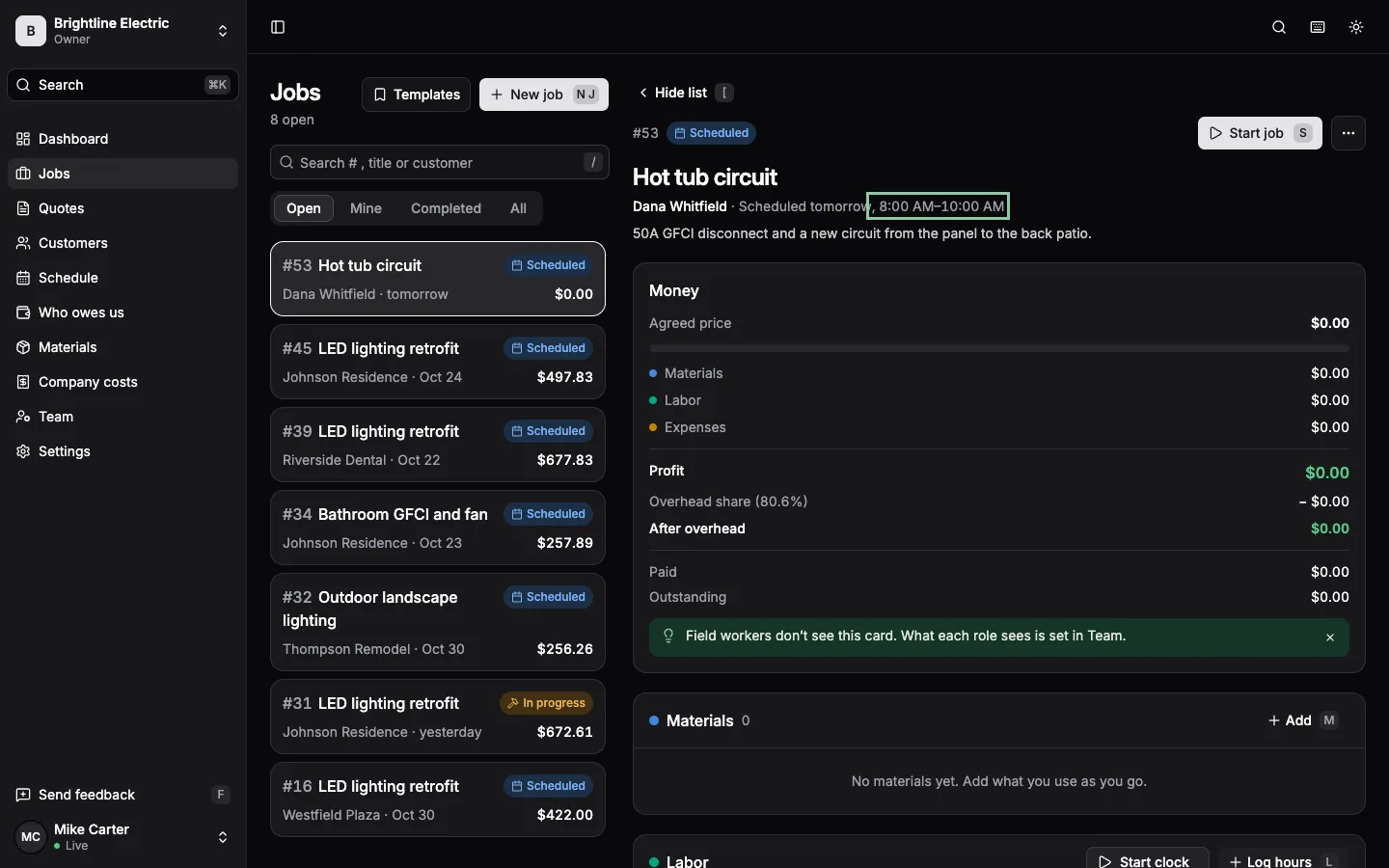
- Click Save changes. The job shows the day and the window under its title.
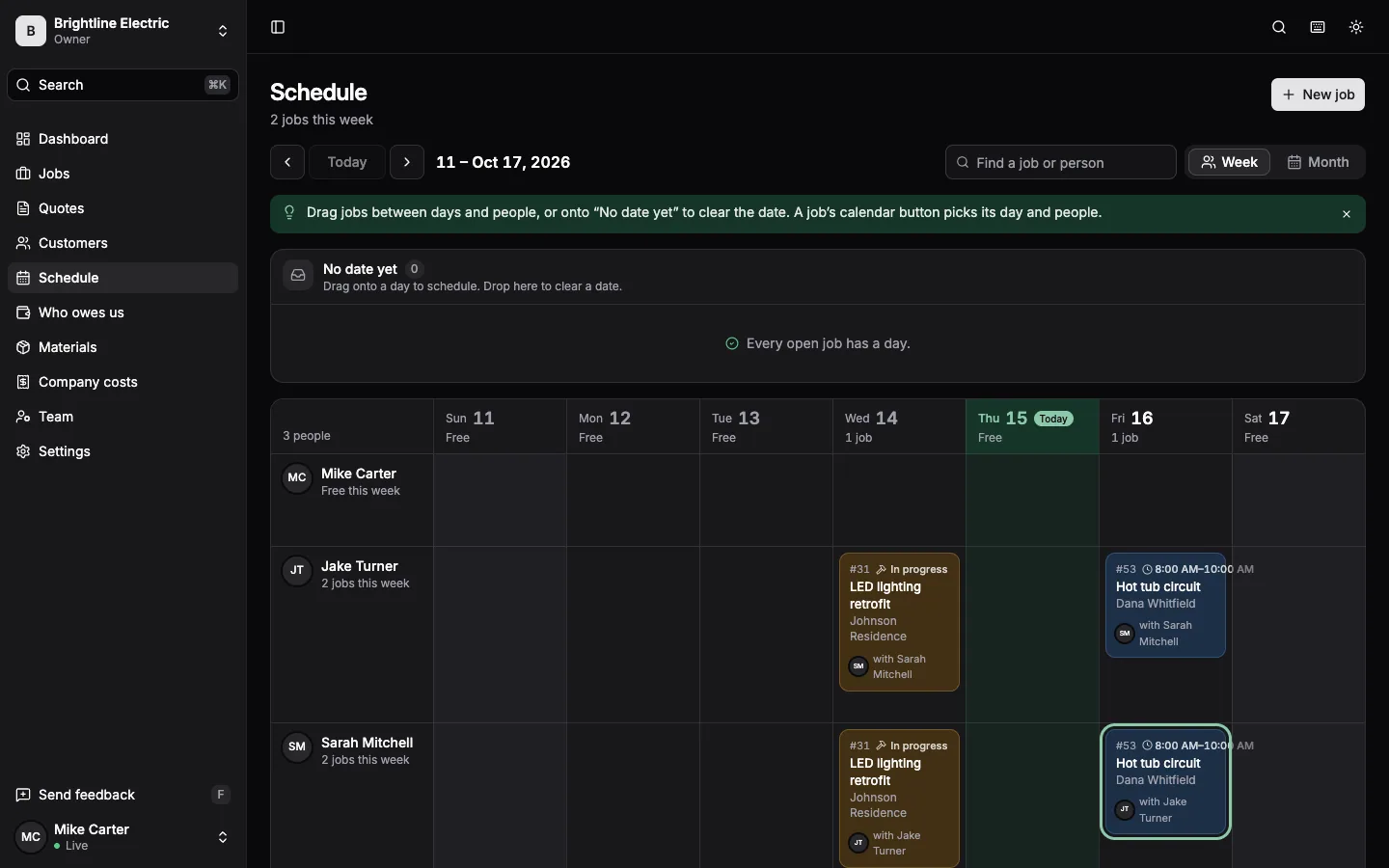
- On the Schedule, the card shows the time, and a day’s jobs are in time order.
Where the time is used
Section titled “Where the time is used”- Visit emails to the customer, when they’re on: “Arriving at about 8:00 AM.” or “Arriving between 8:00 AM and 10:00 AM.” (visit confirmations).
- The notification someone gets when they’re put on the job: the day and the arrival time.
- Calendars that follow the calendar link: the job is an event from the arrival time to the end of the window (one hour without a window). Jobs without a time are all-day events.
Good to know
Section titled “Good to know”- The time fields need a day first. Window until needs an arrival time, and must be later than it.
- Times are your company’s clock (Settings → Company → Time zone): a job at 8:00 is 8:00 where the company is, whoever looks at it and wherever they are.
- Moving a job to another day on the schedule keeps its time. Taking its date off takes the time off too.
- With visit emails on, a new day or a new time sends the customer a new confirmation.
- Jobs made by a repeating job start without a time; add it on each one.