

Live on every screen
- Who
- Owners, Office, Field workers
- Where
- Everywhere you're signed in.
Every open screen stays current. When someone adds a note, a material or hours, or changes a job, everyone looking at it sees the change a moment later, on a phone or a computer.
Why it’s there
Section titled “Why it’s there”“Did you see my message?” calls cost time. When the office writes where the panel is, the crew on site sees it without asking, and the office sees materials and hours come in as they’re added.
Who sees it
Section titled “Who sees it”Everyone, for the things they’re allowed to see. A change only says which job or list changed; each screen then asks for it again, so nobody gets a value they couldn’t see before.
How to use it
Section titled “How to use it”There’s nothing to turn on.
- When someone else has the same job open, the job shows who’s there, such as Sarah is here.
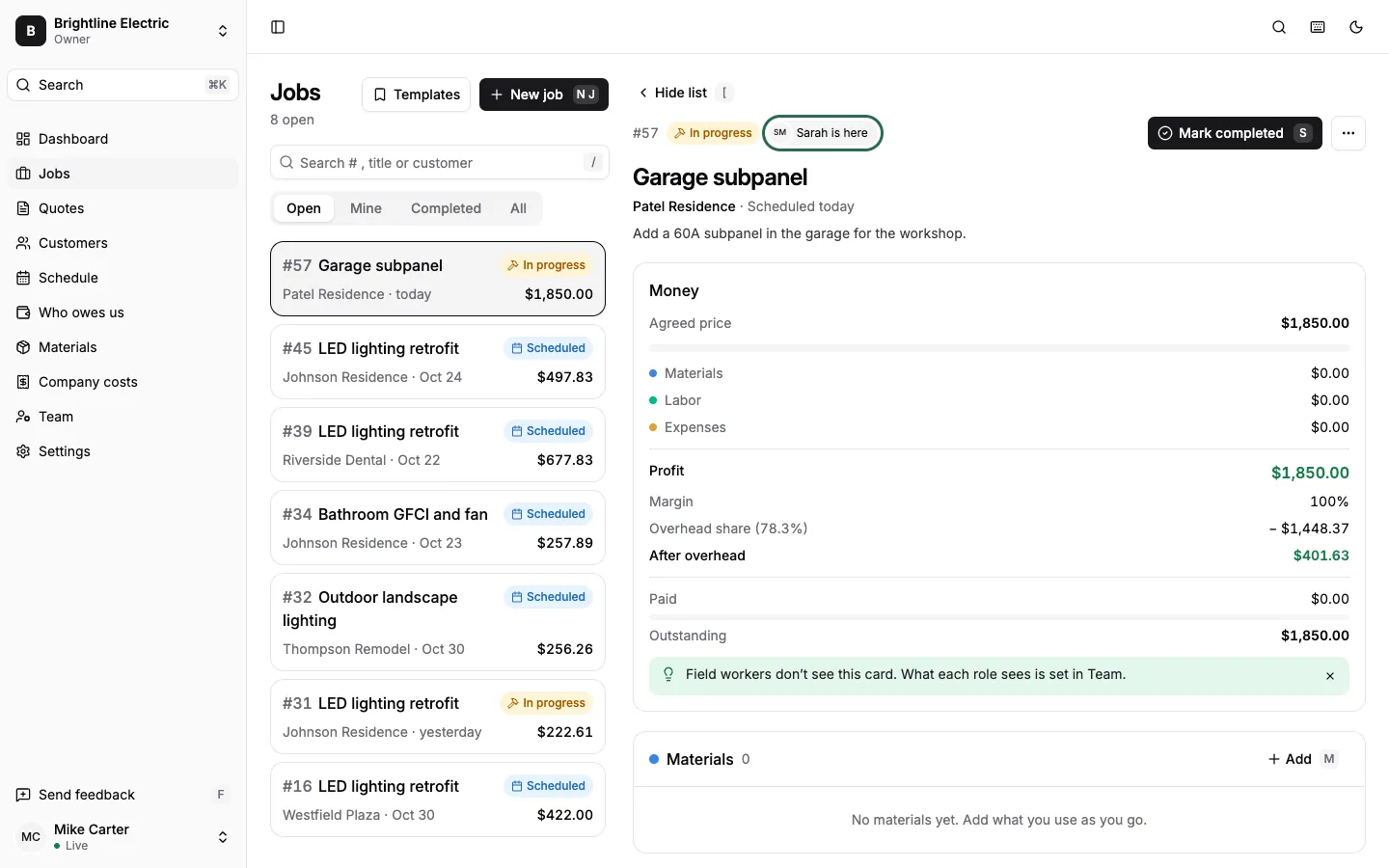
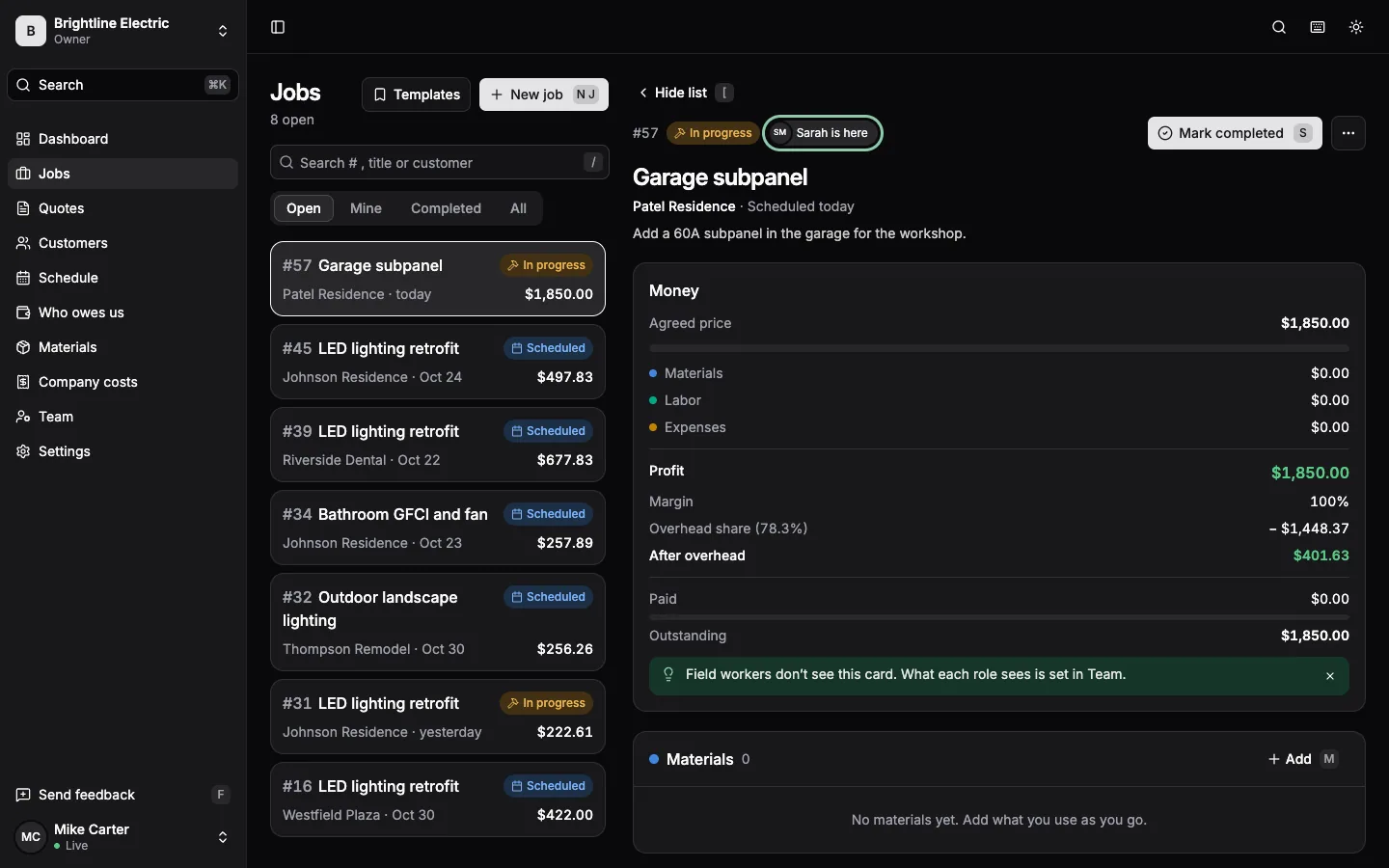
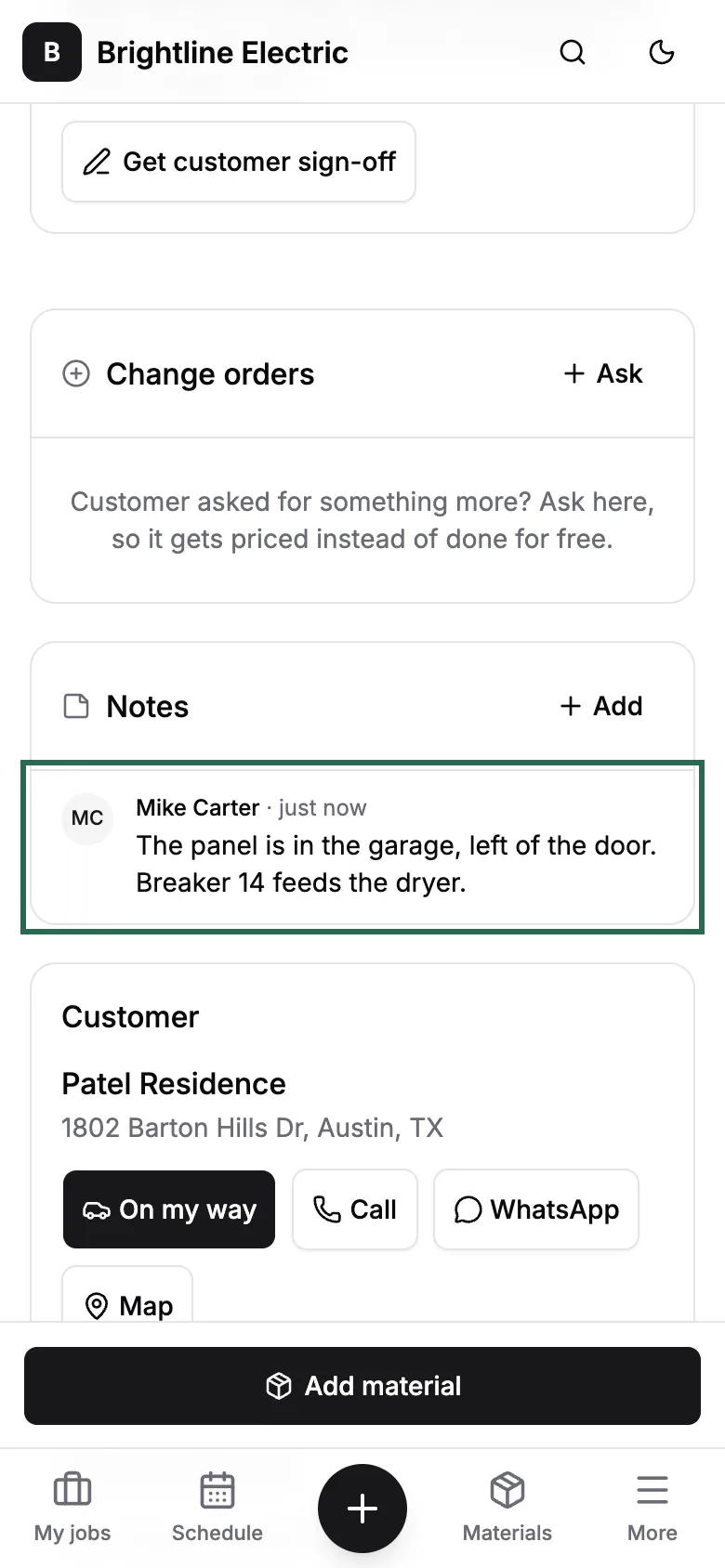
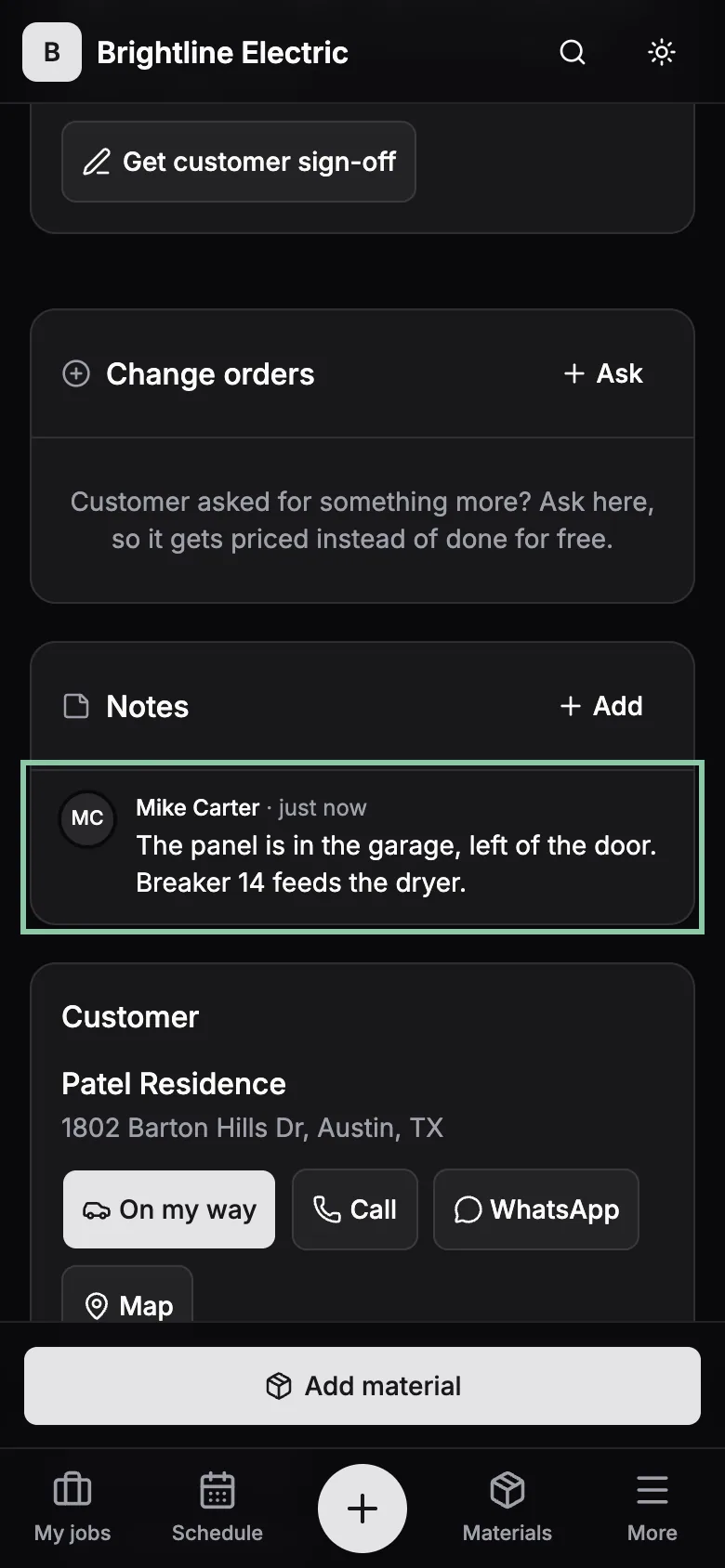
- Make a change, such as a note under Notes. On Sarah’s phone the note appears on its own, the new row lights up
briefly and a message says Mike Carter updated this job.
Good to know
Section titled “Good to know”- Lists (jobs, the schedule, the team) reload on their own when something in them changes.
- On a computer, your name at the bottom of the menu says Live when changes are coming in. Connecting… or Reconnecting… means it’s catching up; it keeps trying on its own.
- A screen in a tab you aren’t looking at catches up when you come back to it.
- When you change someone’s role or permissions, their phone picks up the change at once.
- With no signal, a phone shows what it saved last and sends your changes later (working with no signal).