

Push notifications
- Who
- Owners, Office, Field workers
- Where
- Settings → Notifications.
Turn on notifications on your phone or computer and Skuadro tells you when you’re put on a job, when a job you’re on changes, and (for owners) what the team is doing, even when the app is closed.
Why it’s there
Section titled “Why it’s there”A job moved in the office is no use if the person doing it finds out on the doorstep. A notification gets to them the moment it’s saved, without a phone call or a group chat.
Who sees it
Section titled “Who sees it”Everyone, for themselves. Each person turns it on on their own devices and picks what they want. Team activity is only offered to owners.
How to use it
Section titled “How to use it”- On an iPhone or iPad, first add Skuadro to your Home Screen and open it from there (how). On Android and computers it works in Chrome, Edge, Firefox or Safari.
- Go to Settings → Notifications and tap Turn on. Your phone or browser asks whether to allow notifications: say yes. Do this on each device you use.
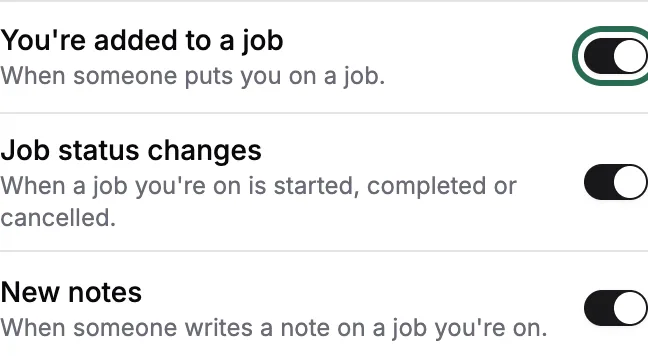
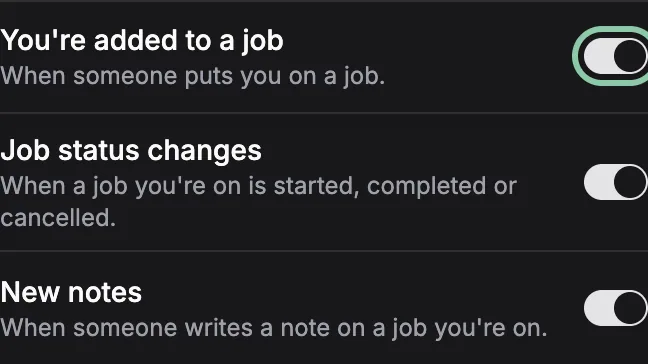
- Switch off what you don’t want. All of them start on.
- Tap Send a test to check it arrives. Tapping a notification opens the job.
What sends one
Section titled “What sends one”- You’re added to a job: someone puts you on a job, when they make it, edit it, drag it to your row or plan it, or start it from a template. It says the job, the day and the arrival time. The 18:00 reminder to log your hours comes under this one too.
- Job status changes: a job you’re on is started, completed or cancelled. Owners also hear when a customer accepts or declines a quote, and when a request comes in from your online form.
- New notes: someone writes a note on a job you’re on. The notification says who and which job, not the note itself.
- Team activity (owners): someone on the team adds materials, hours, an expense, a payment, a photo or file, or asks for a change order; at 18:00, the jobs in progress with no hours logged that day; a finished job that made less than your profit target, when that alert is on.
Good to know
Section titled “Good to know”- You never get a notification for something you did yourself.
- Owners follow every job; everyone else, the jobs they’re on.
- Notifications never show prices or amounts.
- Turn off stops them on this device only. Your choices are per company, if you work for more than one.
- “Blocked in this browser’s site settings” means the browser was told no: allow notifications for the site in the browser’s settings, then come back.
- Jobs made automatically by a repeating job don’t send one.