

Your logo on quotes and invoices
- Who
- Owners
- Where
- Settings → Quotes and invoices → Add logo.
Add your logo once, and it’s at the top of your quotes and invoices, on screen and on paper.
Why it’s there
Section titled “Why it’s there”A logo makes a quote look like it came from a real business, which it did. It’s one more reason for a customer to trust the price they’re reading.
Who sees it
Section titled “Who sees it”Owners add, change and remove the logo. Your customers see it on every quote and invoice they open or print.
How to use it
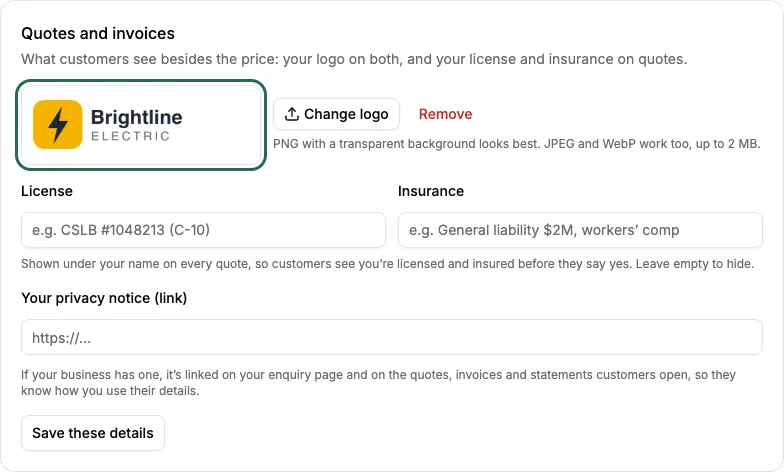
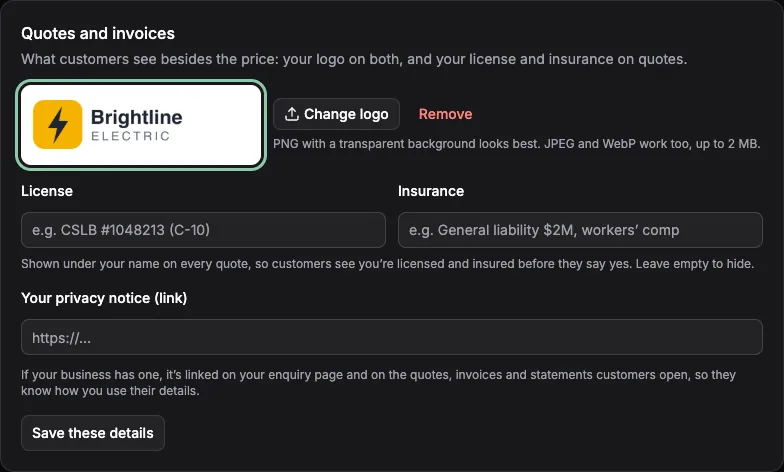
Section titled “How to use it”- Go to Settings → Quotes and invoices and click Add logo. Pick the image of your logo.
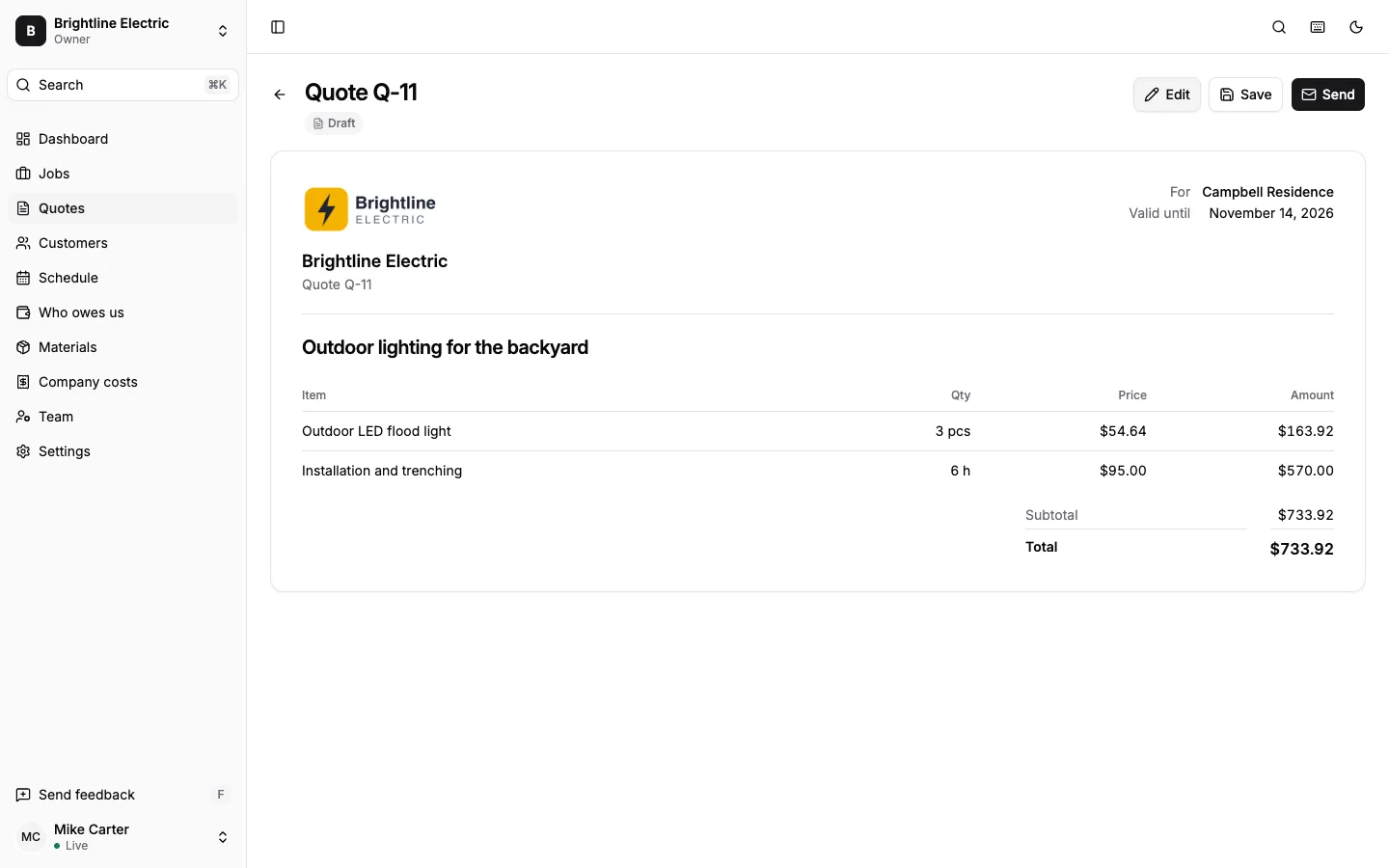
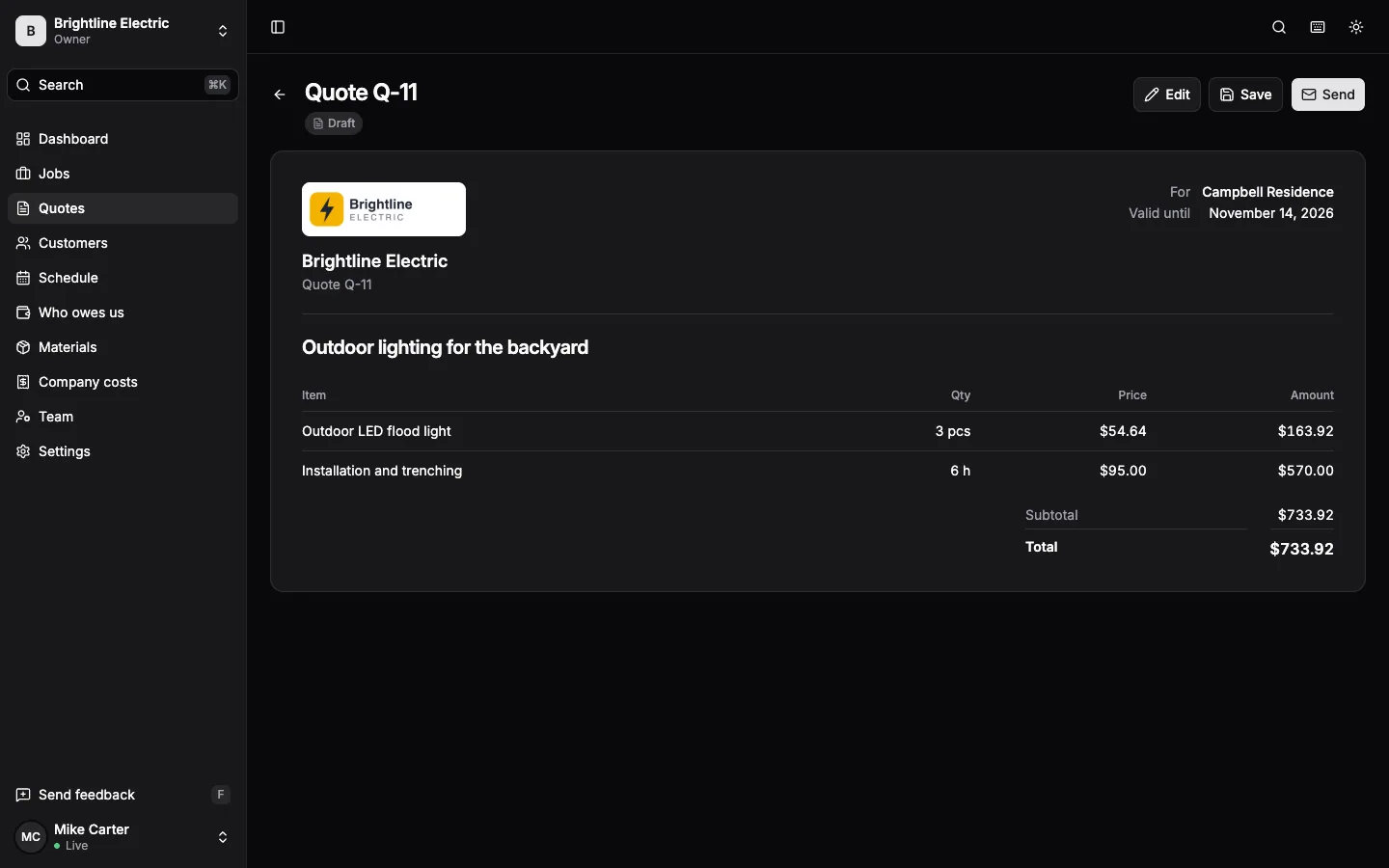
- That’s it. Open any quote and click Preview: the logo is at the top, above your company’s name, as your
customer sees it.
Good to know
Section titled “Good to know”- Which image: a PNG with a transparent background looks best. JPEG and WebP work too, up to 2 MB. Large logos are made smaller (at most 1200 × 400 pixels); only the picture itself is kept.
- Quotes always show your current logo, including ones you already sent. Invoices keep the logo they were issued with: a new logo shows on new invoices, and invoices issued before you added one stay without it.
- Change logo replaces it; Remove takes it off your quotes and off new invoices (Undo in the message puts it back).
- In dark mode the logo sits on a white card, as on paper, so it reads the same.