

Undo a delete
- Who
- Owners, Office, Field workers
- Where
- The message that appears after you delete or remove something → Undo.
When you delete a job, a customer or a line on a job, a message appears with Undo. Click it and it’s back.
Why it’s there
Section titled “Why it’s there”Thumbs slip on a phone and the wrong row gets deleted. Asking “are you sure?” every time slows everyone down; one click to take it back is faster and safer.
Who sees it
Section titled “Who sees it”Whoever deleted it, on their own screen. You can only delete what your role lets you change, and Undo brings back the same.
How to use it
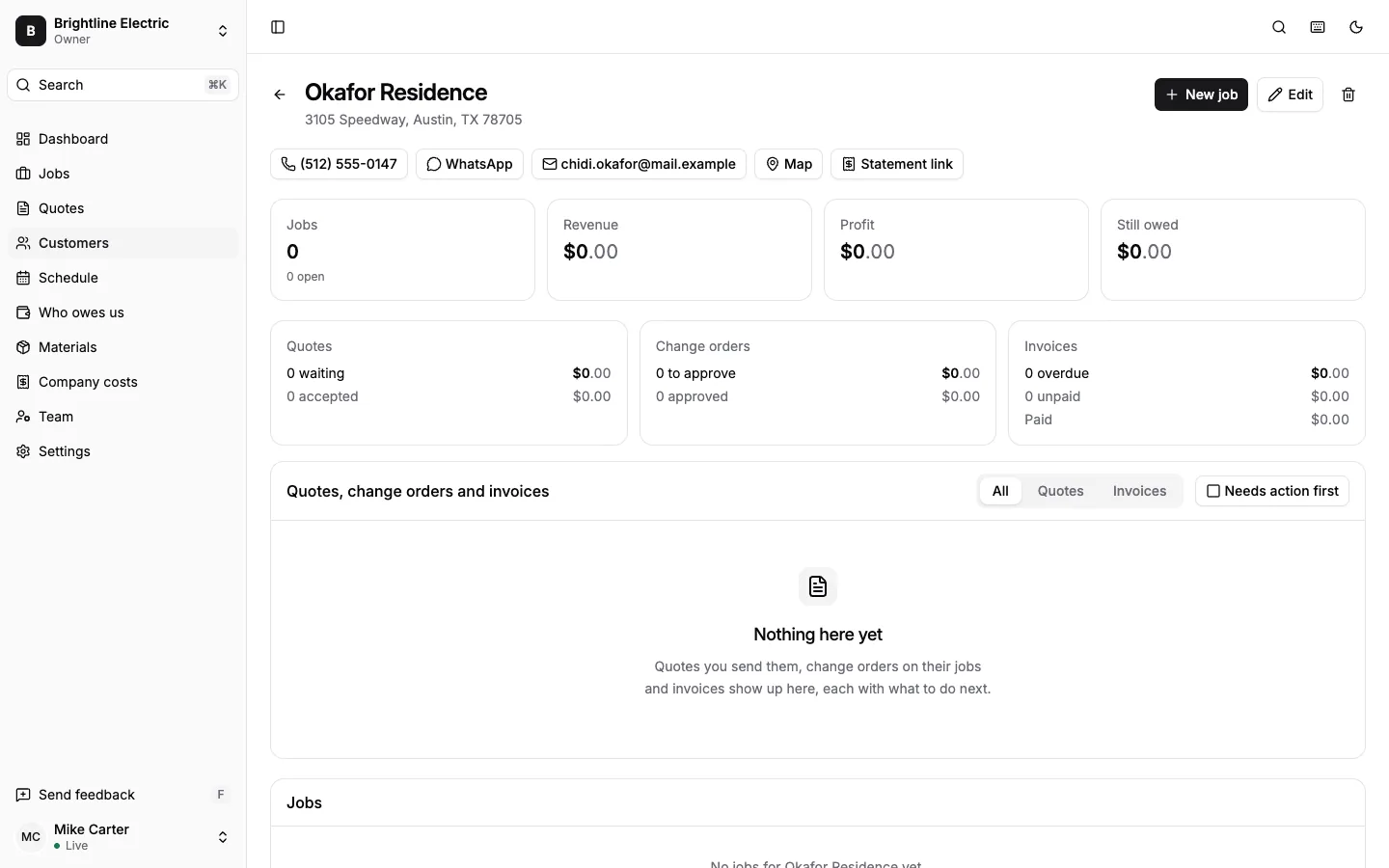
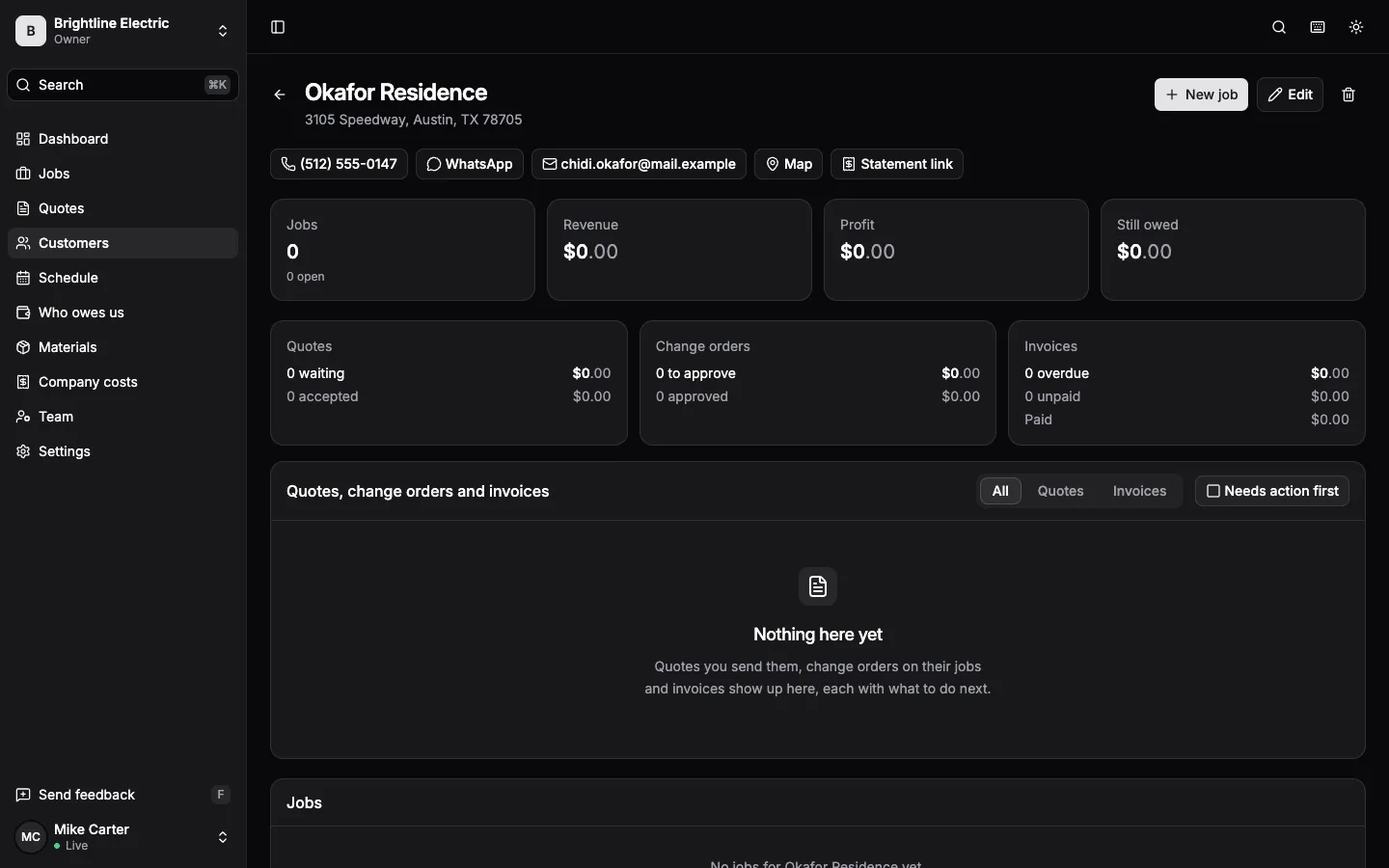
Section titled “How to use it”- Delete or remove something, for example a customer: open the customer and click the bin (Delete customer). You go
back to the list, and a message says “Okafor Residence deleted” with Undo.
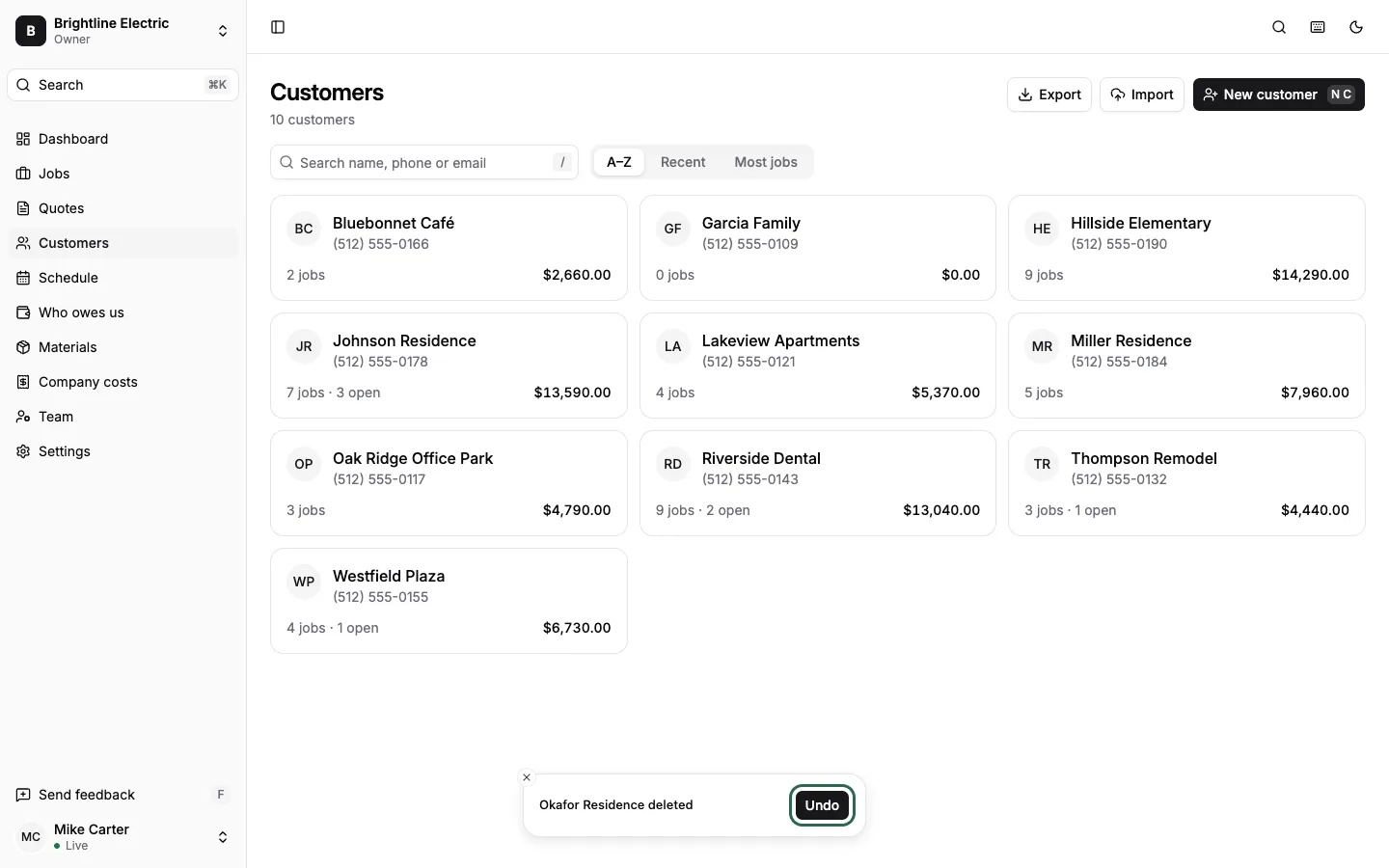
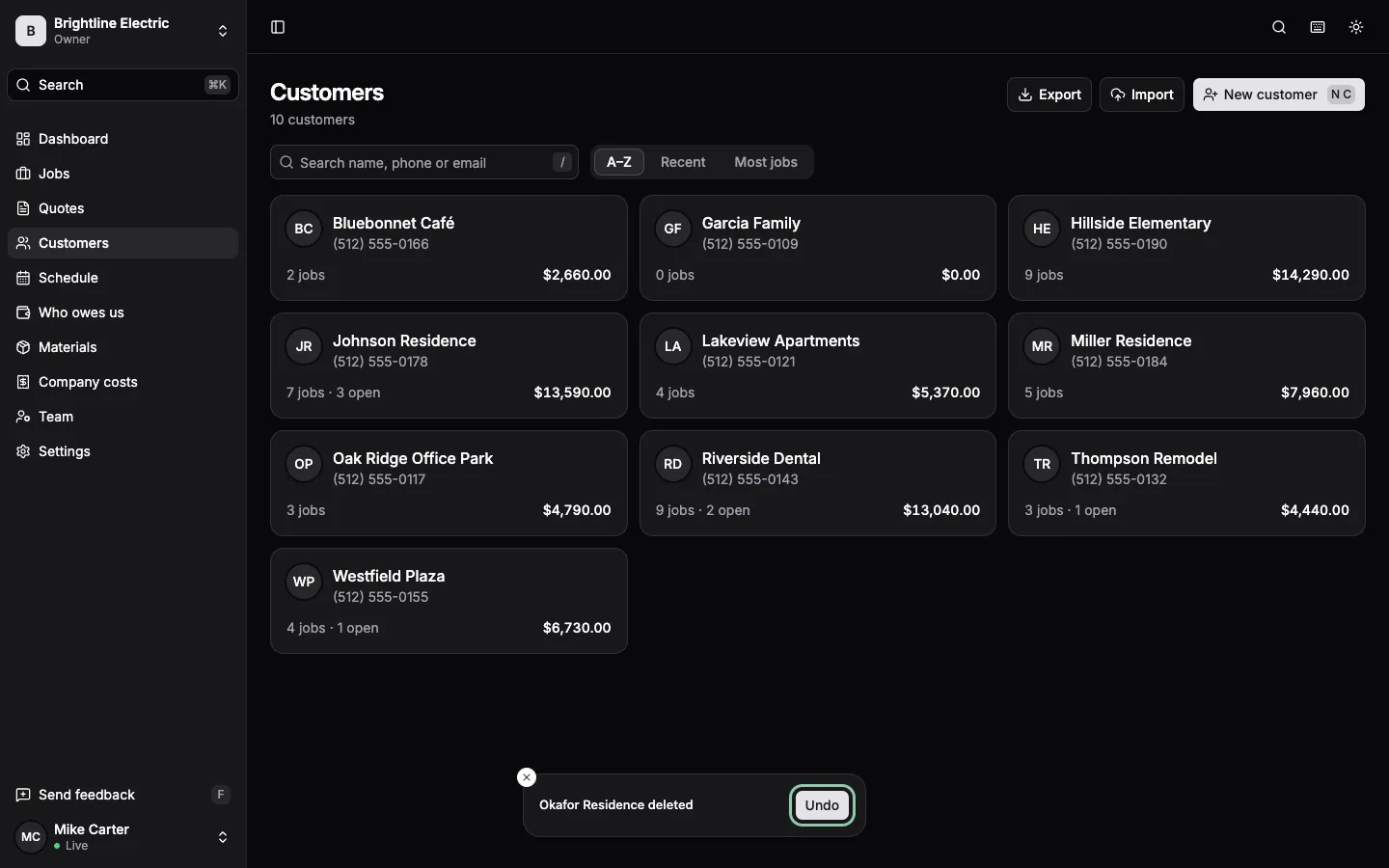
- Click Undo. The customer comes back, as it was, and opens.
What has Undo
Section titled “What has Undo”- Jobs (Delete job in the job’s menu), with everything on them.
- Customers. A customer with open jobs can’t be deleted: complete or cancel the jobs first.
- Materials you archive from the catalog.
- On a job: material lines, hours, expenses (with their receipt photo), payments, notes, photos and files, and checklists.
- Company costs, also repeating ones (with their entries).
- A material’s photo and your company logo.
- Checklist templates in Settings.
Withdrawing an invitation, deleting a role or stopping a repeating job have no Undo.
Good to know
Section titled “Good to know”- The message stays for about 8 seconds. On a computer it’s at the bottom of the screen, on a phone at the top.
- When you remove something inside an open panel (a material’s photo, for example), Undo is in that panel.
- Undo needs signal: it works online.
- Hours come back with the same person, date, hours and note, and the same rate or amount if you can see labor costs (if you can’t, the person’s current rate is used). Where the time clock started and stopped doesn’t come back.