

Labor at its true cost
- Who
- Owners, Office
- Where
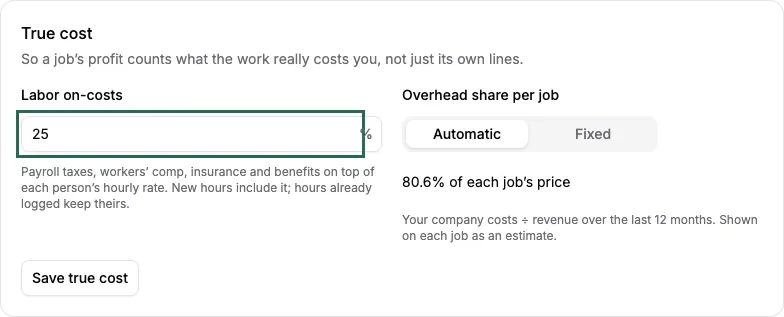
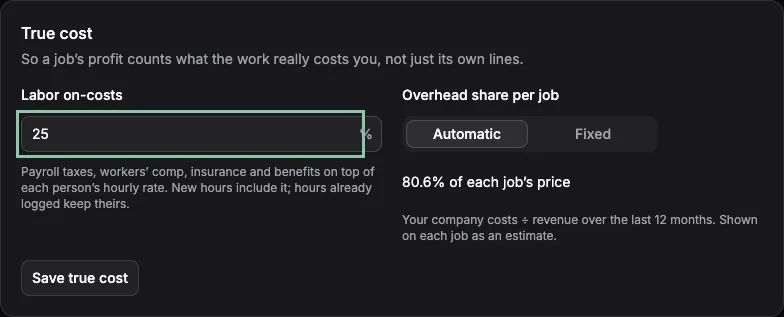
- Settings → True cost → Labor on-costs.
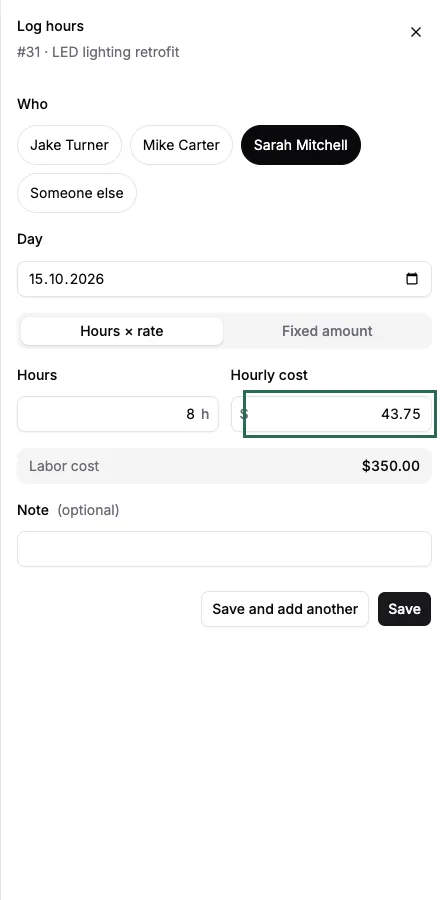
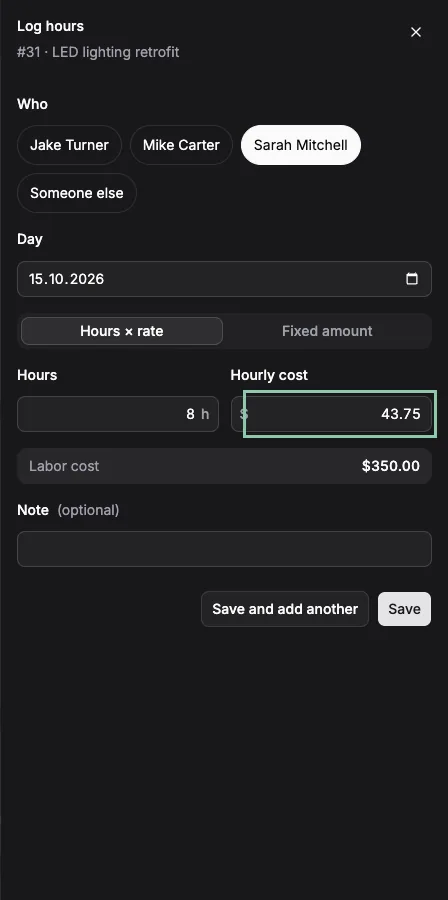
Labor on-costs are a percentage added to each person’s hourly rate when their hours go on a job. A $35 hour with 25% on-costs counts as $43.75.
Why it’s there
Section titled “Why it’s there”An hour of work costs you more than the wage: payroll taxes, workers’ comp, insurance and benefits come on top. Leave them out and every job looks more profitable than it is.
Who sees it
Section titled “Who sees it”- Setting it: owners.
- The hourly cost on hours: people whose role lets them see labor costs (Office, Accountant). Field workers never see a rate, theirs or anyone’s.
How to use it
Section titled “How to use it”- Go to Settings → True cost. Type your on-costs in Labor on-costs, as a percentage of the hourly rate, and
click Save true cost.
- From now on, hours logged for a team member count at their rate plus on-costs. When you log hours, the field is
called Hourly cost and is filled in for you: Sarah’s $35.00 becomes $43.75, so 8 hours cost $350.00 instead of
$280.00.
How it’s counted
Section titled “How it’s counted”Hourly cost = hourly rate × (1 + on-costs), rounded to the cent. The hours’ cost is hours × hourly cost.
The hourly rate is the one set for each person in Team. Someone with no rate costs nothing per hour, on-costs or not.
Good to know
Section titled “Good to know”- Each entry keeps the hourly cost it was logged with. Changing the percentage, or someone’s rate, only changes hours logged from then on; past jobs keep their numbers.
- It applies to hours logged for a team member: from the job, from the time clock, or by the person themselves.
- Fixed amounts (Fixed amount, for a subcontractor) and hours for someone not on the team get no on-costs.
- If you type a different hourly cost in the field, that’s what counts; on-costs aren’t added on top again.
- On-costs can be between 0% and 200%. 0% (or empty) turns them off.