

Job templates
- Who
- Owners, Office
- Where
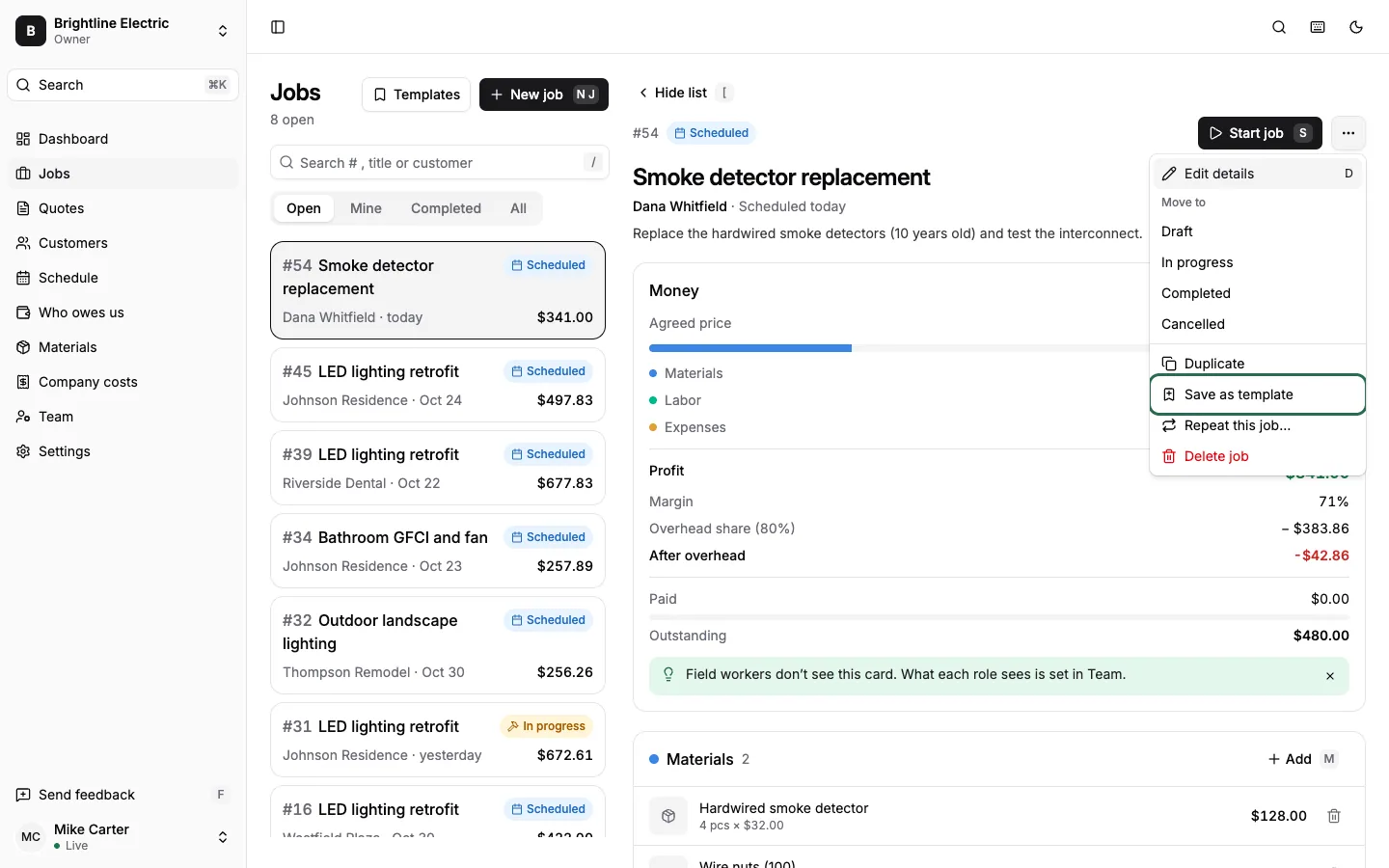
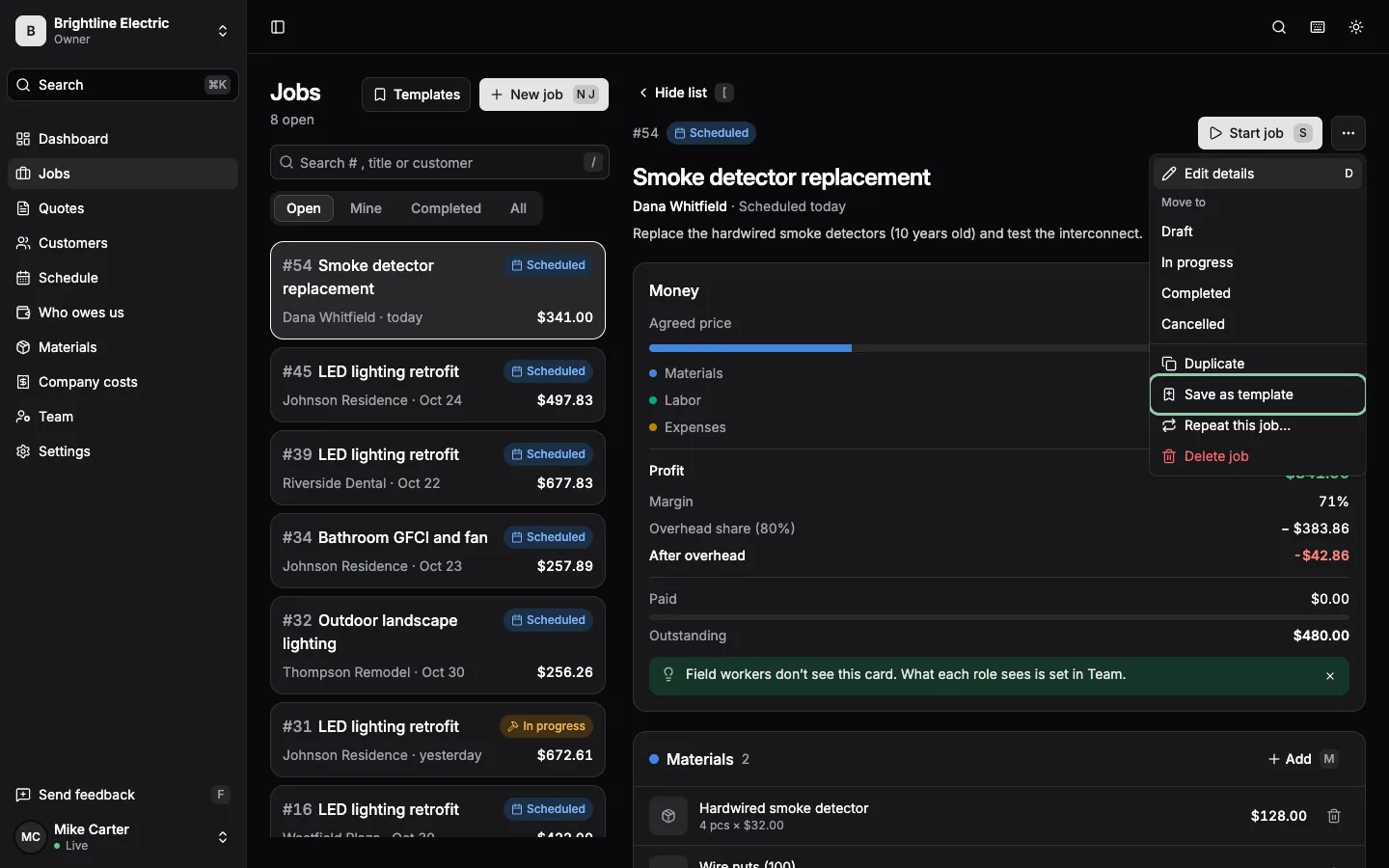
- A job → ⋯ → Save as template; Jobs → Templates.
Save a job you do again and again as a template. Next time, pick the template, the customer and the day, and the job is made with the same title, description, price and materials.
Why it’s there
Section titled “Why it’s there”Most trades sell the same few jobs many times: a panel upgrade, a smoke detector replacement, a service visit. Typing them in again is slow, and a forgotten material line is money lost.
Who sees it
Section titled “Who sees it”People who can create jobs: owners, and the Office and Estimator roles. Prices go in and come out only for people who can set prices; materials, for people who can see and add them.
How to use it
Section titled “How to use it”- Open a job that’s a good example, click ⋯ and Save as template. It’s saved under the job’s title.
- Go to Jobs and click Templates. Each template shows its materials and its price.
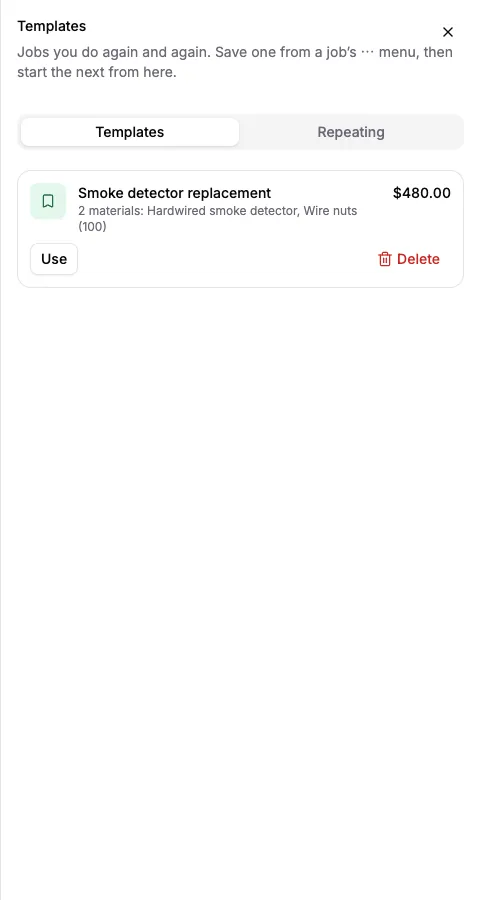
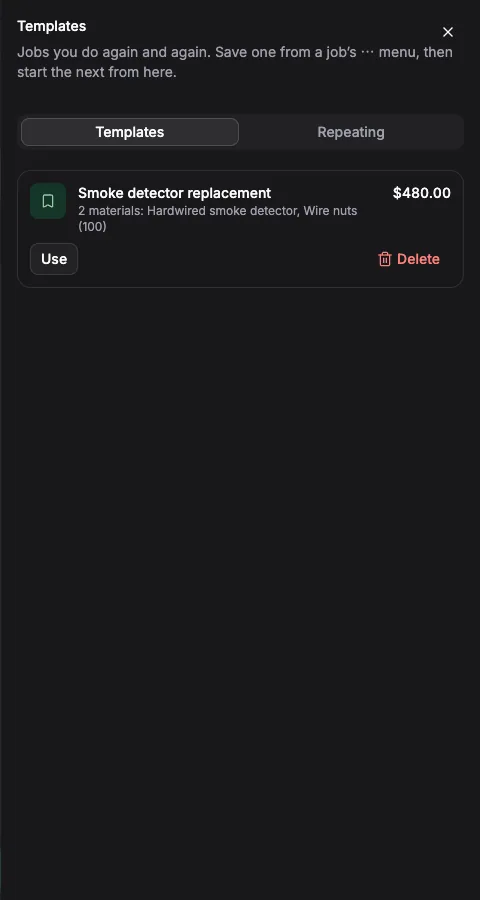
- Click Use, pick the Customer, check the Scheduled day (today to start with) and click Create job.
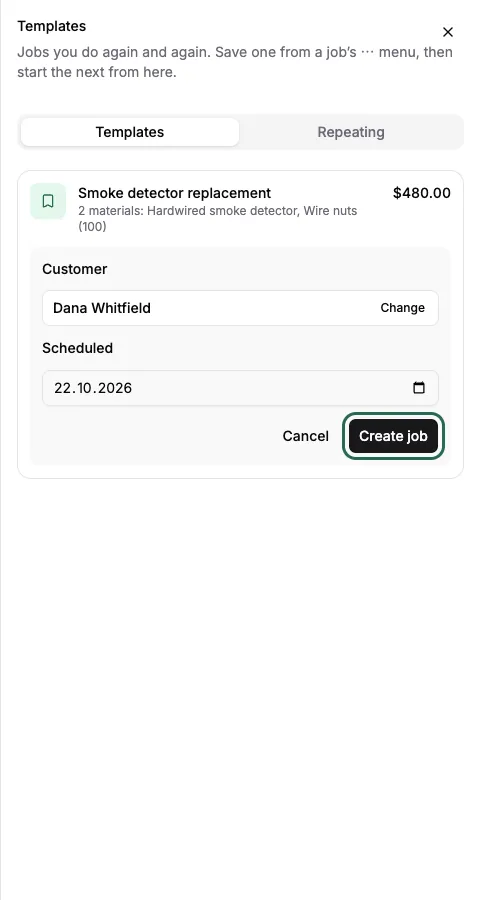
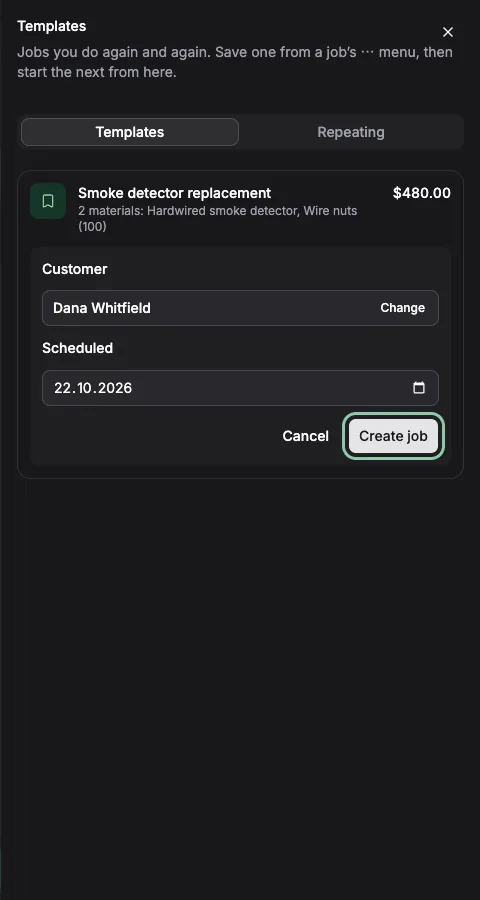
- The new job opens, Scheduled, with the template’s description, price and materials. Add the people and the time on the job or on the schedule.
Good to know
Section titled “Good to know”- A template keeps the title, description, agreed price and materials. Not the customer, the day, the people, the time, hours or notes.
- Materials from your catalog take the catalog’s cost on the day you use the template, not the cost when you saved it.
- Delete a template in the list; Undo is right there. Repeating jobs that used it stop making jobs until you resume them.
- To make one copy of a job for the same customer, use ⋯ → Duplicate instead.
- Repeating a job saves it as a template too.