

Your company's time
- Who
- Owners, Office, Field workers
- Where
- Settings → Company → Time zone.
Your company has one time zone. “Today”, due dates, the schedule, hours and reports all follow it, whatever clock the phone or computer in someone’s hand is set to.
Why it’s there
Section titled “Why it’s there”A job in Austin happens on Austin’s day. If an owner on holiday or a laptop set to another zone moved invoice dates or put Friday’s hours on Saturday, the books would stop adding up.
Who sees it
Section titled “Who sees it”Everyone works on the company’s time. Only the owner can change the time zone.
How to use it
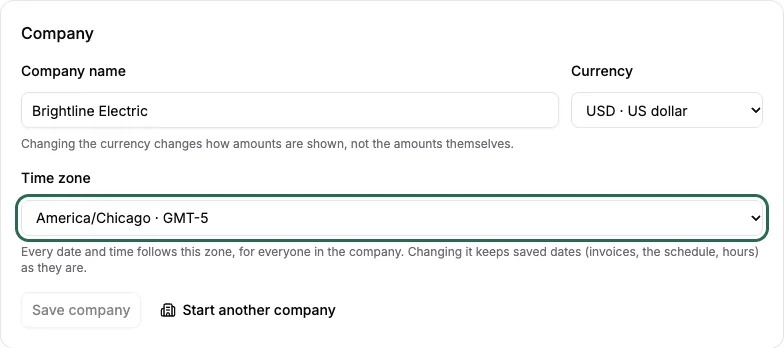
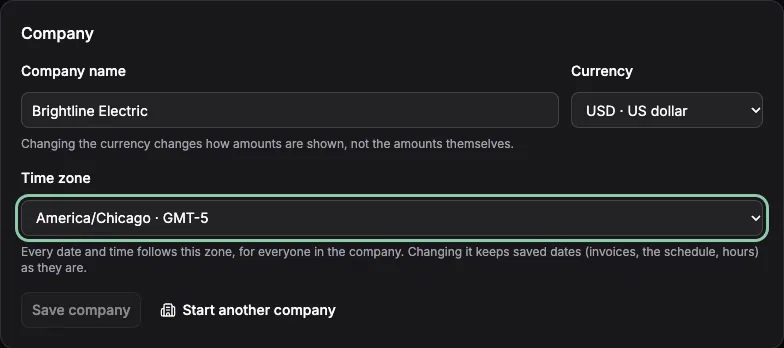
Section titled “How to use it”- Open Settings and go to Company. Time zone is set when you sign up, from your computer or phone. To
change it, pick another one from the list and click Save company.
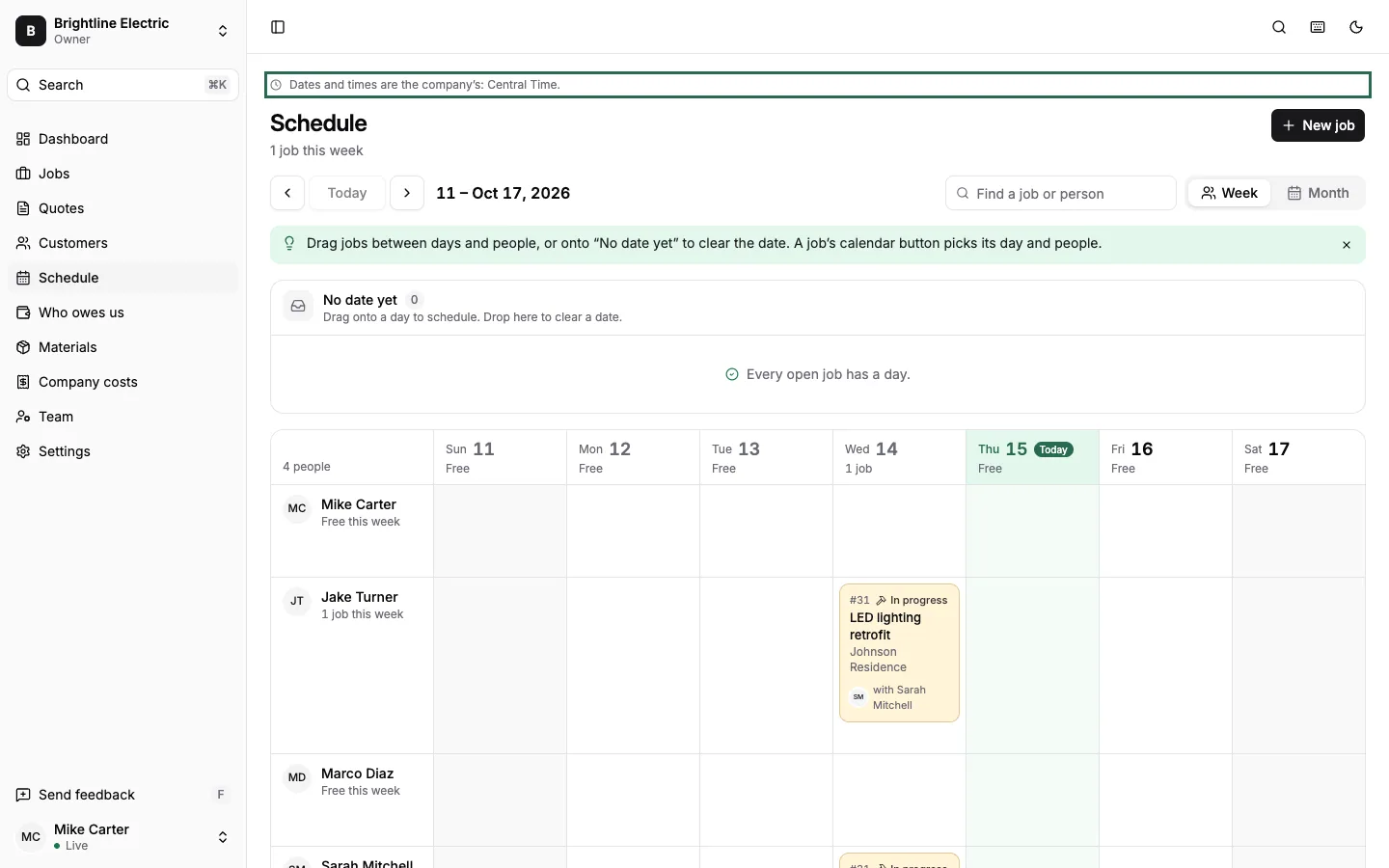
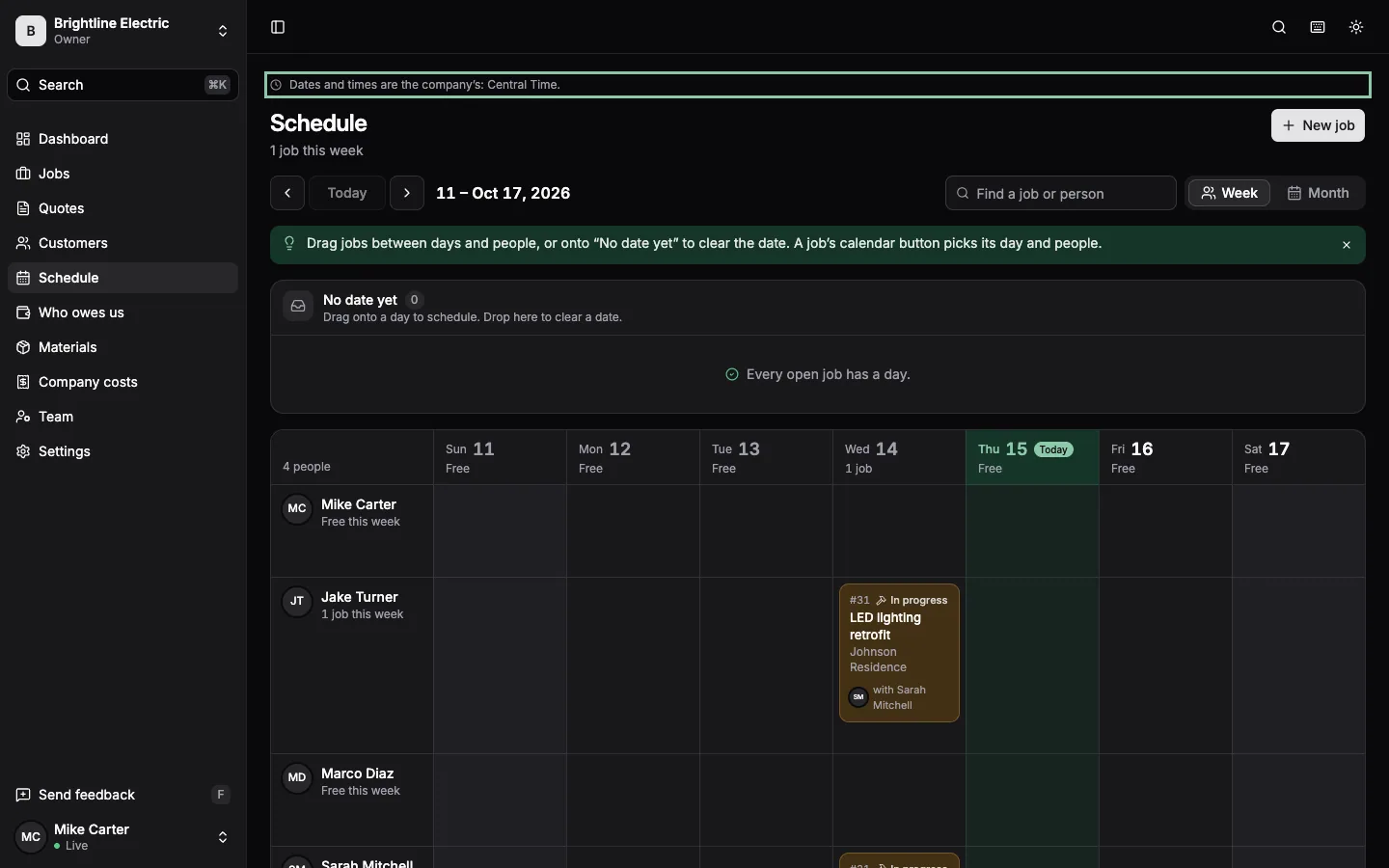
- When someone opens Skuadro on a device set to a different time zone, a line at the top says whose time they’re
looking at, such as Dates and times are the company’s: Central Time.
What follows the company’s time
Section titled “What follows the company’s time”- What day it is: new invoices are dated by it, and invoices become overdue and quotes expire at the company’s midnight.
- The schedule, “today” on the home screen and the time clock.
- Reports and exports: work finished at 11 pm on the last day of the month counts in that month.
- Automatic reminders and follow-ups go out around 9:00 company time, and visit confirmations only between 9:00 and 20:00.
- Weeks start on Sunday in the US and other countries that start the week on Sunday, and on Monday elsewhere, from the country in Settings → Invoices.
Good to know
Section titled “Good to know”- Changing the time zone keeps saved dates (invoices, the schedule, hours) as they are.
- Other people with Skuadro open in a browser switch to the new time zone straight away. The iPhone app picks it up when it’s opened again.
- A company made before there was a time zone setting asks its owner once, with Yes, use it or Choose another.