

Your jobs in your own calendar
- Who
- Owners, Office, Field workers
- Where
- Settings → My jobs in my calendar.
Each person can get a private calendar link. Add it to Google Calendar or Apple Calendar and the jobs you’re on show up there next to the rest of your life, and keep themselves up to date.
Why it’s there
Section titled “Why it’s there”Most people already live in their phone’s calendar. Seeing Thursday’s job there, with the address, means one less app to check before saying yes to something else.
Who sees it
Section titled “Who sees it”Everyone, for themselves. Owners’ calendars show every job; everyone else’s, the jobs they’re on.
How to use it
Section titled “How to use it”- Go to Settings and find My jobs in my calendar. Tap Get my calendar link.
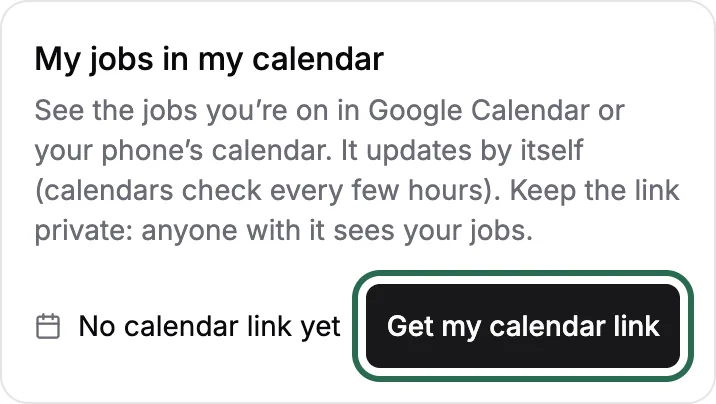
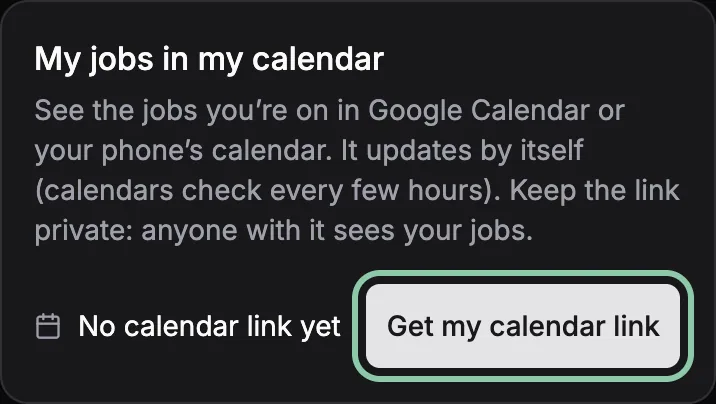
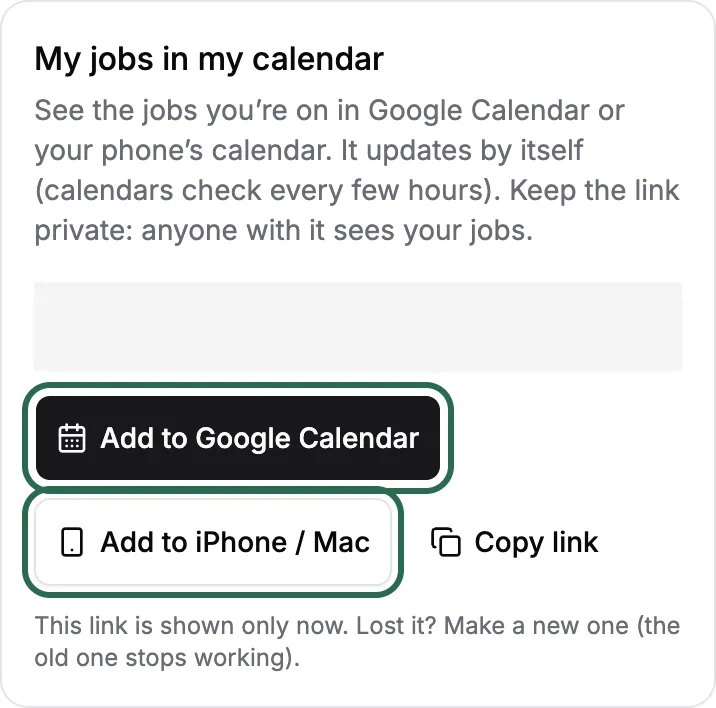
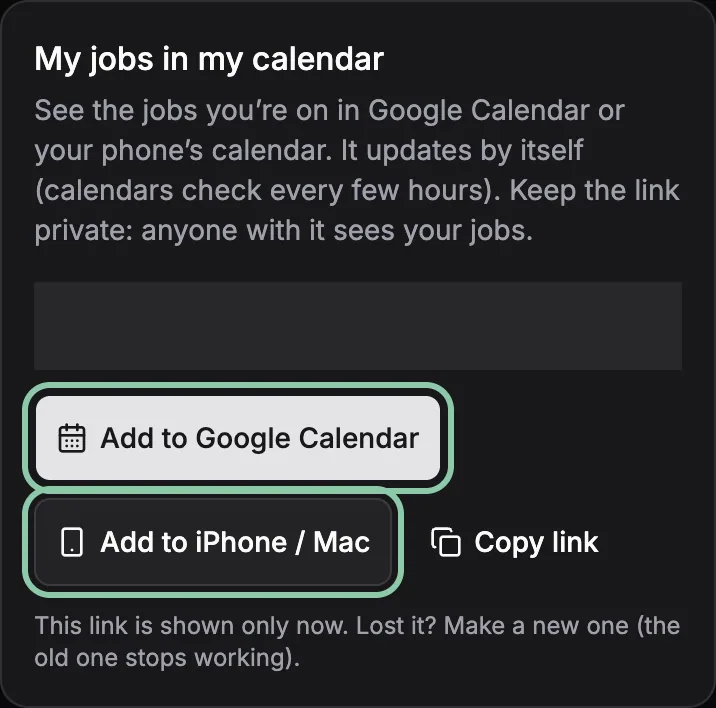
- Tap Add to Google Calendar, or Add to iPhone / Mac for Apple Calendar. Or Copy link and paste it into
another calendar app that can subscribe to a calendar by its address.
What’s in it
Section titled “What’s in it”- Jobs with a day, from 30 days ago to 180 days ahead. Cancelled jobs are left out.
- Each one as “#31 LED lighting retrofit · Johnson Residence”, with the address, the job’s details and a link to it.
- A job with an arrival time runs from that time to the end of its window (or for an hour); a job without one is an all-day event. Times are your company’s clock, so a job at 8:00 shows at 8:00 your company time, wherever your phone is.
Good to know
Section titled “Good to know”- Keep the link private: anyone who has it sees your jobs. It’s shown only once, right after you make it.
- Lost it, or shared it by mistake? Tap Make a new link: the old one stops working. Turn off stops it altogether.
- Calendar apps check for changes by themselves, every few hours. A job moved a minute ago may take a while to move there; the app is always current.
- The calendar is read-only: changes go in Skuadro, not in your calendar.